Product Analytics Overview
The Products page is a dashboard. Product metrics cards and a Total products over time chart sit in one place, and you drill into per-product performance from the Reports area under Analytics.
On this page
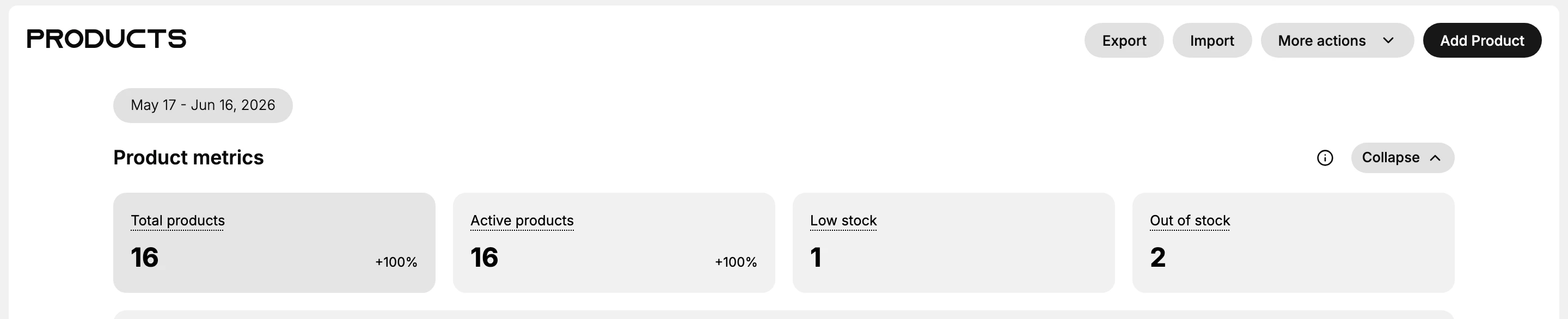
The Products page in Tanqory admin is more than a flat list. It is a dashboard: headline cards show product KPIs and a chart shows total products over time. Use it to check catalog health before you drill into the per-product reports in the Reports area under Analytics.
You'll work at /admin/store/{storeId}/products. Find this area under Products in the admin sidebar.
Sections on the page
- Products: the page header with the Add product action.
- Product metrics: four headline cards for Total products, Active products, Low stock, and Out of stock.
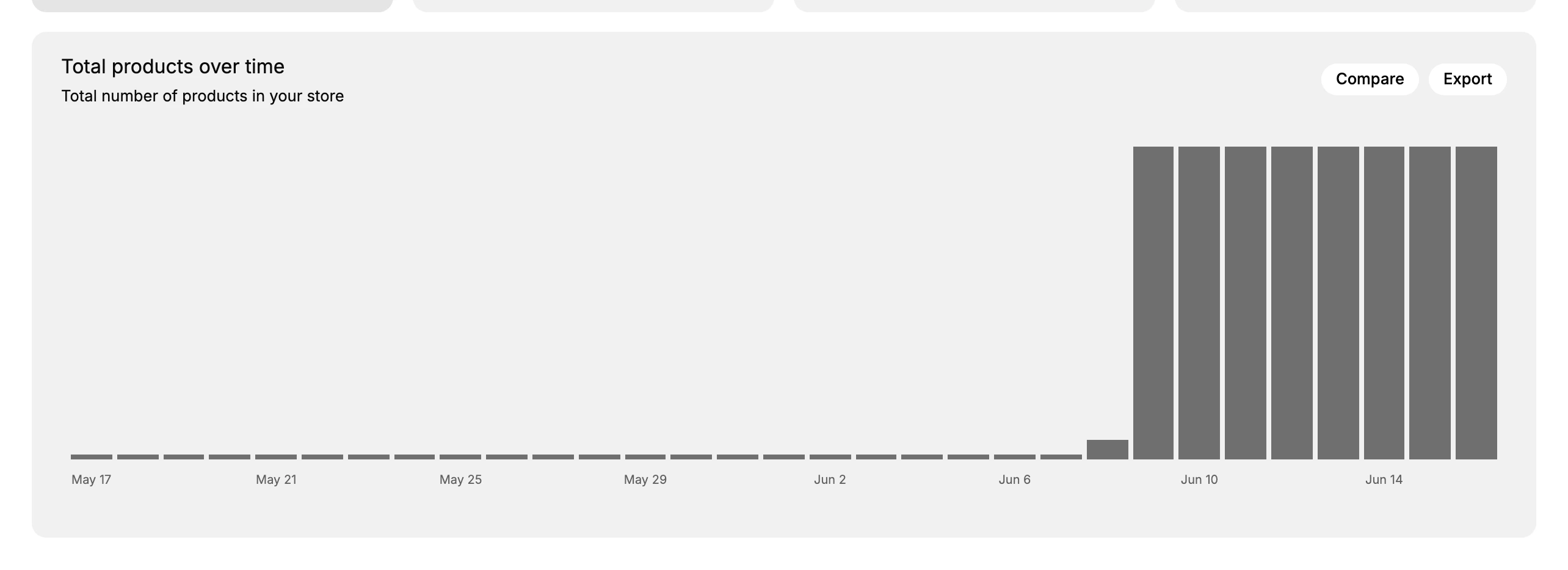
- Total products over time: a chart of catalog size across the selected date range.
A date range control at the top of the page sets the period for both the metric cards and the chart.
Before you begin
- You have at least the View products permission.
- The catalog has products. A new store shows the headline cards at zero.
- Open Products in the admin sidebar, where the metric cards sit above the list.
Steps
1. Open Products
From the admin sidebar, click Products. The page header titled Products appears, with the Add product action at the top-right.
2. Set the date range
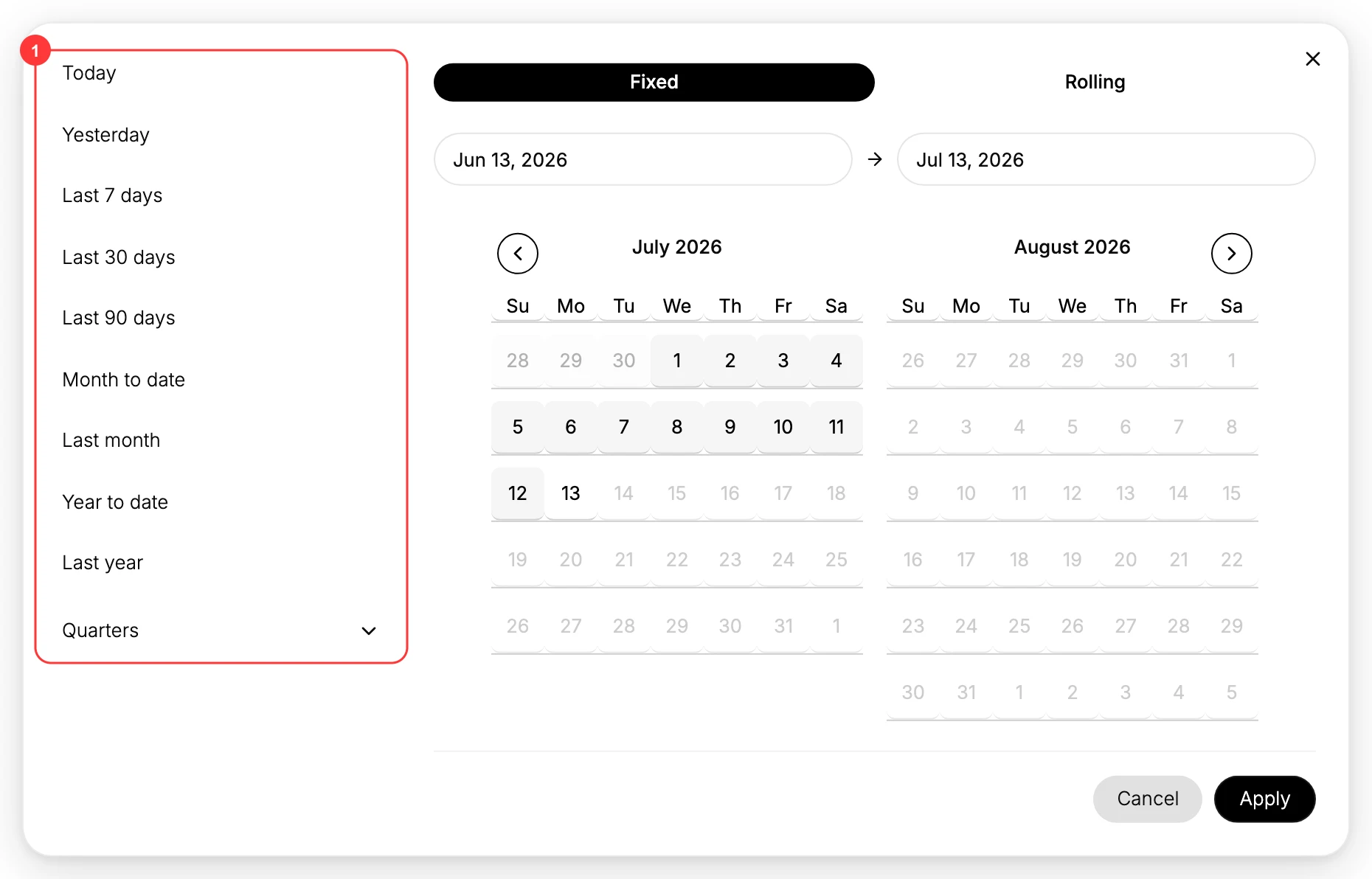
The date range control at the top of the page (for example May 17 to Jun 16, 2026) sets the period for the metric cards and the chart. Click it to pick a preset range (1) such as Today, Yesterday, Last 7 days, Last 30 days, Last 90 days, Month to date, Last month, Year to date, Last year, or Quarters. You can also set a custom start and end date on the calendar, then select Apply.
3. Read Product metrics
The four headline cards summarize the state of your catalog: Total products, Active products, Low stock, and Out of stock. Some cards also show a percent-change indicator (such as +100%) next to the value for the selected period.

4. Scan Total products over time
Use Expand on the Product metrics section to reveal the Total products over time chart. It plots how many products your store has across the selected date range, so you can see how fast the catalog is growing.
5. Filter the list to a subset
The status tabs above the list, All, Active, Draft, Low stock, Out of stock, and Archived, filter the list to each subset. This takes you from a metric straight to the products behind it.
6. Drill further into per-product reports
For richer per-product analytics such as views, add-to-cart rate, and per-product conversion, use the reports in the Reports area under Analytics:
- Top Products: best sellers by units, revenue, or margin.
- Product Performance: views, add-to-cart, and conversion per product.
Verify the result
- The metric card values match the product list count when you filter by the same status.
- The Total products over time chart renders without gaps.
- Filtering by a status tab lands on the correctly filtered product list.
Best practices
- Use the Products page for catalog hygiene. The Low stock and draft counts tell you what needs attention this week.
- Use the Analytics reports for performance. They are tuned for revenue and conversion analysis.
- Track Total products over time monthly so your new-product cadence matches your marketing plans.
- Bookmark filtered URLs such as
/products?status=draftto save clicks.
Common mistakes
- Treating the Products page as a replacement for the Analytics reports. They use different denominators and answer different questions.
- Ignoring the Low stock card. It is an immediate operations signal.
- Reading the aggregate without segmenting by collection when the catalog spans many categories.
If something goes wrong
- Cards stuck at zero. The catalog may be empty, or refresh the page to clear a stale view.
- Chart is blank. A new store has no historical data points yet.
- Permission denied. Your role lacks the View products permission.
Next steps
Related articles
Still stuck?
- Ask Tanqory AIAsk in your own words. It answers from these articles and links the ones it used.
- Ask in your adminThe assistant in your Tanqory admin answers and makes the change for you once you confirm.
- Contact TanqoryWrite to our privacy, security or legal teams, or talk to sales about a plan or a move.