Product Detail Page
A map of the product editor - what each section is for and where to find its detailed guide. The editor has a main column of content sections and a right rail for status, publishing, and organization.
On this page
The product detail page is the single-product editor - the same form whether you create a product or open an existing one to edit. Its fields are grouped into sections: a main column for the product's content, and a right rail for status, publishing, and organization. This page is a map of those sections; each one links to its detailed guide.
For the full flow, Add a Product walks through creating one step by step, and Create a Product (Detailed Walkthrough) gives the field-by-field detail.
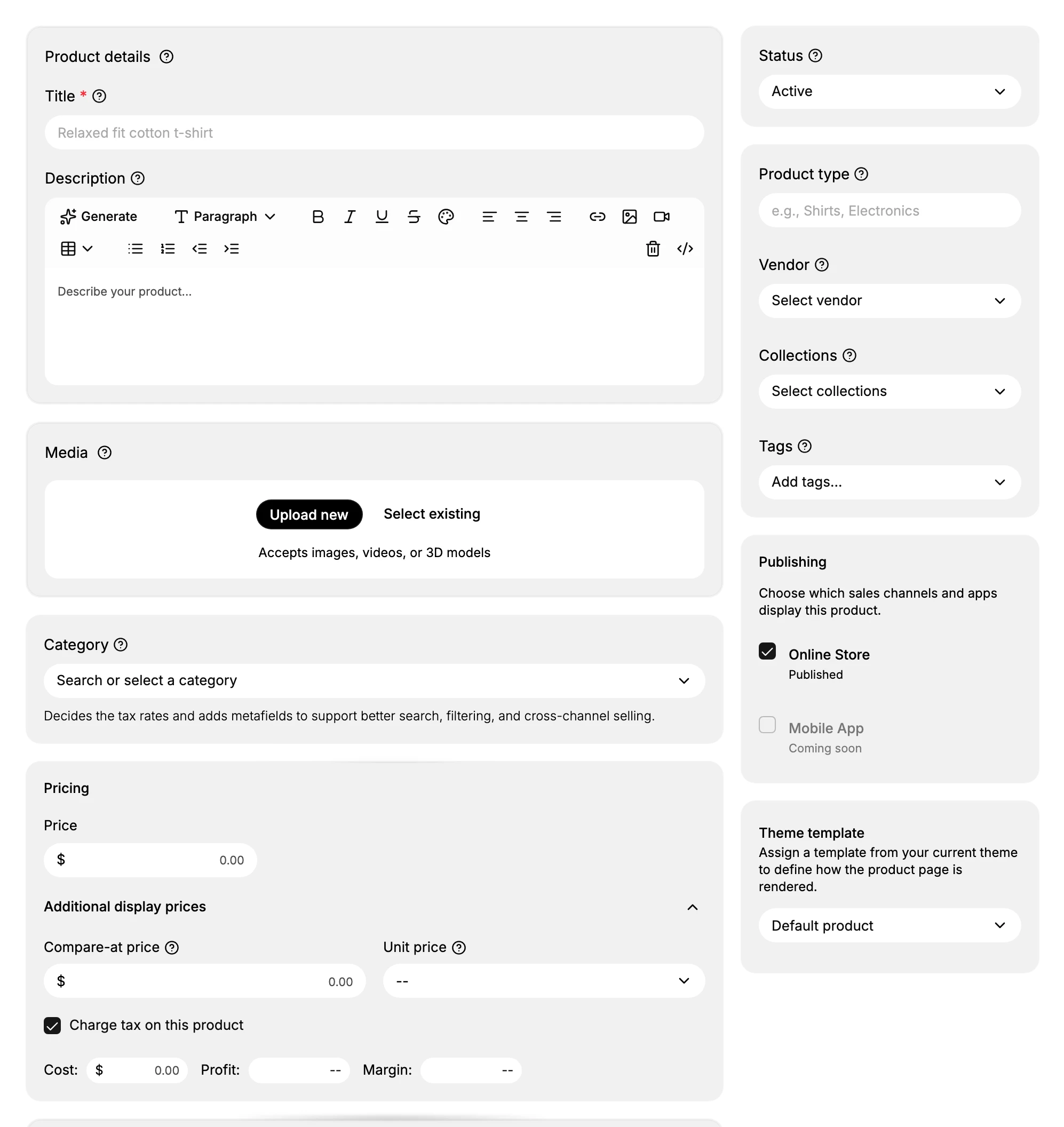
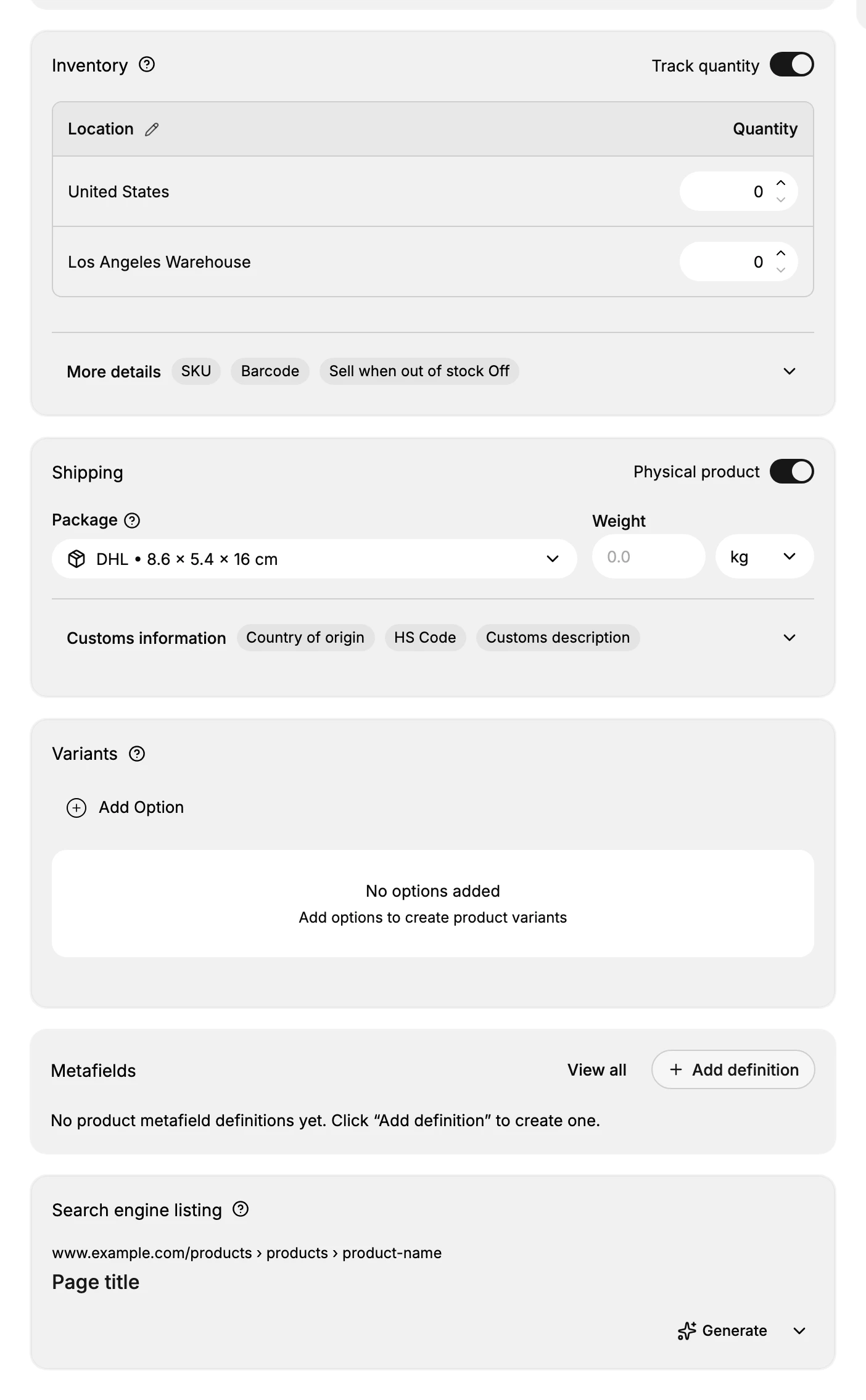
The sections
The main column holds the product's content, top to bottom; the right rail holds how the product is published and organized.
| Section | What it is for | Learn more |
|---|---|---|
| Title & Description | The product name and the rich-text body shown on its page | - |
| Media | Images, video, and 3D models of the product | Managing Product Images |
| Category | A standard category that sets tax rates and adds category fields | - |
| Pricing | Price, compare-at price, cost, and tax | Setting Product Prices |
| Inventory | Stock tracked per location, with SKU and barcode | - |
| Shipping | Weight, package, and customs for physical products | - |
| Variants | Options such as size or color, each with its own price and stock | Product Variants |
| Metafields | Custom fields beyond the standard ones | Metafields |
| Search engine listing | The title, description, and URL shown in search results | Product SEO (Search Engine Listing) |
| Status | Active, Draft, or Unlisted - who can see the product | Manage Product Status |
| Publishing | Which sales channels and apps carry the product | - |
| Organization | Product type, vendor, collections, and tags | Collections |
| Theme template | Which storefront layout renders the product page | - |
Sections without a link above are covered field by field in the detailed walkthrough linked at the top of this page, and every field is listed in Product Field Reference.
Finding the product ID
Some integrations and support requests need a product's ID. To find it:
- Open the product from the Products list.
- Look at the URL in your browser's address bar:
/admin/store/{storeId}/products/{productId}. - The productId is the long identifier after
/products/.
Saving
The editor shows a You have unsaved changes bar at the top as soon as you edit a field. Select Save there to commit your changes.
Next steps
Related articles
Still stuck?
- Ask Tanqory AIAsk in your own words. It answers from these articles and links the ones it used.
- Ask in your adminThe assistant in your Tanqory admin answers and makes the change for you once you confirm.
- Contact TanqoryWrite to our privacy, security or legal teams, or talk to sales about a plan or a move.