Create a Product (Detailed Walkthrough)
The product creation form is where you define everything about a product before it goes live - its name, images, price, stock, variants, and sales channels. This is a field-by-field guide to each section, which fields are required, and the choices that are hard to change later.
On this page
The product creation form is the single page where you define everything about a product before it goes live: its name and description, the images customers see, its price, how its stock is tracked, any size or color variants, and which channels sell it. You work through the form in sections from top to bottom, and each field shapes how the product looks and behaves on your storefront, so setting them correctly here is what saves you editing the product later.
This article is the detailed, field-by-field companion to Add a Product. Use the quick walkthrough when you just want a product live fast, and use this one when you need exact guidance for a particular field, including which fields are required and the choices that are hard to change afterwards.
Form sections, top to bottom
| Section | Required? | Purpose |
|---|---|---|
| Title | Yes | Customer-visible name |
| Description | Recommended | Rich text and media |
| Media | Recommended | Images, video, 3D |
| Category | Recommended | Standardized product category |
| Pricing | Yes (for buyable) | Price, compare-at, and cost |
| Inventory | Recommended | Track quantity, SKU, and barcode |
| Shipping | If physical | Package, weight, and customs |
| Variants | Optional | Size and color combinations |
| Metafields | Optional | Custom fields beyond the standard ones |
| Search engine listing | Recommended | Page title, meta, and URL handle |
| Status | Yes | Active, Draft, or Unlisted |
| Publishing | Yes | Which sales channels (Online Store, Mobile App) |
| Organization | Optional | Product type, vendor, collections, and tags |
| Theme template | Optional | Which storefront layout renders the product page |
Before you begin
- You have the Create products permission.
- You have the product's details ready: title, description, images, SKU, price, and weight.
- Open Products in the admin sidebar, then select Add Product to open the form.
Steps
1. Open Products and click Add product
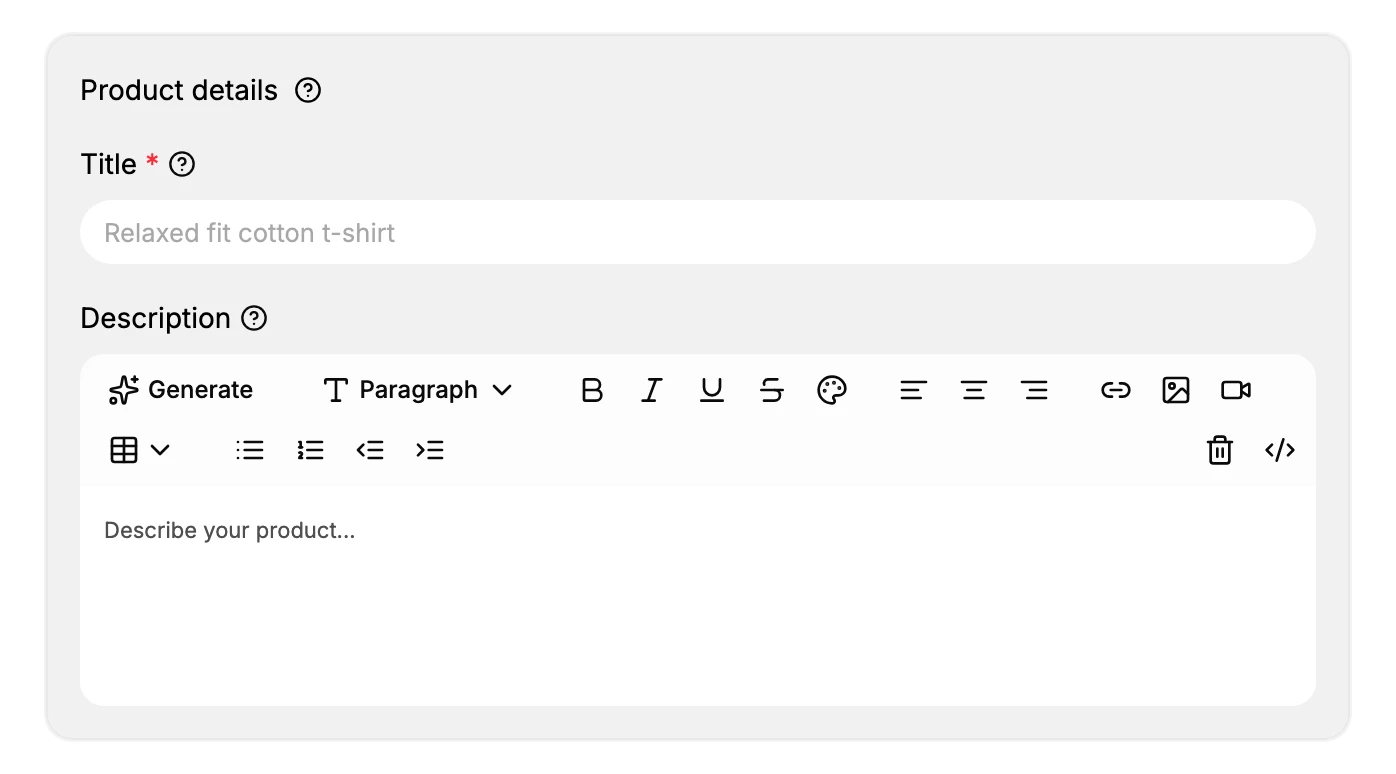
Go to Products in the admin sidebar, then click Add Product in the page header. The editor opens on the Product details section, where the Title field is required (marked with an asterisk) and the Description editor sits directly below it.
2. Enter the Title and Description
Keep the Title to about 60 characters or fewer when search ranking matters, and lead with the brand and the main noun, for example "Classic Cotton Tee - Heather Gray". Avoid writing the whole title in capitals.
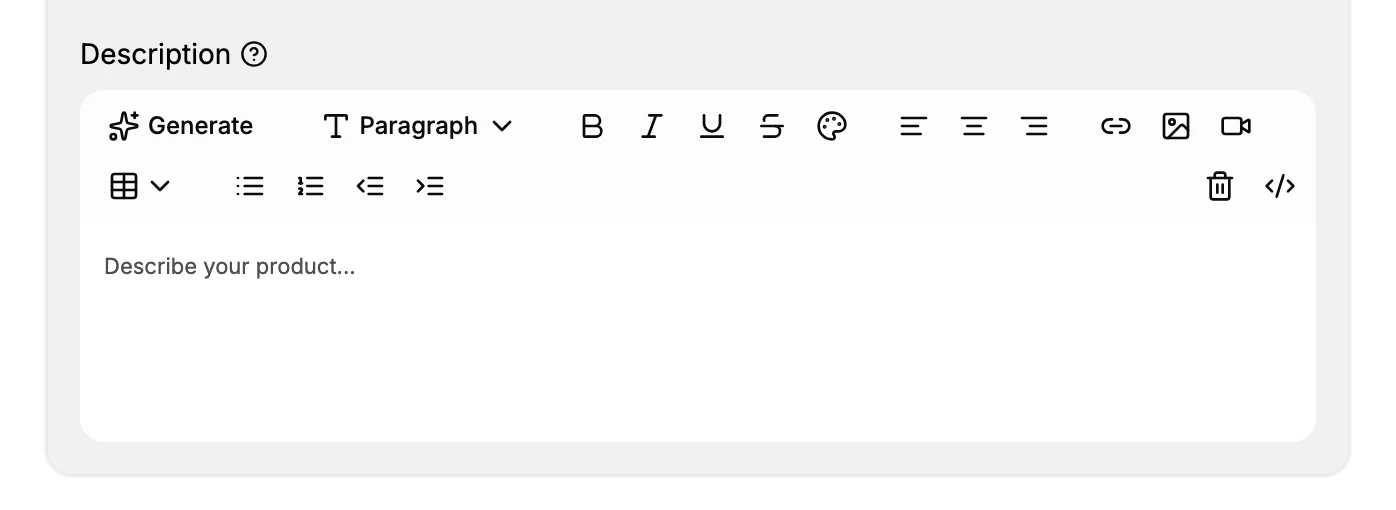
In the Description, the first 160 characters carry the most weight, so put the key details there. Short bullet points read more easily than long paragraphs, and using the words customers actually search for helps the product appear in search results. The Generate button drafts a description with AI that you can then edit.
3. Upload the Media
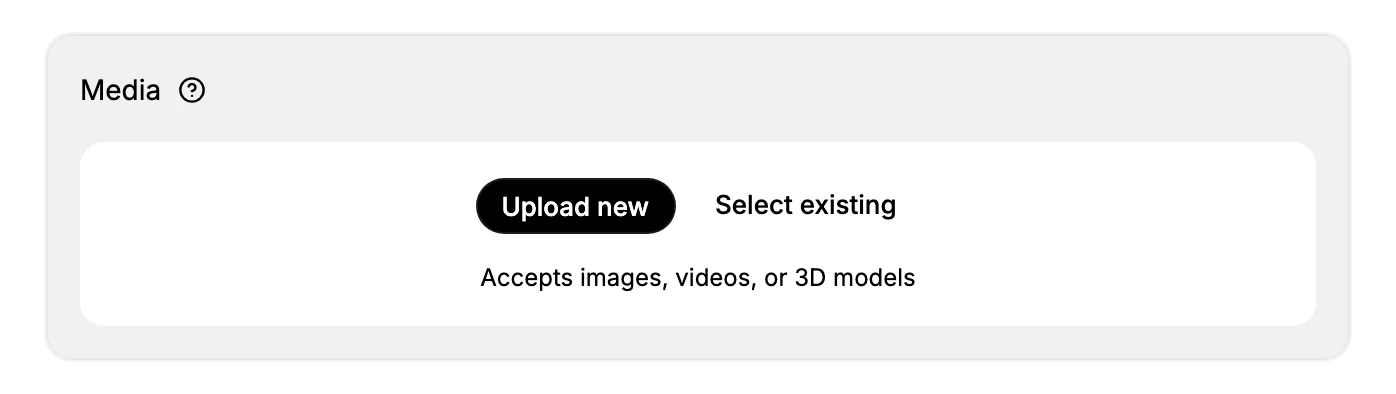
Use high-resolution images so the product page stays sharp when shoppers zoom in. The first image becomes the featured thumbnail, so lead with your strongest shot, then add a few more that show different angles and a close-up detail. Video and 3D models are worth adding for higher-value or more complex items.
4. Set the Pricing
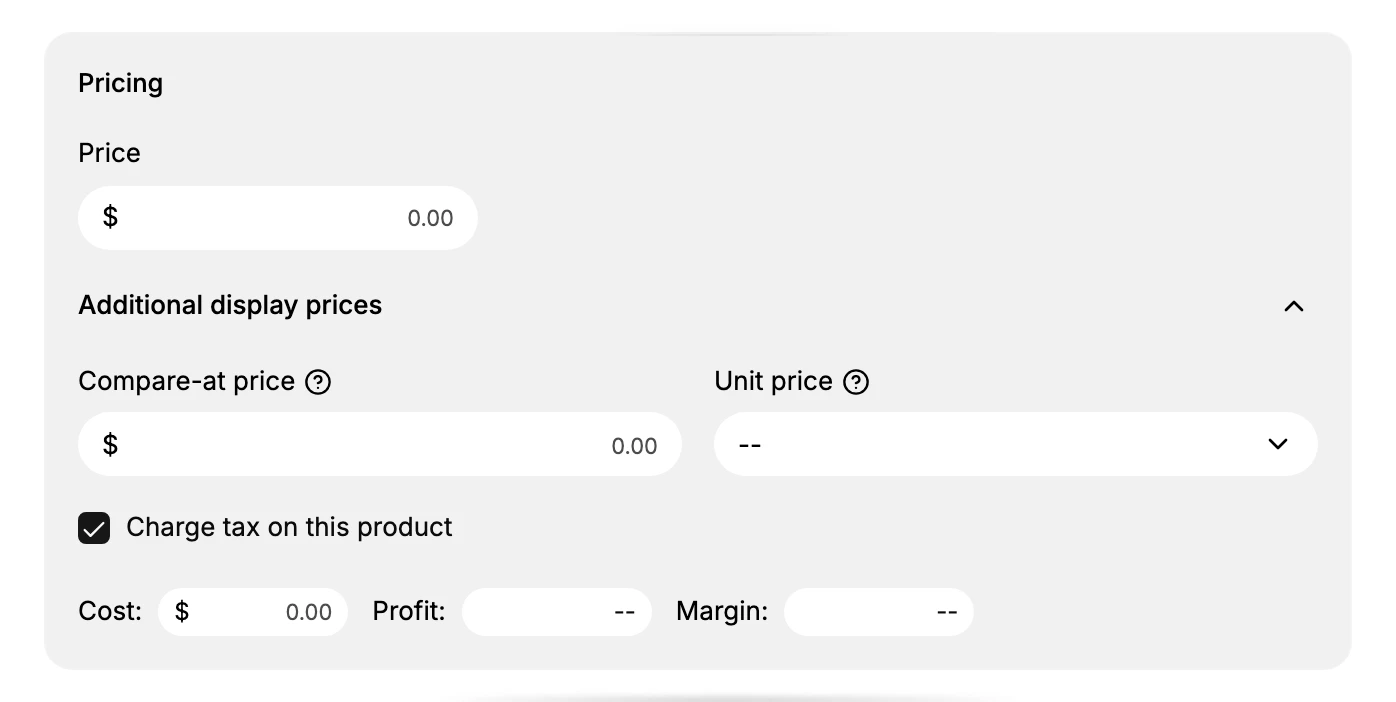
The Price is what the customer pays. Expand Additional display prices to set a Compare-at price, which shows as a strikethrough on the storefront, and the Cost, which is what the item costs you and fills in the Profit and Margin figures beside it. The Cost is never shown to customers.
5. Configure the Inventory
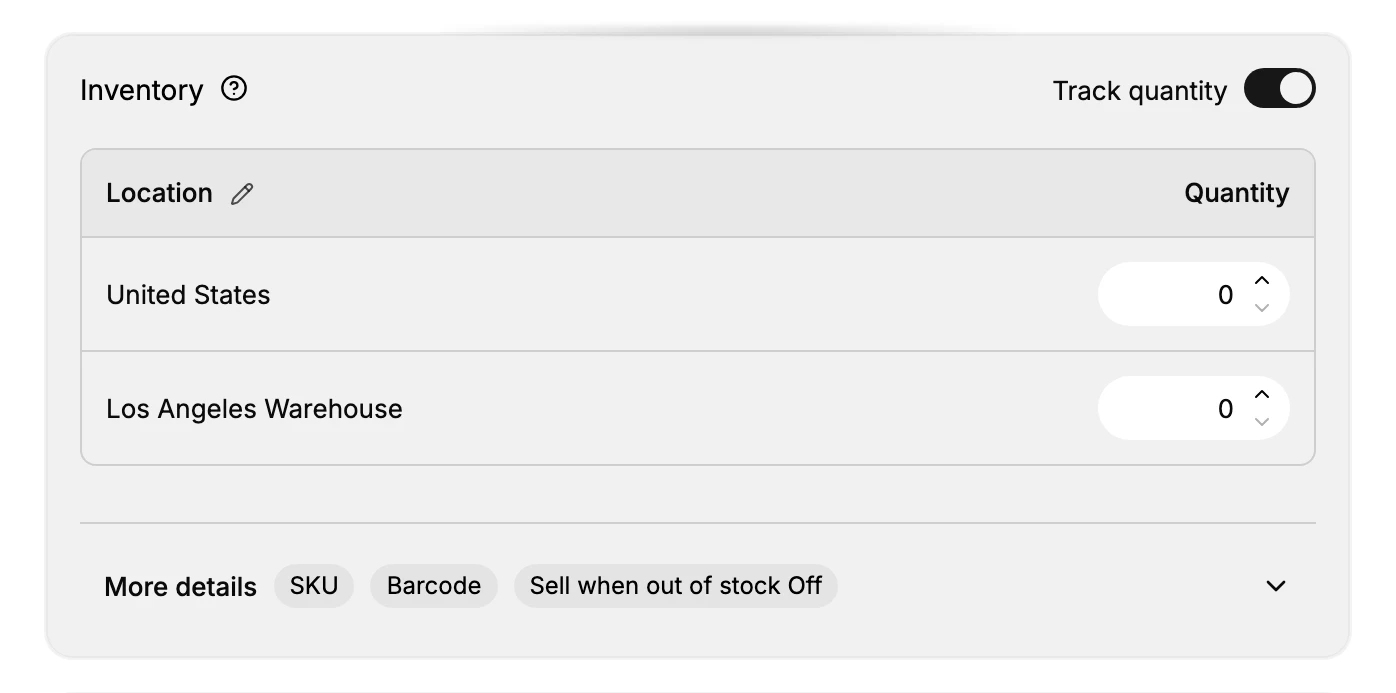
Turn on Track quantity for items with finite stock, and a per-location quantity table appears. Open More details to set the SKU (your internal stock-keeping code), an optional Barcode (UPC, EAN, or GTIN), and Sell when out of stock, which stays off unless you accept backorders.
6. Configure the Shipping (if physical)
If the product ships physically, set the weight and, for international orders, the customs details. The Shipping section covers Physical product, Package, Weight (kg, g, lb, or oz), and Customs information (the country of origin and the HS code, the product's customs tariff number). Product Detail Page documents the full section.
7. Add Variants (if applicable)
If the product comes in size, color, or material combinations, use Add Option to define the options and their values. Tanqory then generates one variant for every combination. The full flow is covered in Product Variants.
8. Set the Status and Publishing
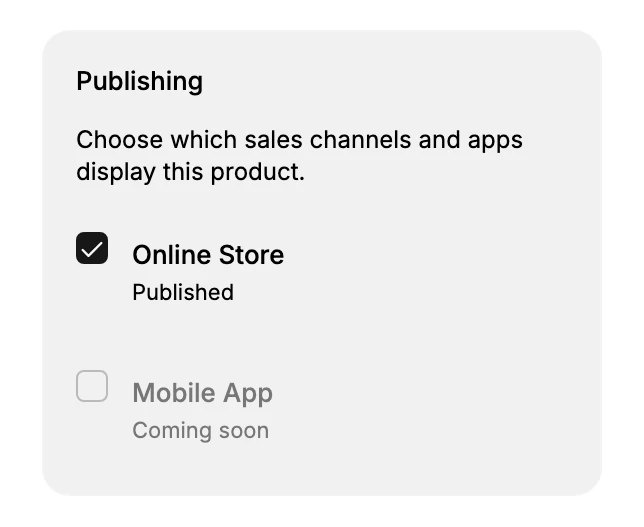
Set Status to Active when the product is ready, or leave it on Draft while you are still working. Under Publishing, choose which sales channels carry the product.
9. Add Organization and SEO
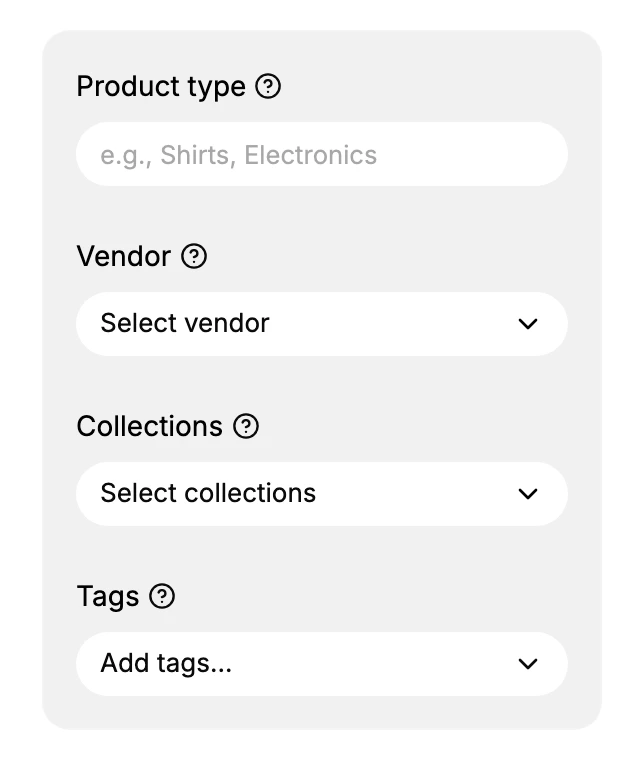
In the right rail, set the Product type and Vendor, then add the product to Collections and apply Tags so it is easy to find. The Theme template for the product page sits in the same column. In the Search engine listing section, fill in the page title, description, and URL.
10. Save
Click Save in the You have unsaved changes bar at the top of the editor.
Verify the result
- The product appears in the catalog.
- All required fields are saved.
- The product page renders on the storefront.
- Media displays at the expected resolution.
- Pricing shows correctly, including the compare-at price.
Best practices
- Lead with the benefits in the description.
- Use high-resolution media.
- Follow a consistent SKU naming convention.
- Check the variant grid before you save.
- Save as Draft first, then publish when the product is ready.
- Fill in the SEO fields even for products that only appear in collections.
Common mistakes
- Leaving the description empty, which hurts click-through and search ranking.
- Uploading low-resolution images that make the product look cheap.
- Saving with the wrong status, for example Draft when you meant Active.
- Skipping the SEO fields, so the store falls back to a generic title.
- Mapping the wrong SKU or barcode to a variant.
If something goes wrong
- Save fails. A required field is empty; check the banner at the top of the editor.
- Variants do not render. The variant matrix is incomplete; reopen Variants and confirm the values.
- Permission denied. Your role lacks the Create products permission.
Next steps
- Add a Product for the quick overview.
- Product Status Lifecycle
- SEO for Products
Related articles
Still stuck?
- Ask Tanqory AIAsk in your own words. It answers from these articles and links the ones it used.
- Ask in your adminThe assistant in your Tanqory admin answers and makes the change for you once you confirm.
- Contact TanqoryWrite to our privacy, security or legal teams, or talk to sales about a plan or a move.