Bulk Edit Products
Change many products at once from the Products page: edit fields in the Bulk edit grid, set status in one click, or use More actions for tags, collections, channels, catalogs, archive, and delete.
On this page
Bulk Edit Products lets you change the same fields across many products in one go, instead of opening each product on its own. Use it for seasonal price changes, publishing or unpublishing in batches, updating cost for margin reports, or moving products to a different vendor.
Select the products on the Products page, then act on them in one of three ways from the bulk toolbar: one-click status actions, the Bulk edit grid for editing fields inline, or the More actions menu for archiving, deleting, channels, catalogs, tags, and collections. You work at /admin/store/{storeId}/products.
What you can change in bulk
Edit fields in the Bulk edit grid (type or pick a value per product). Use the Columns button in the grid to show only the fields you need.
| Field | Common use |
|---|---|
| Status | Publish (Active) or unpublish (Draft) |
| Category | Reclassify products |
| Vendor | Move products to a different vendor |
| Price | Seasonal price changes; sale on or off |
| Compare-at price | Show or clear a strike-through reference price |
| Cost per item | Update unit cost for margin reporting |
| SKU | Set or correct stock-keeping codes |
| Barcode | Set or correct barcodes (UPC, EAN, and similar) |
One-click from the toolbar: Set as active to publish, or Set as draft to unpublish.
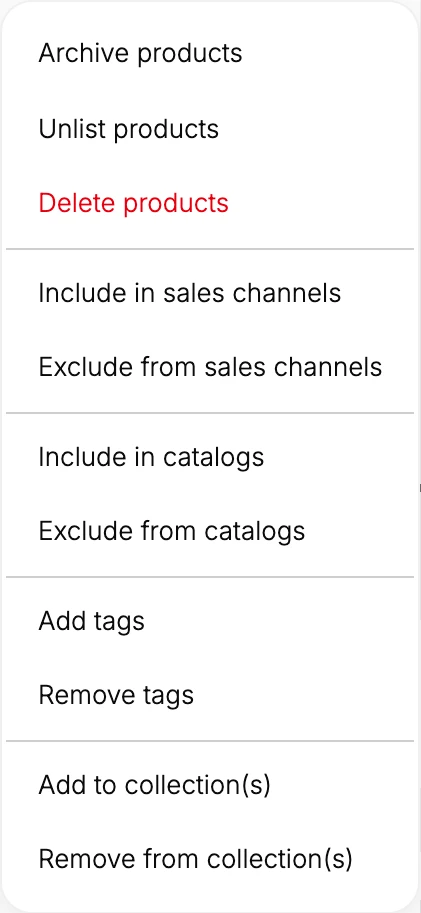
From the More actions menu:
| Action | What it does |
|---|---|
| Archive products | Move products out of the active list into Archived |
| Unlist products | Take products off the storefront without deleting them |
| Delete products | Permanently remove the selected products |
| Include in or Exclude from sales channels | Add or remove the products from your sales channels |
| Include in or Exclude from catalogs | Add or remove the products from your catalogs |
| Add tags or Remove tags | Apply or strip tags across the selection |
| Add to or Remove from collection(s) | Move products into or out of collections |
Before you begin
- You have the Edit products permission.
- You know which products you want to change. Filter or search first to narrow the list.
- For high-stakes edits such as price, export a CSV first so you have a snapshot to restore from.
- Open Products in the admin sidebar, then select the products you want to change.
Steps
1. Open Products and select the items you want
Go to Products, filter or search to narrow the list, then click each row's checkbox (or the header checkbox to select every visible row). A bulk toolbar (2) appears showing how many products are selected, with Bulk edit, Set as active, Set as draft, and More actions.

2. Change status in one click (optional)
To publish or unpublish without opening the grid, use Set as active or Set as draft in the Step 1 bulk toolbar (2). They apply to every selected product right away.
3. Edit fields in the Bulk edit grid
Click Bulk edit in the Step 1 bulk toolbar (2). A grid titled Editing N products opens with one row per selected product. Edit a value directly in any cell (1): pick from the dropdown for Status, Category, and Vendor, or type into Price, Compare-at price, Cost per item, SKU, and Barcode. Each row is its own product, so they can take different values. Use Columns to show only the fields you are changing, then Save to apply, both badged (2) in the grid below. Back leaves without saving.

4. Use More actions for everything else
Click More actions in the Step 1 bulk toolbar (2), for the operations that aren't in the grid: archive, unlist, or delete products; include or exclude them from sales channels and catalogs; add or remove tags; and add to or remove from collections. Delete products is permanent.
5. Spot-check a few products
Open two or three of the products you edited and confirm the new values are there.
Verify the result
- All selected products show the new values.
- Products you did not select are unchanged.
- The values you see when you reopen a product match what you set in the grid.
Best practices
- Filter first, then select. Narrowing the list before you select all reduces the chance of picking the wrong products.
- Snapshot via CSV export before a high-stakes price change.
- Use Columns to show only the fields you are changing, so you don't overwrite a field by accident.
- Test on a small subset before you apply to a large set.
Common mistakes
- Wrong filter that includes products you did not mean to change.
- No snapshot before a high-stakes price change, which makes it hard to undo.
- Leaving with Back instead of Save, so the edits are not applied.
- Editing the wrong cell when many columns are shown. Trim the view with Columns first.
- Skipping the spot-check, so an unexpected result goes unnoticed.
If something goes wrong
- Wrong products updated: restore from your CSV snapshot using Import Products via CSV.
- Changes did not stick: make sure you clicked Save, not Back.
- A field you want is not in the grid: click Columns to add it. The grid covers Status, Category, Vendor, Price, Compare-at price, Cost per item, SKU, and Barcode.
- Looking for Tags or Collections: those are not in the grid. Use More actions for Add or Remove tags and Add to or Remove from collection(s).
- Permission denied: your role does not have Edit products.
Next steps
Related articles
Still stuck?
- Ask Tanqory AIAsk in your own words. It answers from these articles and links the ones it used.
- Ask in your adminThe assistant in your Tanqory admin answers and makes the change for you once you confirm.
- Contact TanqoryWrite to our privacy, security or legal teams, or talk to sales about a plan or a move.