Collections
Group products into collections customers can browse together - by category, theme, sale, or season. Choose Manual or Smart, then link the collection in your storefront navigation.
On this page
A collection is a group of products customers browse together on the storefront. You use collections for navigation menus, sale categories, themed campaigns, and SEO landing pages. They are central to how a store tells customers what to look at.
Before you begin
- You have the Manage collections permission.
- You have products created to add or to match conditions against.
- Open Products > Collections in the admin sidebar.
Collection types
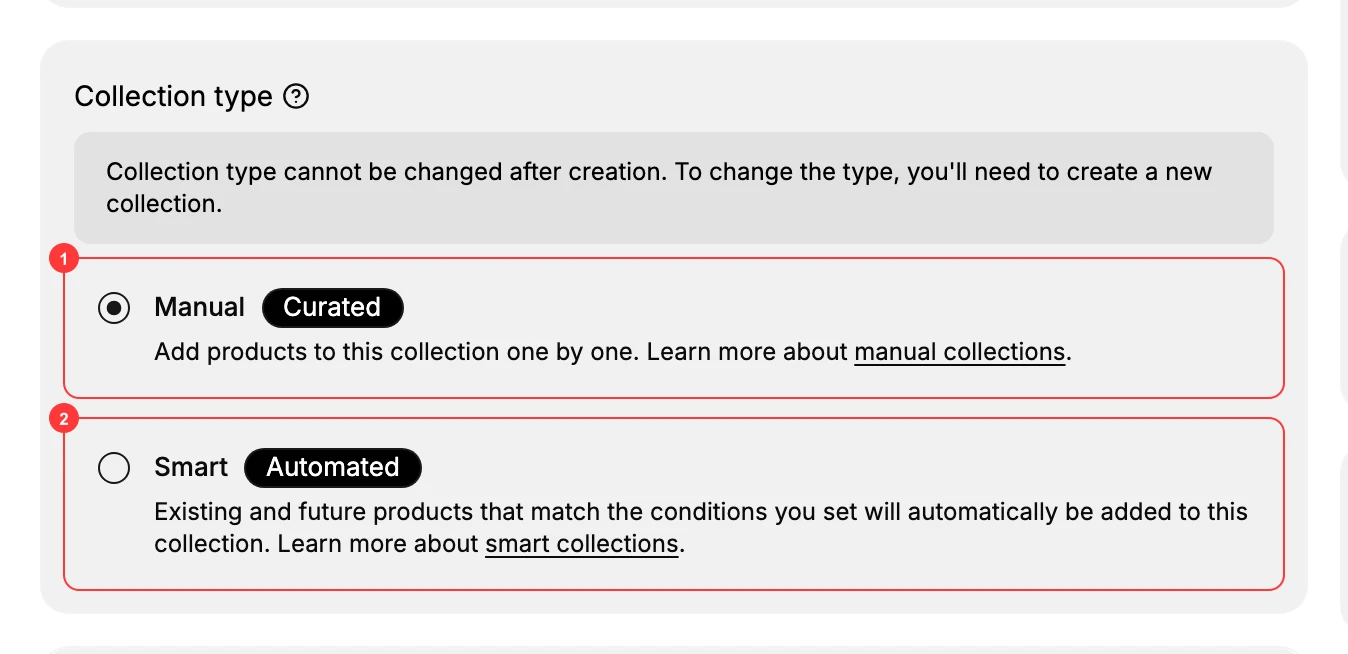
You pick the type when you create the collection, and it cannot be changed afterward. To switch later you create a new collection.
| Type | How products are added | Best for |
|---|---|---|
| Manual (Curated) | You add products one by one. | Curated sets - a capsule, a featured bundle, a flash sale of specific items. |
| Smart (Automated) | Existing and future products matching the conditions you set are added automatically. | Rule-driven sets that keep themselves up to date as matching products are added. |
Manual Collections and Smart Collections cover the specifics of each.
What a collection has
| Field | Purpose |
|---|---|
| Title | Customer-visible name and the storefront page title |
| Description | Shows at the top of the collection's landing page |
| Media | Image or video your theme uses to represent the collection |
| Products | Membership - hand-picked (Manual) or rule-matched (Smart) |
| Sort order | The order products display in |
| Publishing | Which sales channels show the collection |
| Theme template | Which storefront layout the page uses |
| Search engine listing | Page metadata for search results |
Steps
1. Open Products then Collections
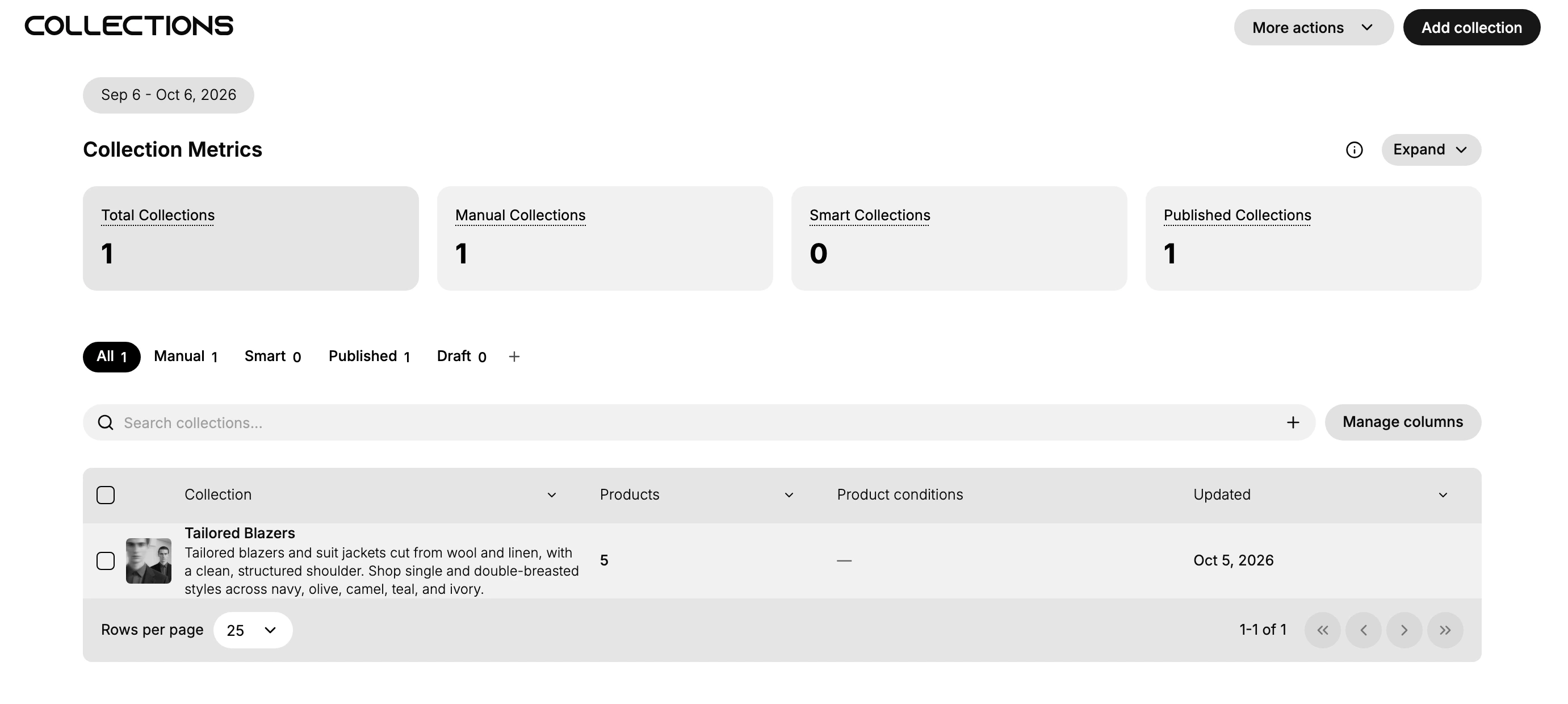
In the admin sidebar, open Products, then Collections. The page lists each collection with its product count, any product conditions, and its last-updated date, with tabs to filter by All, Manual, Smart, Published, or Draft. A row of collection metrics sits above the list, and Add collection starts a new one. On a store with no collections yet, the page instead shows a No collections yet prompt with a Create Collection button and a short note on how manual and smart collections differ.
2. Choose the collection type
Click Create Collection, then pick Manual or Smart. Manual lets you add products one by one; Smart adds products automatically from the conditions you set. Remember the type is permanent.
3. Fill in the details and save
Enter the Collection name and Description, add Collection media, then add products (Manual) or set conditions (Smart). Set Publishing, the Theme template, and the Search engine listing, then click Save. The full walkthrough is in Create a Collection.
4. Link the collection in your storefront navigation
A collection is hard to find until you add it to a menu. Add a link to the collection in your store's navigation so customers can reach it, which Online Store Navigation walks through.
Verify the result
- The collection appears in the Collections list under Products.
- A Manual collection shows the products you added; a Smart collection shows everything matching its conditions.
- The collection's storefront page renders at
/collections/{handle}. - The collection is reachable from the menu you linked it in.
Best practices
- Use Smart for rule-based sets so new matching products join automatically.
- Use Manual for curation where you want exact control over what's in and the order.
- Add a clear media image that your theme can use to represent the collection.
- Sort deliberately so your strongest products show first; Sort a Collection covers the options.
Common mistakes
- Picking the wrong type - it can't be changed, so a wrong choice means recreating the collection.
- A Smart collection with no or too-broad conditions - it ends up empty or includes everything.
- No media image - the collection shows without a picture wherever your theme displays it.
- Forgetting to link it in a menu - the collection exists but customers can't find it.
If something goes wrong
- Collection is empty - a Smart collection's conditions match no products; loosen them.
- Not visible on the storefront - the collection isn't published to the online store channel.
- Permission denied - your role lacks the Manage collections permission.
Next steps
Related articles
Still stuck?
- Ask Tanqory AIAsk in your own words. It answers from these articles and links the ones it used.
- Ask in your adminThe assistant in your Tanqory admin answers and makes the change for you once you confirm.
- Contact TanqoryWrite to our privacy, security or legal teams, or talk to sales about a plan or a move.