Add a Collection Image
Give a collection a featured image through the Collection media section of the collection form - your storefront theme then uses it to represent the collection.
On this page
A collection's image is set in the Collection media section of the collection form. Once saved, your storefront theme uses it to represent the collection - exactly where and how depends on the theme. A clear, on-brand image makes the collection easy to recognize wherever it appears.
Before you begin
- You have the Manage collections permission.
- You have the image file ready on your device.
- Open Products and open Collections, then open the collection you want to edit.
Where the collection image appears
The collection image is the collection's representative picture. Where and how it's displayed is entirely up to your storefront theme - a theme may use it on the collection's landing page, in a navigation card, or not at all. Check your theme's documentation for the exact spots and crop ratios it uses, and keep the important part of the picture near the center so different crops don't cut it off.
Image guidelines
These are general guidelines for a sharp, fast-loading image - Tanqory doesn't enforce a fixed size:
| Aspect | Guidance |
|---|---|
| Resolution | High-resolution (the theme may scale it up) |
| Format | WebP or JPEG |
| Composition | Keep the subject roughly centered so theme crops don't cut it off |
| Text in image | Avoid baked-in text - themes often add their own overlay |
| File size | Compress before uploading so pages stay fast |
| Mood | Consistent palette across all your collection images |
Steps
1. Open the collection
From Products > Collections, click the collection you want to edit, or start one with Create a Collection. The collection form opens.
2. Find the Collection media section
In the right-hand column of the form, the Collection media section holds the collection's image. When empty it shows an Upload media tile, labeled Image or video.
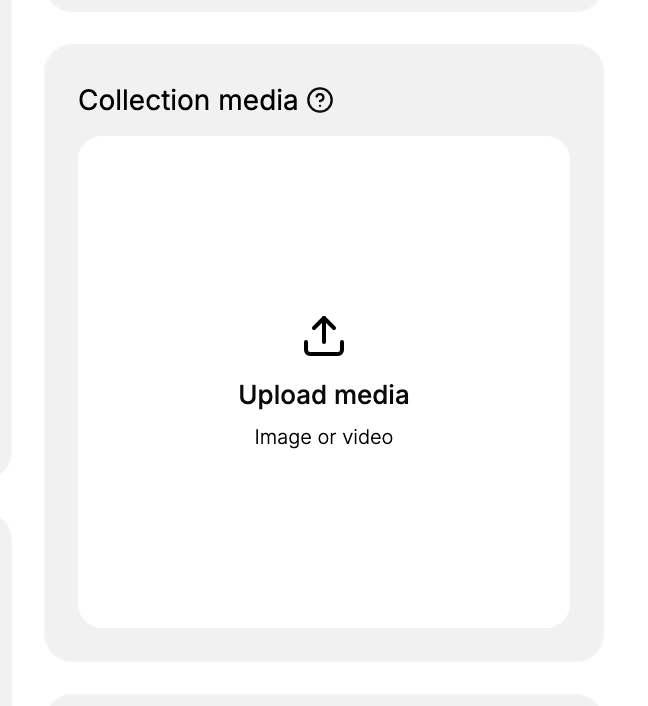
3. Choose or upload an image
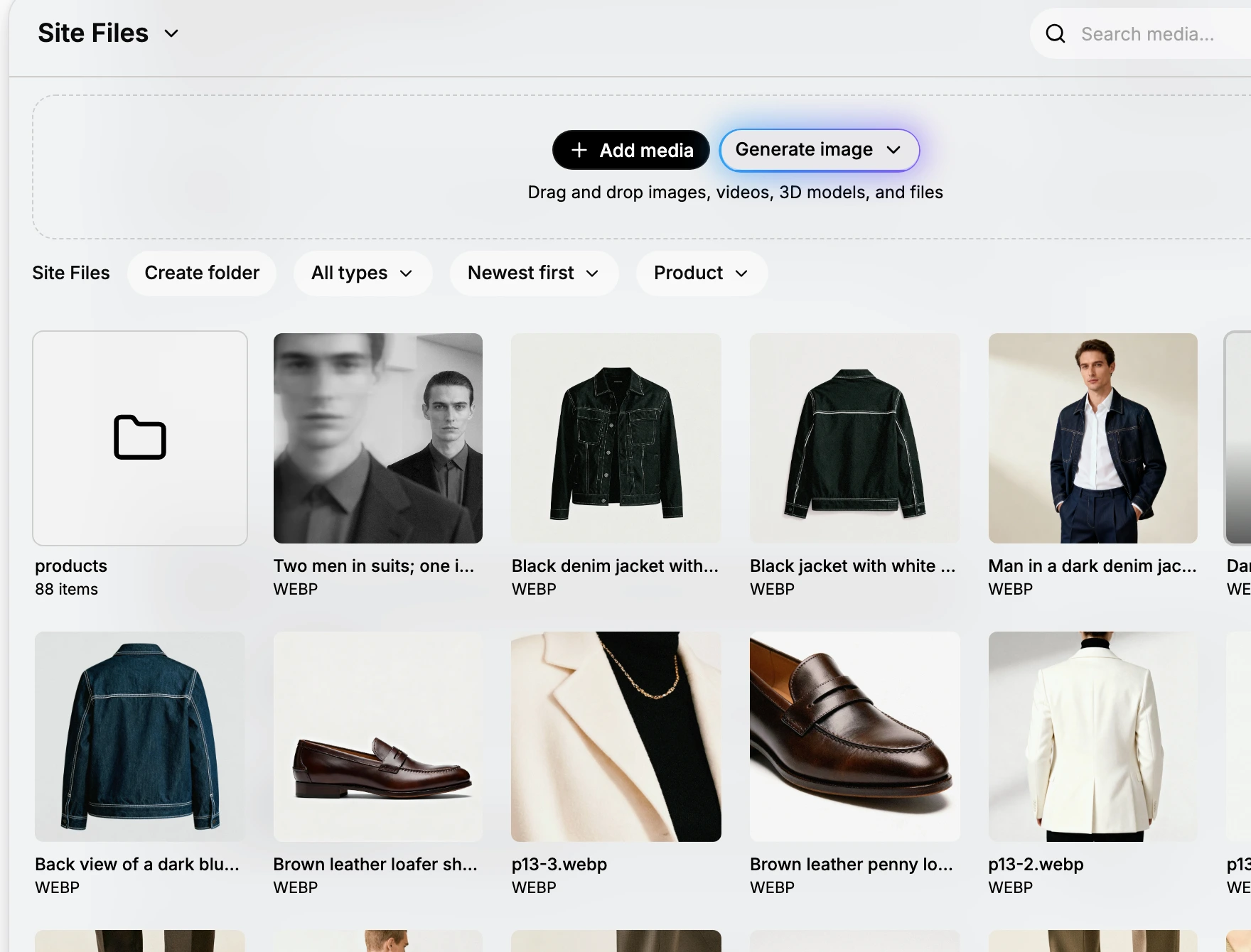
Click the Upload media tile. The Site Files media picker opens, showing your store's own media library in a grid. There are three ways to set the image:
- Pick from the library. Choose an image already in Site Files, such as a product photo. The location menu at the top left also switches to My Boards and Trash.
- Add media. Upload a new image or video from your device. It is added to Site Files for you to select.
- Generate image. Create a new image with AI instead of uploading one.
Choose the image you want, then click Select to attach it to the collection. It is not stored until you Save in the next step.
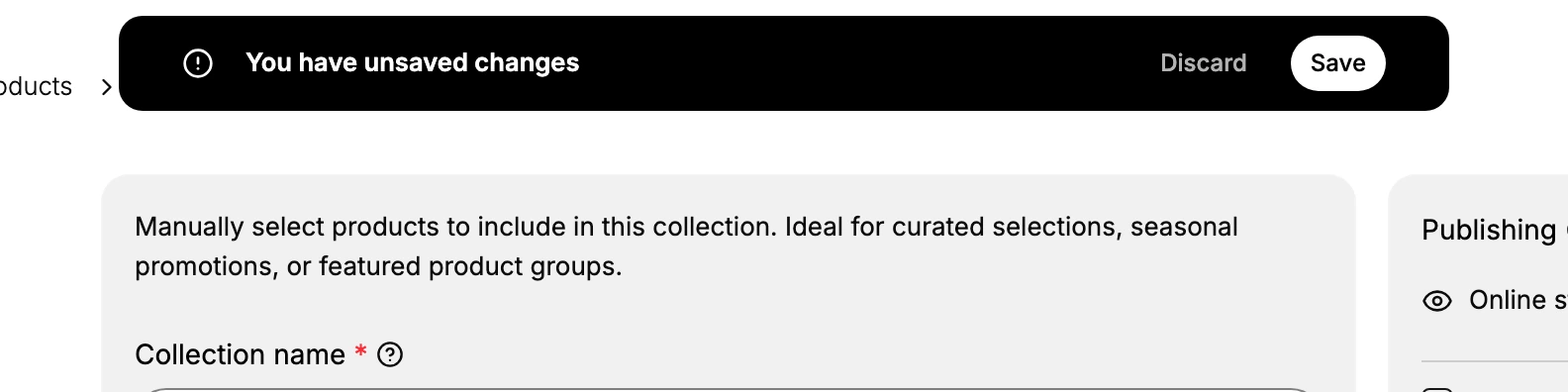
4. Save
Click Save in the You have unsaved changes bar at the top of the form. (Use Discard to drop the change instead.)
5. Verify on the storefront
Open the collection on your storefront and check the image renders wherever your theme uses it, and that the crop looks right on both desktop and mobile.
Verify the result
- The collection image previews in the Collection media section after saving.
- The collection's storefront page shows the image where the theme places it.
- The crop is acceptable on mobile as well as desktop.
Best practices
- Use a high-resolution file - the theme may scale it up, and a small image looks soft.
- Keep the subject centered so different theme crops don't cut it off.
- Use a consistent palette across all collection images so navigation looks cohesive.
- Compress before uploading to keep collection pages fast.
Common mistakes
- A low-resolution image that looks pixelated once the theme scales it.
- A subject pushed to one edge that a square crop then cuts off.
- A heavy, uncompressed file that slows the page.
If something goes wrong
- The image looks stretched or badly cropped - the theme uses a different aspect ratio for that spot; try a more centered crop.
- The image doesn't appear on the storefront - confirm the collection is published and that you saved after uploading.
- Permission denied - your role lacks the Manage collections permission.
Next steps
Related articles
Still stuck?
- Ask Tanqory AIAsk in your own words. It answers from these articles and links the ones it used.
- Ask in your adminThe assistant in your Tanqory admin answers and makes the change for you once you confirm.
- Contact TanqoryWrite to our privacy, security or legal teams, or talk to sales about a plan or a move.