Manage Product Status (Active, Draft, Unlisted)
Every product carries a status, Active, Draft, or Unlisted, that decides where shoppers can find it. This article covers what each status does on the storefront, how to change one and save it, where status shows up outside the editor, and how status differs from archiving or deleting a product.
On this page
Every product carries a status that decides whether shoppers can find it, and where. You set it from the Status field at the top of the right-hand column in the product editor, directly above Product type and Vendor. Tanqory has three statuses, and the dropdown states what each one does.
| Status | What the dropdown says | Where the product appears |
|---|---|---|
| Active | Visible in search and collections | Fully live. It shows in storefront search and on collection pages, and it can be bought. |
| Draft | Not visible to customers | Hidden everywhere on the storefront. Use it while you are still building the product. |
| Unlisted | Only accessible through a direct link | Not in search or collections, but anyone with the product's URL can open and buy it. |
Unlisted is the one worth understanding properly. The product is genuinely live and purchasable, it does not surface anywhere a shopper might browse, so the only way in is the link you hand out. That makes it the right choice for a private or early-access drop, a wholesale-only item, or sharing a finished product with a colleague for review before it goes on general sale.
A new product starts as Active, so a product you are still working on has to be set to Draft yourself. This is the most common reason an unfinished product ends up live.
You work under Products in the admin sidebar, in the Status field of the product editor. Product Detail Page runs through the rest of the editor.
Where status shows up outside the editor
Status is not only an editor setting. It is also how the product list is organized, which is useful when you want to see the state of the whole catalog rather than one product.
- The Status column on the Products list shows each product's status as a badge, so you can scan a page and see what is live.
- The Active and Draft tabs above the list filter to just those products, and each tab carries a live count. Filtering is covered in Filter the Product List.
- Selecting several products and using a bulk action changes status across all of them at once, which is covered in Bulk Actions.
Before you begin
- You have the Publish/Unpublish products permission.
- You know which of the three states you want, since the change takes effect on the storefront as soon as you save.
- Open Products in the admin sidebar and open the product whose status you want to change.
Steps
1. Open the product and find Status
Open the product from Products in the admin sidebar. The Status field sits at the top of the right-hand column of the editor and shows the current status, so you can confirm what the product is set to before changing anything.
2. Open the Status dropdown and pick a status
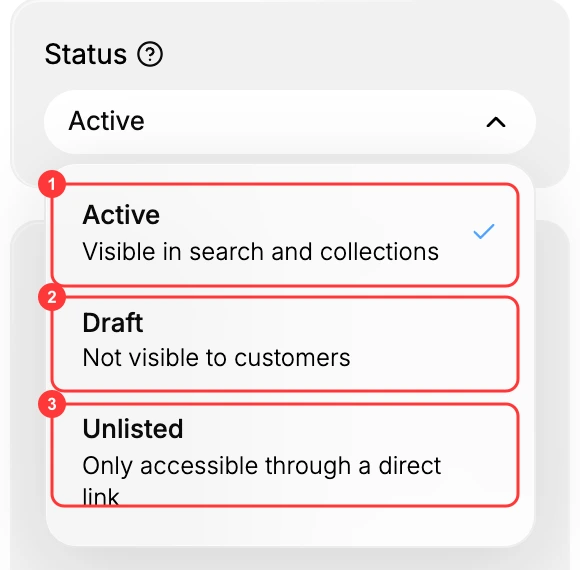
Select the Status field to open the dropdown. Each option carries its effect underneath it, and a checkmark marks the current value.
- Active, Visible in search and collections
- Draft, Not visible to customers
- Unlisted, Only accessible through a direct link
Choose the one that matches where you want the product to be reachable from.
3. Save
Select Save in the floating bar at the top of the editor. Nothing changes on the storefront until you do, and the unsaved-changes banner stays on screen as the reminder. Once the banner clears, the new status is live.
4. Check the storefront
Open the storefront in a private browsing window, so you see the site as a shopper does rather than as a signed-in admin.
- Active: the product appears in search and on its collection pages.
- Draft: the product page cannot be reached.
- Unlisted: the product is missing from search and collections, and opening its direct URL loads it normally.
Choosing the right status
| Situation | Use |
|---|---|
| Still writing the description, adding photos, or setting the price | Draft |
| Ready to sell to everyone | Active |
| Live, but only for the people you send the link to, such as VIP, wholesale, pre-launch, or review | Unlisted |
| Off sale for now, and you want it out of the working list | Archive, in the More actions menu |
| Permanently gone | Delete it. See Delete a Product |
Status, Archive, and Delete
These three are easy to confuse because they all take a product off sale, but they are different tools.
- Status is a field on the product. Draft and Unlisted both keep the product in your catalog and can be switched back at any time.
- Archive is an action in the More actions menu at the top of the editor, not a value in the Status dropdown. It sets a product aside while keeping it, and the product list has an Archived tab for finding archived products again.
- Delete is permanent. It removes the product, its inventory records, its media, and its variants, and nothing can be recovered. See Delete a Product.
If you are unsure, prefer Draft. It is the least destructive way to take something off the storefront, and switching back is one field and a save.
Verify the result
- The Status field shows the value you chose, and no unsaved-changes banner is left on screen.
- The Status column in the Products list shows the new status for that product.
- The storefront matches: visible for Active, unreachable for Draft, and link-only for Unlisted.
Best practices
- Build in Draft. Keep a product in Draft until its details, price, and media are complete, so a half-finished page is never live.
- Set the status deliberately when you create a product, because a new product starts as Active.
- Use Unlisted for private links rather than trying to hide an Active product, since Unlisted is the state built for it.
- Change status in bulk from the list when a whole set goes live or comes down at once, instead of opening each product.
- Prefer Draft or Archive over Delete when you may want the product back.
Common mistakes
- Expecting an Archived status. The dropdown holds only Active, Draft, and Unlisted. Archive is an action in the More actions menu, and the list has an Archived tab for the results.
- Leaving a new product as Active while you are still building it, which puts an incomplete page in front of shoppers.
- Forgetting to save. A status change is not applied until you select Save, and the unsaved-changes banner is the sign that it has not been.
- Using Draft when you meant Unlisted. Draft hides the product completely, so a link you already sent stops working.
- Checking the result while signed in to the admin. Use a private browsing window, since a signed-in session can behave differently from a shopper's.
If something goes wrong
- The storefront still shows the old state. Confirm you selected Save. The change is not live until the unsaved-changes banner clears.
- An Unlisted product does not open from its link. Check you are using the product's current URL. Unlisted products are reachable only by their exact link, and nothing else points at them.
- The product vanished from the list. A filter tab may be applied. Select All to see everything, and check the Archived tab if you archived it.
- Permission denied. Your role is missing the Publish/Unpublish products permission. Ask an admin to grant it.
Next steps
Related articles
Still stuck?
- Ask Tanqory AIAsk in your own words. It answers from these articles and links the ones it used.
- Ask in your adminThe assistant in your Tanqory admin answers and makes the change for you once you confirm.
- Contact TanqoryWrite to our privacy, security or legal teams, or talk to sales about a plan or a move.