Filter the Product List
Narrow the Products list to a status or stock state with the tabs above the list, combine with a name search, and save the result as a view you can reuse.
On this page
The Products list has a row of tabs above it that filter the catalog to a status or stock state in one click. Combine a tab with a name search to narrow further, and use Save as to keep a view when it is a combination you will use again.
You'll work under Products in the admin sidebar.
The filter tabs
The tabs sit directly above the search bar, each with a live count:
| Tab | Shows |
|---|---|
| All | Every product |
| Active | Products visible in search and collections |
| Draft | Products not visible to customers |
| Low stock | Products running low on inventory |
| Out of stock | Products at zero available |
| Archived | Products that have been archived |
Clicking a tab filters the list to just those products; the count next to each tab tells you how many there are before you even click.
Before you begin
- You have the View products permission.
- Open Products in the admin sidebar to load the list you want to filter.
Steps
1. Open Products
Go to Products in the admin sidebar to see the full list. The page opens with the Product metrics cards at the top, which count your total, active, low stock, and out of stock products for the selected date range, and the filter tabs sit below them, directly above the search bar and the list itself.

2. Click a tab to filter
Click Active, Draft, Low stock, Out of stock, or Archived. The list narrows to that set; All brings everything back.

3. Narrow further with a search
With a tab selected, type part of a product name in the search bar and press Enter to combine the two, for example Low stock plus a search for a product line.
4. Save it as a view
If you'll reuse this filter, click Save as to keep it as a Saved View, so you don't rebuild it each time.
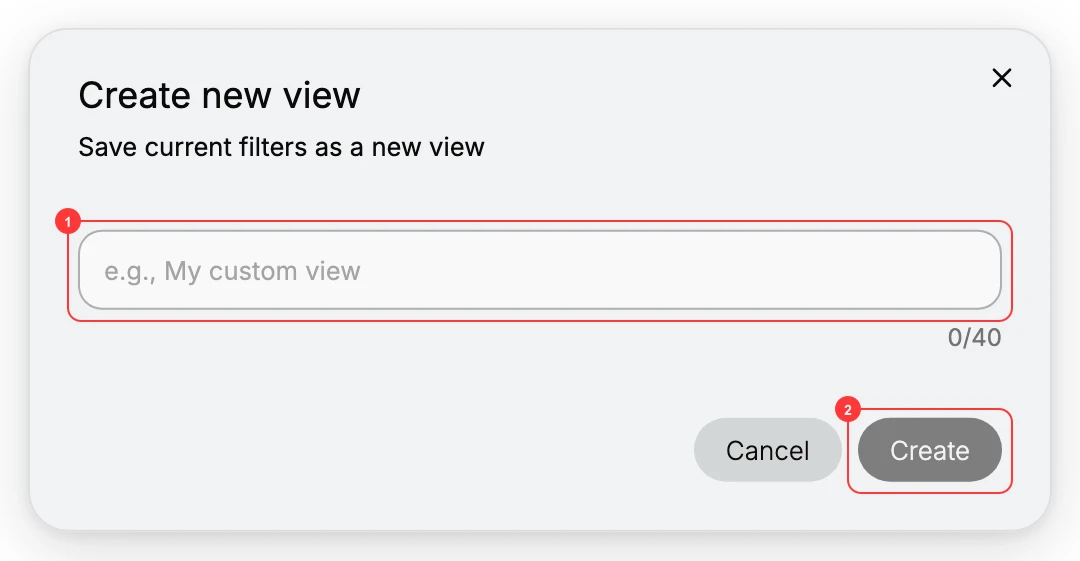
5. Act on the filtered set
With the list narrowed, select products to run a bulk action, or open one to edit it.
Verify the result
- The product count and tab counts reflect the narrowed list.
- Every row matches the tab (and search) you applied.
Best practices
- Use the counts. The number on each tab tells you the size of the set before you click.
- Save recurring filters as Saved Views instead of re-selecting tabs daily.
- Pair Low stock or Out of stock with a bulk action for fast restock or cleanup passes.
Common mistakes
- Leaving a tab applied and thinking products are missing: click All to reset.
- Expecting a filter that is not there: status and stock are the list tabs; filter by name with the search, and use the product's detail page for vendor, type, and tags.
If something goes wrong
- No products show: a tab plus a search can combine to an empty set; clear the search or click All.
- The list looks wrong: confirm which tab is active (the selected one is highlighted).
- Permission denied: your role lacks the View products permission.
Next steps
Related articles
Still stuck?
- Ask Tanqory AIAsk in your own words. It answers from these articles and links the ones it used.
- Ask in your adminThe assistant in your Tanqory admin answers and makes the change for you once you confirm.
- Contact TanqoryWrite to our privacy, security or legal teams, or talk to sales about a plan or a move.