Customize the Product List Columns
Show, hide, and reorder the columns on the Products list from the Manage columns panel, so the list shows the fields that matter to your work.
On this page
The Products list shows a set of columns: Product, Status, Inventory, and a few more. You can choose which columns appear and what order they are in from the Manage columns panel, so the list surfaces the fields your work actually needs.
You'll work under Products in the admin sidebar.
The columns you can show
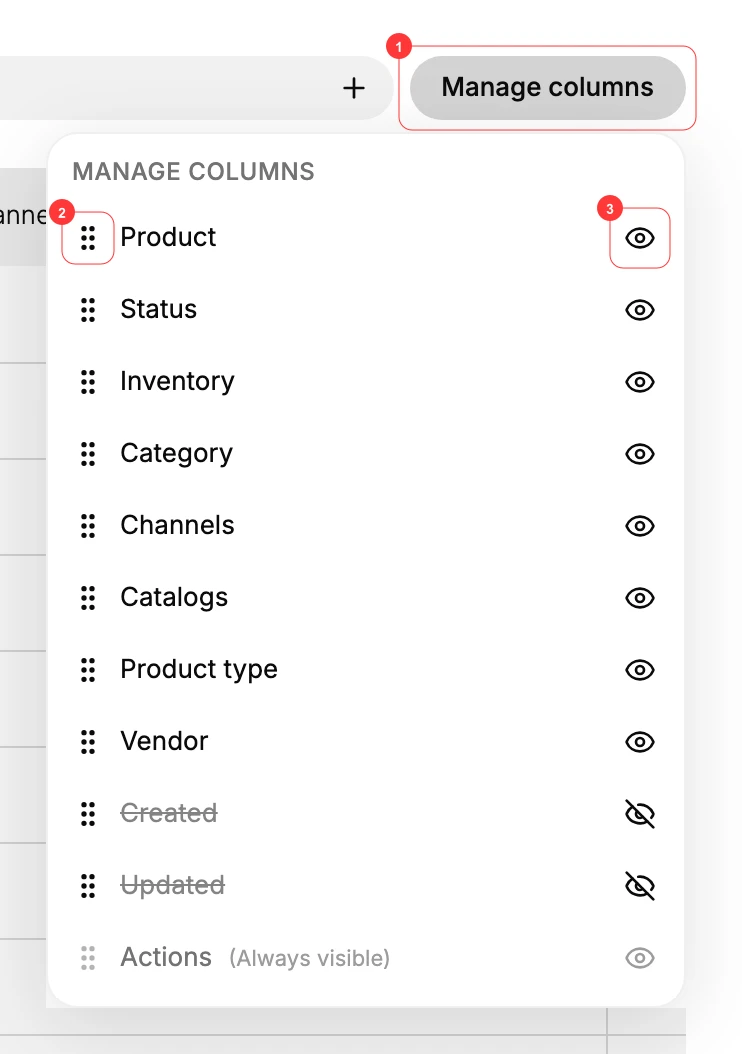
Open Manage columns (top-right of the list) and each column has an eye toggle to show or hide it, and a drag handle to reorder it:
| Column | Shown by default? |
|---|---|
| Product | Yes |
| Status | Yes |
| Inventory | Yes |
| Category | Yes |
| Channels | Yes |
| Catalogs | Yes |
| Product type | Yes |
| Vendor | Yes |
| Created | No (hidden) |
| Updated | No (hidden) |
| Actions | Always visible (cannot be hidden) |
Before you begin
- You need at least the View products permission to open the list.
- From the admin sidebar, open Products to load the product list. The Manage columns button sits at the top-right of the list, just above the table.
Steps
1. Open Products and click Manage columns
Go to Products in the admin sidebar, then click Manage columns (1) at the top-right of the list. A panel opens listing every column.
2. Show or hide a column
Click the eye icon, badged (3) in the Step 1 panel, next to a column to toggle it. A crossed-out eye means the column is hidden (Created and Updated start hidden). Actions is always visible and cannot be turned off.
3. Reorder columns
Drag a column by its handle, badged (2) in the Step 1 panel, to move it up or down. That is the left-to-right order it appears in on the list.
4. Check the list
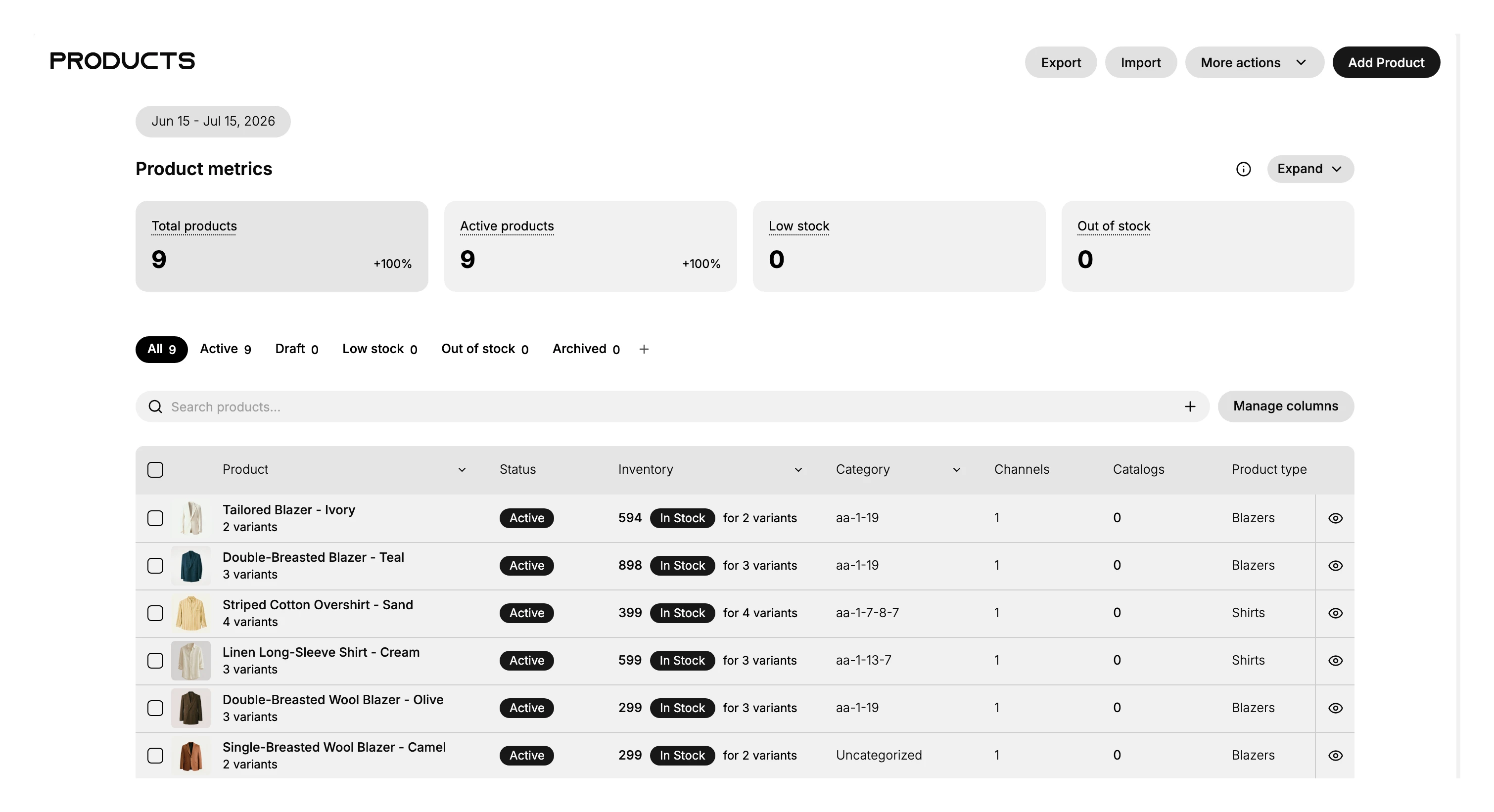
Close the panel; the list now shows your chosen columns in your chosen order.
Verify the result
- The columns you enabled appear in the list; the ones you hid are gone.
- The order matches what you set in the panel.
Best practices
- Keep it lean. Showing every column means horizontal scrolling, so turn off the ones you do not scan.
- Surface what your role needs. Fulfillment leans on Inventory; merchandising on Category and Channels; sourcing on Vendor.
- Turn on Created and Updated for audits: they are hidden by default but useful when reviewing recent catalog changes.
Common mistakes
- Hiding Status: you then cannot tell Active from Draft without opening each product.
- Too many columns: the list scrolls sideways and is slower to scan.
- Looking for Price or Margin columns: those are not list columns; open a product (or run an Analytics report) to see pricing and margin.
If something goes wrong
- A column will not turn off: Actions is always visible by design.
- Cannot find a column you expected (for example, SKU or Tags): the list columns are the fixed set above; those fields live on the product's detail page.
- Permission denied: your role lacks the View products permission.
Next steps
Related articles
Still stuck?
- Ask Tanqory AIAsk in your own words. It answers from these articles and links the ones it used.
- Ask in your adminThe assistant in your Tanqory admin answers and makes the change for you once you confirm.
- Contact TanqoryWrite to our privacy, security or legal teams, or talk to sales about a plan or a move.