Edit a Product
Update product info such as title, description, price, images, variants, inventory, and status, and understand how saving affects your channels, carts, and analytics.
On this page
Editing a product means opening it and changing any part of its record: the title and description, the media, the price, the inventory and SKU, the variants, its status, and where it is published. You do this on the product's detail page, which uses the same layout as the create form, so the fields you filled in when you built the product are exactly the ones you return to when you change it. Most edits are small and routine, such as correcting a price, refreshing a description, or switching a product between Active and Draft.
The point that matters here is timing. Edits to a published product go live on its sales channels the moment you save, with no separate publish step, so a change is visible to shoppers right away. That makes editing fast, but it also means you should be deliberate around price changes, status changes, and SKU or barcode edits that other systems depend on. When a change is risky, set the product to Draft or use Preview first, check how it looks, then make it Active.
You'll work under Products in the admin sidebar, on the detail page of the product you open.
What an edit affects
| Field changed | Downstream impact |
|---|---|
| Title | Storefront, emails, and search results |
| Description | Storefront and SEO snippet |
| Media | Storefront, product feeds, and social ads |
| Price | Storefront and analytics |
| SKU or barcode | Inventory tracking, fulfillment, and reports |
| Status | Visibility: Active (in search and collections), Draft (hidden), Unlisted (link only) |
| Variants | Which combinations shoppers can buy |
| Publishing | Which channels carry it |
| SEO | The page title, meta description, and URL handle used in search |
Before you begin
- You have Edit products permission.
- You know the impact of the change (table above).
- Open Products in the admin sidebar and open the product you want to change.
Steps
1. Open the product
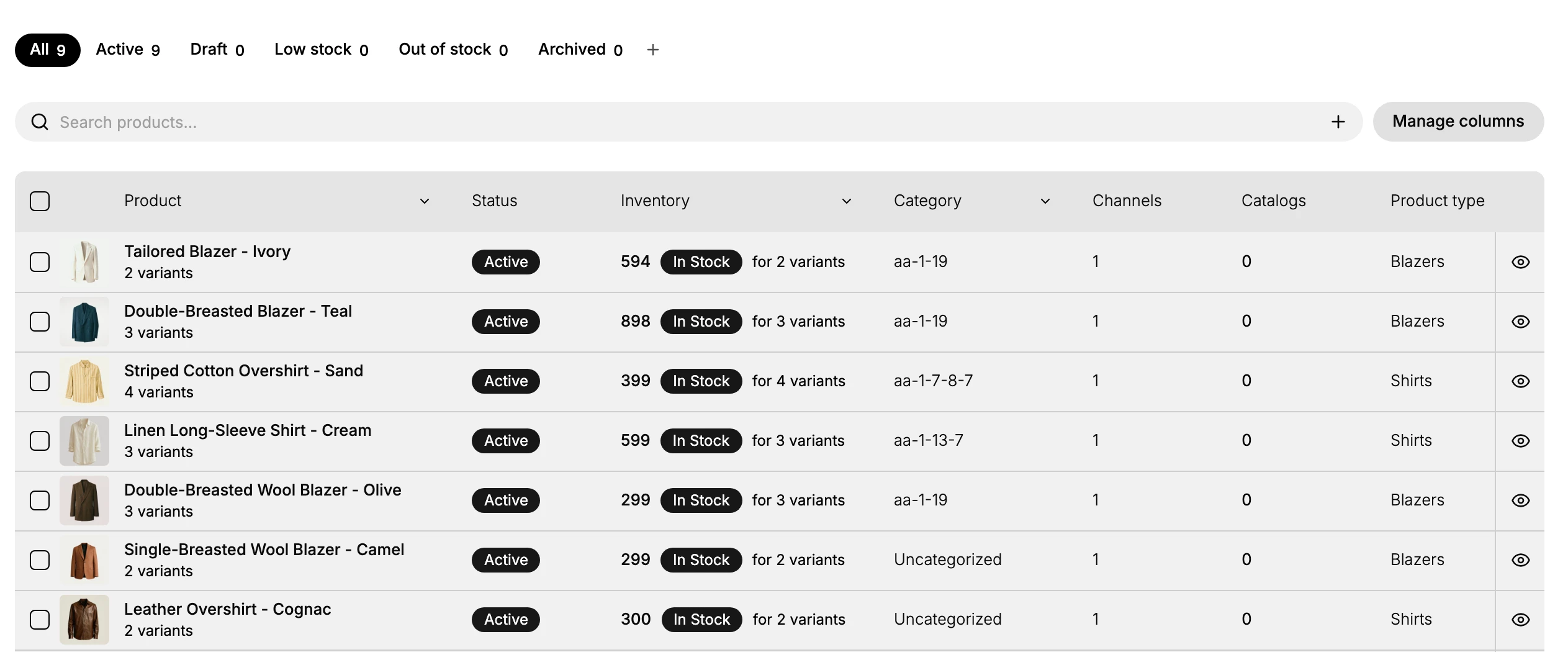
From Products in the admin sidebar, click the row of the product you want to change. New stores show the empty state; existing stores show the product list.
2. Edit the relevant fields
The detail page uses the same layout as the creation form, so any field can be changed in place. Edit only the sections you need and leave the rest untouched; nothing goes live until you save. The most common edits are the title, the pricing, and the status.
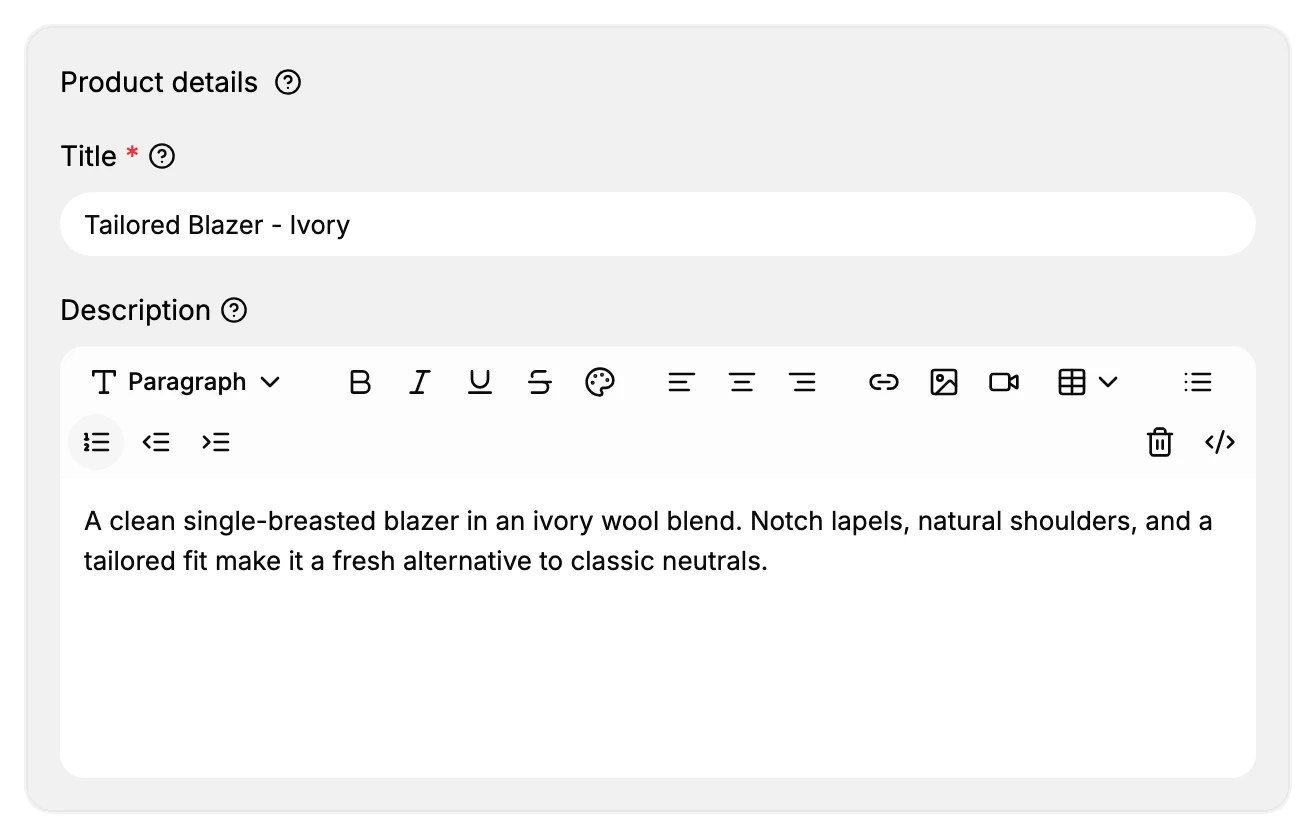
Title and description. The Title sits at the top of the Product details section, with the rich-text Description below it. The title is what shoppers, order emails, and search results display, so keep it accurate and consistent with how the product is marketed. Use the Description editor for the longer copy, formatting, images, and links that appear on the product page.
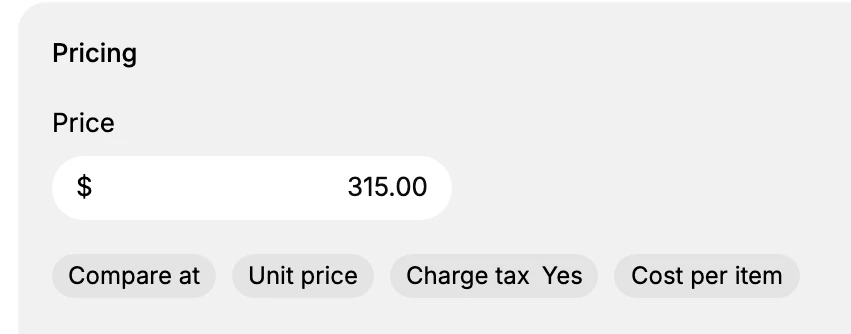
Pricing. In the Pricing section, set the Price the customer pays. The Additional display prices row holds the extras: Compare at (a higher was-price shown struck through), Unit price, Charge tax, and Cost per item (your own cost, used to work out margin). On a product with variants, each variant keeps its own price, so change the price on the variant you mean to edit.
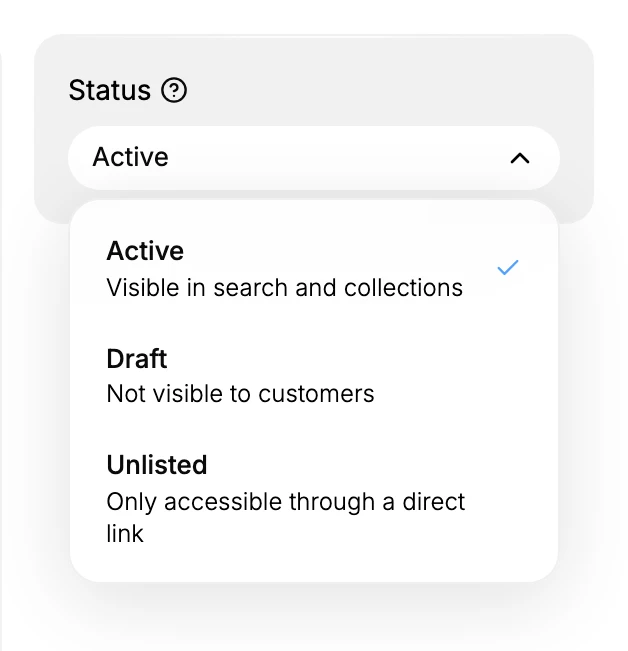
Status. The Status control in the right rail sets who can see the product. Active makes it visible in search and collections, Draft hides it from customers while you work on it, and Unlisted keeps it reachable only through a direct link. The change takes effect on the storefront the moment you save.
Everything else. Media, Inventory, Shipping, Variants, Publishing, and SEO each have their own section on the same page. See Product Detail Page for what every section does.
3. Save your changes
As soon as you change anything, a You have unsaved changes bar appears at the top with Discard and Save. Click Save to commit the edit, or Discard to revert.

Verify the result
- Changed fields reflect on the storefront (open the product page in an incognito window to bypass cache).
- Active products are visible; Draft products are hidden.
- Cart eligibility still correct.
- Reports reflect the new data on the next sync.
Best practices
- Communicate price changes to marketing before saving.
- Use Unlisted or Draft for seasonal hides instead of deleting.
- Update media and description together for visual refreshes.
- Use Draft and Preview for risky edits: check the storefront before going Active.
Common mistakes
- Changing a live SKU mid-fulfillment: systems that key on the old SKU can lose track of it.
- Setting an active product to Draft while it is linked from a campaign, so the link then leads nowhere.
- Forgetting to Save: the unsaved changes bar stays until you do, and the storefront keeps the old data.
If something goes wrong
- Storefront still shows old data: confirm you clicked Save (the unsaved changes bar should be gone); a browser cache can also lag, so check in an incognito window.
- A variant is missing: reopen the Variants section and confirm the option values still generate the combination.
- Permission denied: your role lacks the Edit products permission; ask an admin to grant it.
Next steps
Related articles
Still stuck?
- Ask Tanqory AIAsk in your own words. It answers from these articles and links the ones it used.
- Ask in your adminThe assistant in your Tanqory admin answers and makes the change for you once you confirm.
- Contact TanqoryWrite to our privacy, security or legal teams, or talk to sales about a plan or a move.