Delete a Product
Deleting a product is permanent. This article covers what the delete dialog removes, including the variants that go with the product, the reversible alternatives worth using instead, and how to delete safely when you are certain.
On this page
Most of the time that is not what you want. If you have stopped selling something, a reversible option takes it off sale while keeping the product and everything attached to it. Delete is for products that should not exist at all, such as a test product or a duplicate created by mistake.
You delete from the More actions menu at the top of the product editor, which you reach from Products in the admin sidebar.
The reversible alternatives
Before you delete, check whether one of these does what you actually need. Each one keeps the product, so you can undo it later by setting it back.
| Goal | Use | Reversible |
|---|---|---|
| Take it offline while you rework it | Draft status, not visible to customers | Yes |
| Keep it buyable by direct link only, such as a private or wholesale item | Unlisted status | Yes |
| Set it aside without selling it, but keep the product | Archive, in the More actions menu | Yes |
| Remove it from every system, for good | Delete | No |
Draft and Unlisted are set from the Status field on the product, and both are covered in Manage Product Status. Archive sits in the same More actions menu as Delete, one line above it, which is worth knowing because the two are easy to confuse when you are moving quickly. Reach for Delete only when you genuinely never want the product back.
Before you begin
- You have the Delete products permission. Without it the Delete action is not available to you.
- You have considered the reversible alternatives above.
- You have checked where the product is used, since collections, campaigns, and any link that points at the product will break once it is gone.
- Open Products in the admin sidebar and open the product you want to remove.
Steps
1. Open the product
Go to Products in the admin sidebar and select the product you want to remove. Check the name at the top of the editor before you go any further, because the dialog you are about to open acts on this product.
2. Open More actions
More actions sits at the top right of the editor, next to Preview and Share. Open it and you get Duplicate, Archive, and Delete, with Delete shown in red because it is the one action here that cannot be reversed.

3. Select Delete and read the dialog
Selecting Delete does not delete anything yet. It opens a confirmation dialog that names the product, warns that the action cannot be undone, and lists exactly what will be removed.
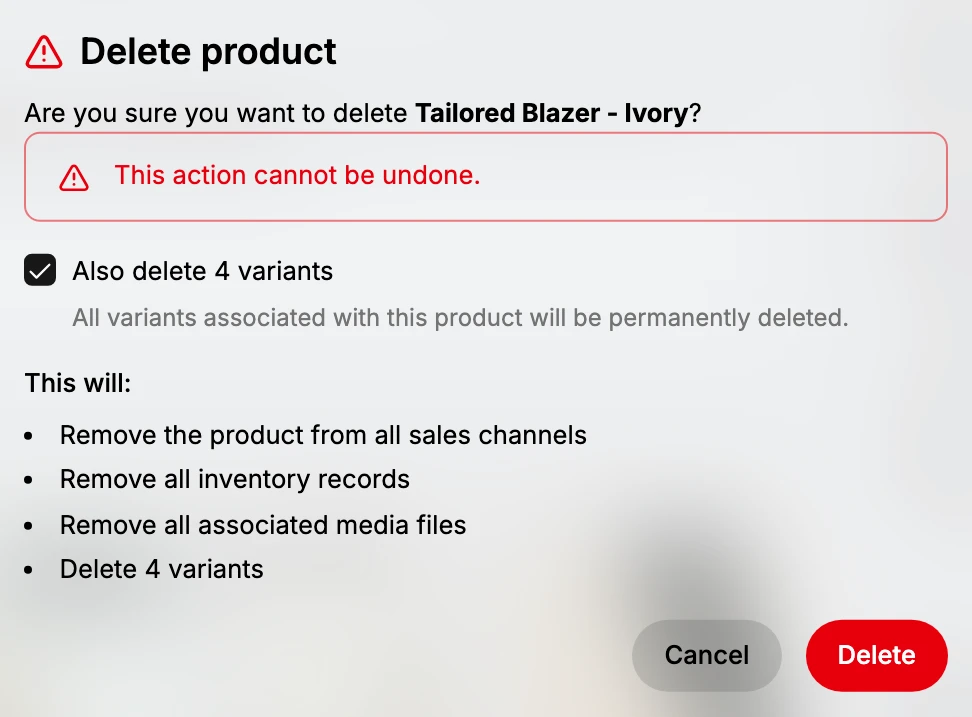
Read it line by line before you confirm.
- The product name. The dialog asks "Are you sure you want to delete" followed by the product's own name, which is your last chance to catch the wrong product.
- This action cannot be undone. The warning is in red for a reason. Nothing here can be recovered afterwards.
- Also delete variants. If the product has variants, the dialog offers a checkbox to delete them with it, and it explains that all variants associated with the product will be permanently deleted.
- This will. The list below states the consequences: the product is removed from all sales channels, all inventory records are removed, all associated media files are removed, and the variants are deleted if you left that box checked.
4. Confirm or back out
Select the red Delete button to remove the product, or Cancel to close the dialog and leave everything as it was. Cancel makes no change at all, so use it freely whenever the dialog does not say what you expected.
5. Check the result
Once the dialog closes, the product is gone from the Products list and the tab counts drop by one. The storefront page for that product no longer loads, and it is no longer available on the sales channels it was published to.
Verify the result
- The product is gone from the Products list, and the All tab count has dropped.
- The product's storefront page no longer loads.
- Any collection that included the product no longer lists it.
Best practices
- Default to a reversible option. Draft, Unlisted, and Archive all keep the product and its history, so use Delete only when you are certain the product should not exist.
- Read the dialog rather than clicking through it. It is the only place that tells you what is about to be removed, including the variant count.
- Check where the product is used first. A product linked from a collection, a campaign, or an email leaves a dead link behind once it is deleted.
- Export before a clear-out. If you are deleting several products, an export gives you a copy of the data, which is covered in Export Products.
- Delete test products early. The longer a test product stays in the catalog, the more places it can end up linked from.
Common mistakes
- Deleting when you meant to take the product offline. Draft and Unlisted hide a product reversibly, while Delete erases it.
- Confusing Archive with Delete. They sit next to each other in the same menu, but Archive keeps the product and Delete does not.
- Confirming without reading the variant line. With the checkbox left on, every variant of the product goes as well.
- Deleting a product that is still linked from a collection, a campaign, or an email, and leaving those links pointing nowhere.
If something goes wrong
- You deleted the wrong product. Deletion cannot be undone, so the product has to be created again from scratch. This is the reason to prefer a reversible status.
- The dialog will not confirm. Make sure you are selecting the red Delete button inside the dialog rather than Cancel.
- Delete is not in the menu. Your role is missing the Delete products permission. Ask an admin to grant it.
- The product is still in the list. Refresh the list. If it is still there, the dialog was canceled rather than confirmed.
Next steps
Related articles
Still stuck?
- Ask Tanqory AIAsk in your own words. It answers from these articles and links the ones it used.
- Ask in your adminThe assistant in your Tanqory admin answers and makes the change for you once you confirm.
- Contact TanqoryWrite to our privacy, security or legal teams, or talk to sales about a plan or a move.