Delete Product Confirmation Dialog
A line-by-line read of the delete confirmation dialog, covering the "cannot be undone" warning and the three things deleting removes, so you know exactly what you are confirming before you press the red button.
On this page
When you choose Delete from a product's More actions menu, Tanqory doesn't delete immediately; it opens a confirmation dialog. That dialog is the last step before a permanent action, and it spells out exactly what deleting will do. This article reads it line by line. Delete a Product has the full delete walkthrough.
Before you begin
- You have the Delete products permission.
- You've decided Delete is right rather than a reversible alternative.
- Open the product, then choose Delete from More actions (top-right) to open this dialog.
What the dialog shows
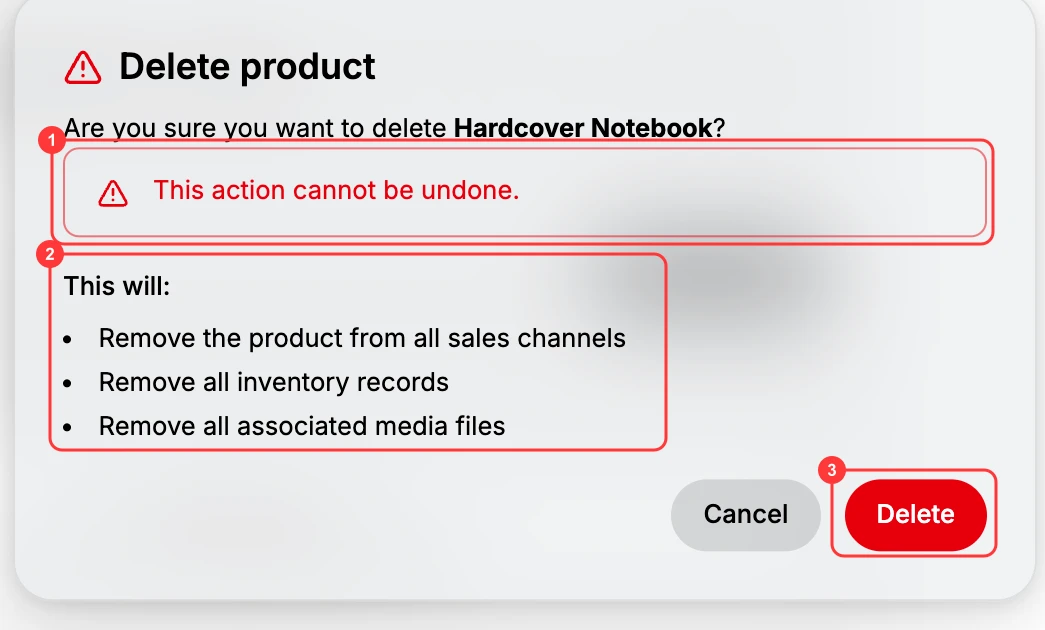
Top to bottom, the dialog contains:
- Title. Delete product, with a warning icon.
- The question. Are you sure you want to delete <product name>? It names the exact product, so you can confirm you are on the right one.
- The irreversibility warning. A red callout reading This action cannot be undone.
- What it removes. A This will: list of three consequences, covered below.
- Buttons. Cancel backs out with no change, and the red Delete confirms the deletion.
What deleting removes
The dialog's This will: list is precise. These are the three things deletion erases:
| The dialog says | What it means |
|---|---|
| Remove the product from all sales channels | The product is unpublished everywhere it was listed (e.g. Online Store), so shoppers can no longer find or buy it. |
| Remove all inventory records | The product's stock counts, meaning Available, On hand, Committed, and the per-location levels, are deleted with it. |
| Remove all associated media files | The images, video, and 3D models attached to the product are removed. |
Because all three are permanent, the safer move when you only want a product offline is a reversible option: Draft or Unlisted status, or Archive. None of those erase the product. See Manage Product Status.
Steps
1. Open the product and click More actions > Delete
From the product editor, open More actions (top-right) and choose Delete. The confirmation dialog opens.
2. Read the warning and the This will: list
Confirm the dialog names the right product, and that you're comfortable removing it from all sales channels, deleting its inventory records, and deleting its media.
3. Confirm or cancel
- Click the red Delete to permanently remove the product.
- Click Cancel to close the dialog with no change.
Verify the result
- After Delete, the product is gone from the Products list and its storefront page no longer loads.
- After Cancel, nothing changes, and the product and all its data remain.
Best practices
- Read it every time. The dialog is deliberately explicit; don't confirm on muscle memory.
- Check the product name in the question. It's your safeguard against deleting the wrong item.
- Prefer a reversible option unless you are certain. Draft, Unlisted, and Archive all keep the product.
Common mistakes
- Confirming without reading. The three consequences (sales channels, inventory records, media) are all permanent.
- Deleting when Archive or Draft was the intent. Those keep the product; Delete erases it.
If something goes wrong
- You clicked Delete by mistake. Deletion cannot be undone, so the product has to be created again. This is why a reversible status is safer.
- Permission denied. Your role is missing the Delete products permission. Ask an admin to grant it.
Next steps
- Delete a Product for the full flow.
- Manage Product Status for the reversible alternatives.
Related articles
Still stuck?
- Ask Tanqory AIAsk in your own words. It answers from these articles and links the ones it used.
- Ask in your adminThe assistant in your Tanqory admin answers and makes the change for you once you confirm.
- Contact TanqoryWrite to our privacy, security or legal teams, or talk to sales about a plan or a move.