Managing Product Images
Add, feature, reorder, and remove product images in the Media section of the product editor, plus video and 3D models, and how the featured image is used across your store.
On this page
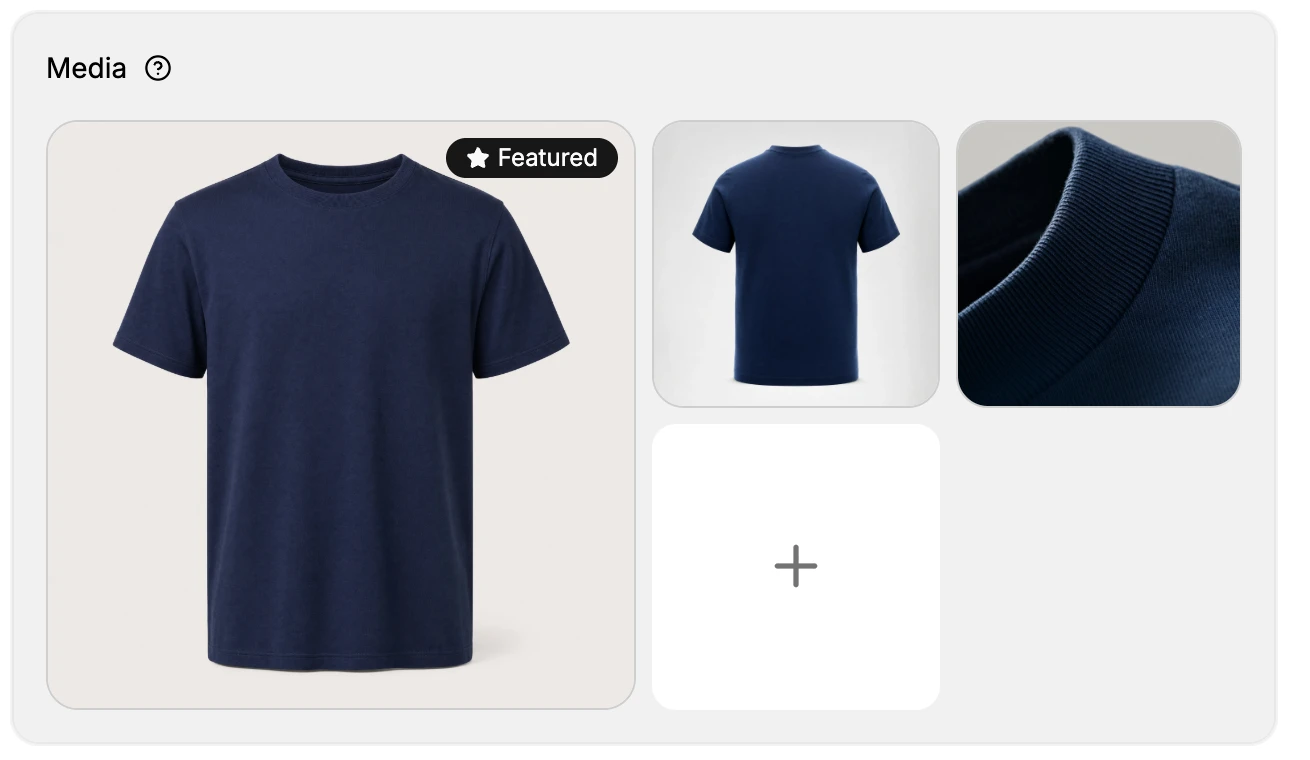
A product's media is one of the biggest factors in whether a shopper trusts and buys it. In Tanqory, all of a product's visuals live in the Media section of the Product Detail Page, the second section, directly after Product details and before Pricing. The section accepts images, video, and 3D models (an empty Media section states Accepts images, videos, or 3D models), and the order you arrange them in is the order shoppers see on the storefront product page.
One image has a special role: the featured image, which Tanqory uses to represent the product wherever it appears as a thumbnail across the storefront. The first tile in the Media section is the featured image by default, marked with a Featured badge.
You'll work under Products in the admin sidebar, in the Media section of the product editor. Product Detail Page takes the surrounding sections of the editor.
Before you begin
- You have the Edit products permission.
- You have prepared image assets: large, high-quality files so they stay crisp when shoppers zoom in.
- Open Products in the admin sidebar, open the product, and scroll to its Media section.
Steps
1. Add media
Open the product from Products in the admin sidebar (or click Add product to start a new one) and find the Media section, the second section, after Product details. Existing media appears as tiles, with the featured image shown larger at the top-left; a plus tile at the end of the grid adds more.
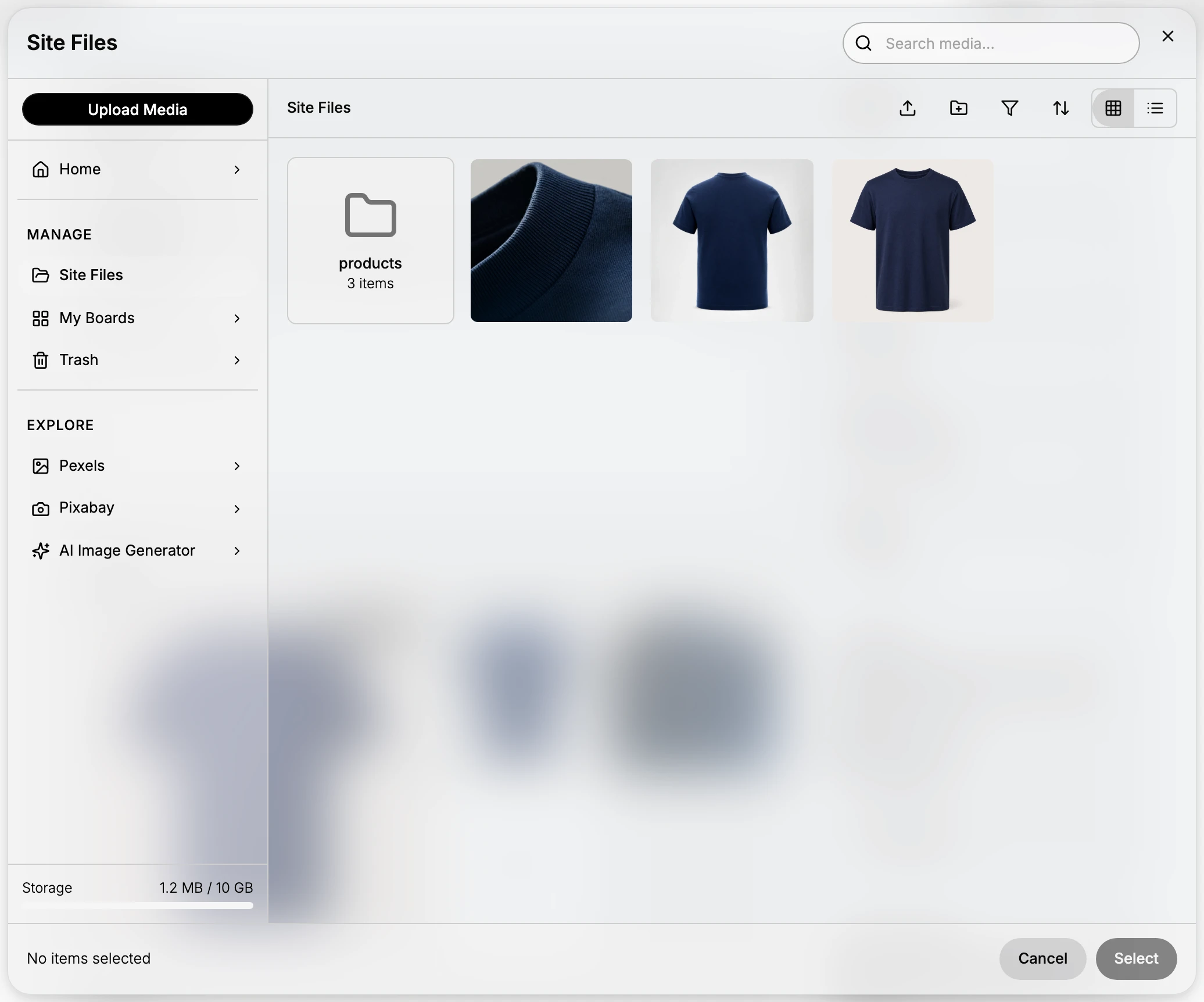
Click the plus tile to open the Site Files media picker. Choose where the file comes from, then click Select:
- Site Files: pick from your store's media library (your existing product images live here, in folders).
- Upload Media: upload a new file from your device.
- Pexels and Pixabay: search free stock photography.
- AI Image Generator: generate an image from a prompt.
Use large, high-quality images so they stay crisp when a shopper zooms in.
2. Set the featured image
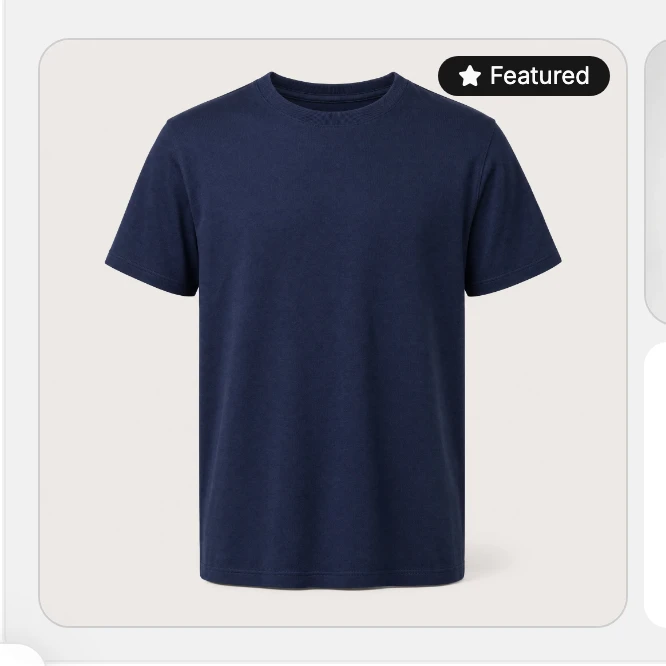
Each item you add becomes a tile in the grid. The first tile, shown larger at the top-left, is the featured image and carries the Featured badge.
The featured image is the one shoppers see before they open the product, wherever the storefront shows the product as a thumbnail (such as collection grids). To change which image is featured, drag the tile you want into the first position, and the Featured badge follows it. Lead with your single strongest shot; it is the most-viewed image of the product.
3. Reorder media
The order of the tiles is the order of images on the storefront product page. To rearrange, drag a tile to a new position and drop it. Put the angles a shopper most needs at the front of the sequence: hero, alternate angle, detail, scale, and in-use.
4. Remove media
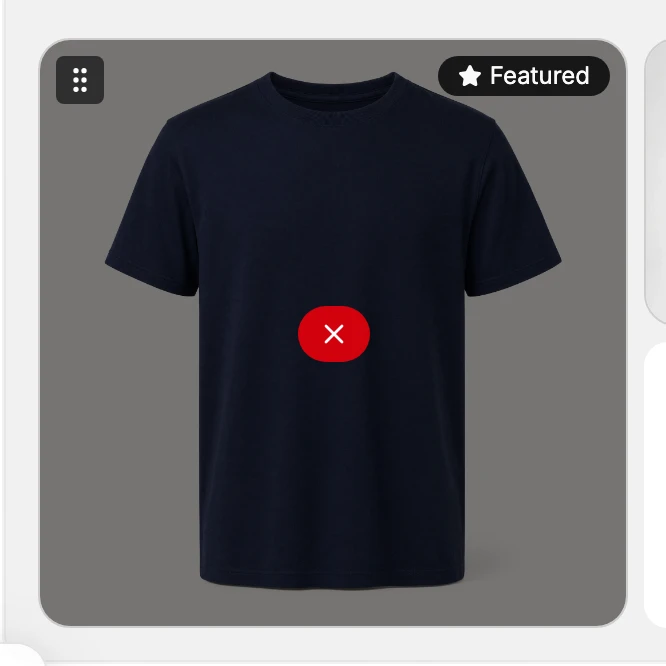
Hover or select a tile to reveal its controls, then click the red remove control. Removing media here only detaches it from this product; it can still live in your store's file library for reuse elsewhere.
5. Save
Adding, reordering, featuring, and removing media are all part of the product edit, so click Save in the floating bar at the top of the editor to commit them. Until you save, the storefront keeps showing the previous arrangement.
Media types
The Media section accepts images, video, and 3D models. An empty Media section states Accepts images, videos, or 3D models with Upload new and Select existing controls (both open the Site Files picker). They share one ordered gallery, so any of them can sit wherever it tells the best story, though the featured position is normally a still image since that is the thumbnail reused across the storefront.
Verify the result
- All files you added appear as tiles in the Media section.
- The Featured badge is on the image you intended.
- After Save, the storefront product page shows the media in your chosen order.
- The featured image is the thumbnail shown wherever the storefront displays the product.
Best practices
- Lead with your hero shot. The featured image is the most-viewed image of the product, so make the first tile your strongest one.
- Show multiple angles. Front, back, and at least one detail or scale shot answer the questions that stop a purchase.
- Stay consistent across a collection. Use the same background, framing, and lighting for products in the same category so the grid looks intentional.
- Pair lifestyle with clean product shots. Lifestyle gives emotional context; a product-on-white shot gives technical accuracy. Use both.
- Upload large, high-quality images so zoom and retina rendering stay sharp.
Common mistakes
- Only one image. Shoppers want several angles, a scale reference, and detail shots before they commit.
- Wrong image featured. If the most important shot is not in the first position, the weak one is what appears on collection cards and in search. Drag the right one to the front.
- Low-resolution or pixelated files. They read as low quality and lower perceived value.
- Inconsistent angles across a collection. A grid of mismatched crops and backgrounds looks unprofessional.
- Forgetting to Save. Reordering or re-featuring without saving leaves the old arrangement live on the storefront.
If something goes wrong
- Upload fails: confirm the file is a supported image, video, or 3D-model format; very large files can time out.
- Image looks stretched on the storefront: its aspect ratio does not match what the theme expects. Crop to the theme's ratio before uploading.
- The featured image is not the one you set: the first tile is featured by default; drag your intended image to the first position, then Save.
- Product page loads slowly: too many very large files. Reduce the count or the file sizes.
- Permission denied: your role lacks the Edit products permission; ask an admin to grant it.
Next steps
Related articles
Still stuck?
- Ask Tanqory AIAsk in your own words. It answers from these articles and links the ones it used.
- Ask in your adminThe assistant in your Tanqory admin answers and makes the change for you once you confirm.
- Contact TanqoryWrite to our privacy, security or legal teams, or talk to sales about a plan or a move.