Upload and Manage Your Store Files
The Files library is where every image, video, and document in your store is stored. Upload from your computer, from a URL, or from Canva, then search, copy links, and replace files from one place.
On this page
The Files library is where your store keeps every image, video, and document you upload, such as product photos, banner images, logos, and PDFs. From this one place you can add new files, copy a file link to use elsewhere, replace a file, and see where each file is used. You add and manage files in your store admin under Content, then Files.
What each file shows
The list shows one row per file, with a thumbnail and a set of columns. Manage columns lets you choose which of these appear:
| Column | What it tells you |
|---|---|
| Name | The file name, with a small thumbnail preview |
| Alt text | A short description used for accessibility and shown when an image cannot load. It also helps search engines understand the image |
| Size | The file size, useful for spotting heavy files that can slow your storefront |
| Dimensions | The width and height of an image in pixels |
| Updated | When the file was last changed |
| References | How many places in your store currently use the file, so you know what is affected before you replace or remove it |
Before you begin
- Your account can open Content, then Files.
- The files you plan to add are ready on your computer, at a public URL, or in Canva.
- Open Content > Files to open the file library.
Add and manage files
In your store admin, open Content, then Files. The page lists every file already in your store, and the top right gives you three ways to add a file.
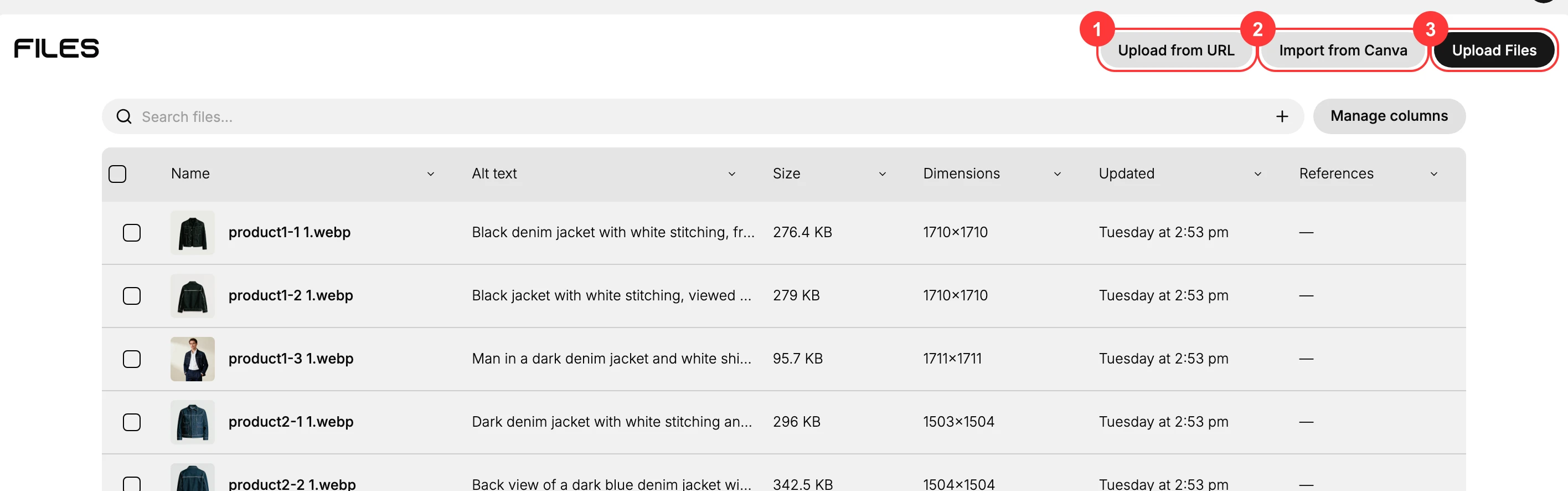
- Upload from URL (1): paste a link to a file hosted somewhere else. Tanqory downloads it and stores its own copy, so the file keeps working even if the original link goes away.
- Import from Canva (2): bring in a design you created in Canva without exporting it by hand first.
- Upload Files (3): upload one or more files straight from your computer. This is the most common method.
Use Search files at the top to find a file by name, or Add filter to narrow the list by attributes such as file type. For any file you can use Copy link to copy its public URL to paste into a product, page, or email, or Replace to swap in a new file while keeping the same link, so everything already pointing to the file updates automatically. To see a file's full details, select its row to open the file detail page.
Best practices
- Write clear, descriptive alt text for every image. It improves accessibility and helps search engines.
- Compress large images before uploading. Use the Size column to spot files that are too heavy.
- Replace a file instead of deleting and re-uploading it, so existing links keep working.
- Check the References count before you replace a file, so you know which pages it affects.
- Reuse an existing file with Copy link rather than uploading the same image twice.
Next steps
Related articles
Still stuck?
- Ask Tanqory AIAsk in your own words. It answers from these articles and links the ones it used.
- Ask in your adminThe assistant in your Tanqory admin answers and makes the change for you once you confirm.
- Contact TanqoryWrite to our privacy, security or legal teams, or talk to sales about a plan or a move.