Brand Logos
Set your primary and square logos in Settings, then Brand. They feed the consistent brand identity shown across your store and marketing.
On this page
Your brand logos are the images that represent your store. You set them in your store admin under Settings, then Brand, in the Brand Logos section. There are two slots, a primary logo and a square logo, and they feed the consistent brand identity that Tanqory shows across your store and marketing.
Where to set your logos
Open Settings, then Brand. The Brand Logos section near the top holds both logo slots side by side.
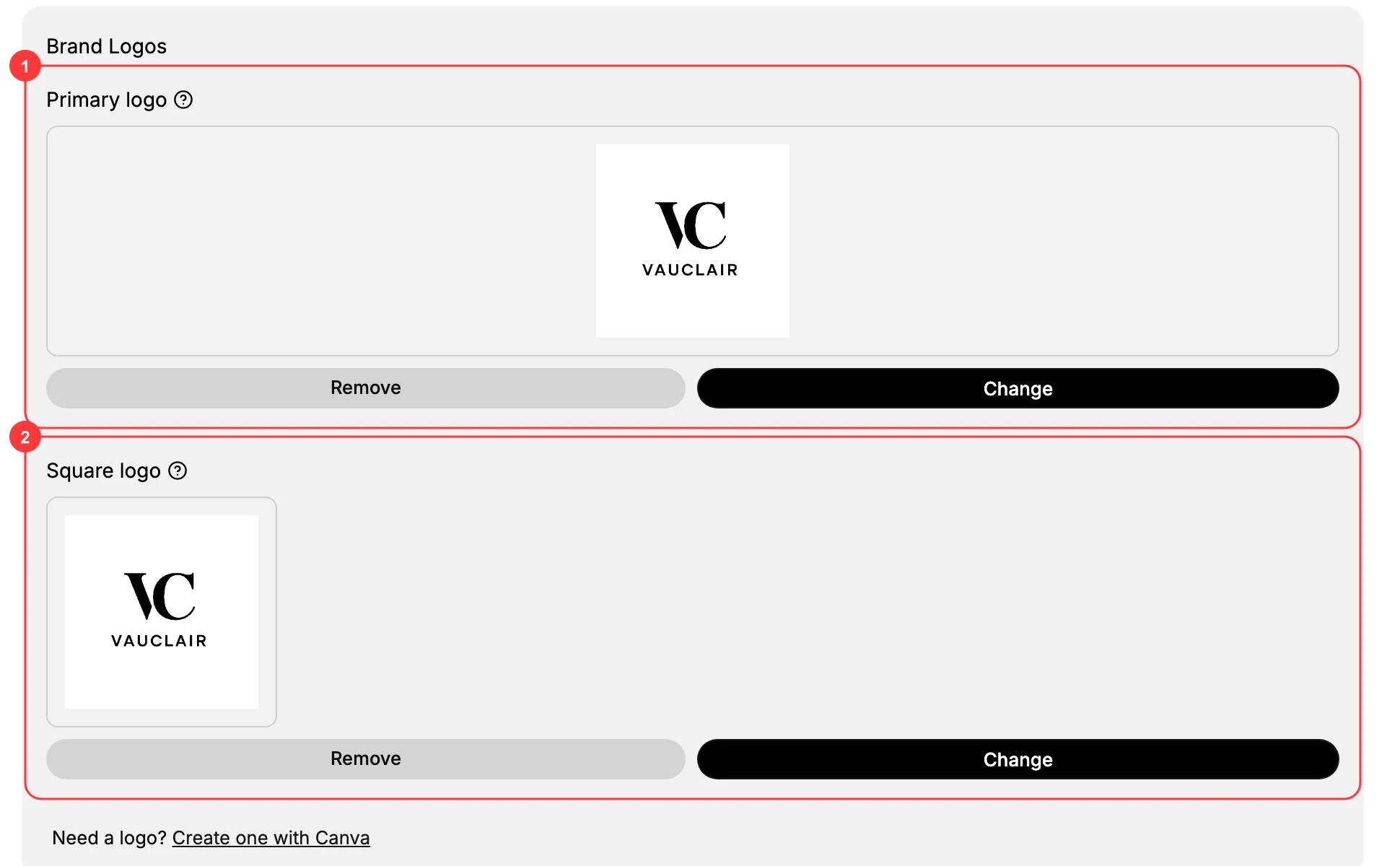
The two logo slots
- Primary logo (1): your main logo. This is the version used in the wider spaces where your brand appears.
- Square logo (2): a square version of your logo, for places that show your brand in a square space.
Adding both means your brand looks right whether the space is wide or square, instead of a wide logo being cropped or padded to fit a square.
Adding or changing a logo
To add a logo to an empty slot, select the plus button and choose a file from your computer, your library, or a stock photo. If you do not have a logo yet, select Create one with Canva to design it first. Once a slot has a logo, Change replaces it and Remove clears it. Either way, the logo is saved to your brand and used wherever Tanqory shows your brand identity.
Tip: Use a logo with a transparent background, saved as a vector or a high-resolution file, so it stays sharp at any size and sits cleanly on any color.
Best practices
- Add a square logo as well as the primary one, so square placements are not made from a cropped wide logo.
- Use a transparent background so the logo works on light and dark surfaces.
- Keep the primary and square logos visually consistent, so your brand reads the same everywhere.
Next steps
Related articles
Still stuck?
- Ask Tanqory AIAsk in your own words. It answers from these articles and links the ones it used.
- Ask in your adminThe assistant in your Tanqory admin answers and makes the change for you once you confirm.
- Contact TanqoryWrite to our privacy, security or legal teams, or talk to sales about a plan or a move.