Create and Edit Pages
Pages hold standalone content on your online store, such as an About us page or your store policies, separate from your products and collections. You create one from the Pages area, give it a title and content in a rich text editor, and set its web address, visibility, and theme template. This article walks through the page editor and how to create and edit a page.
On this page
Pages hold standalone content on your online store, such as an About us page, a contact page, or your store policies. They are separate from your products and collections, and are meant for information that does not change with your catalog. You create and edit them in the Pages area, where each page has a title, content, a web address, and a few settings. This article walks through the page editor.
You find it under Content, then Pages, and you start a new one with Add page.
The page editor
When you add a page, the editor has the page's main content on the left and its settings on the right.
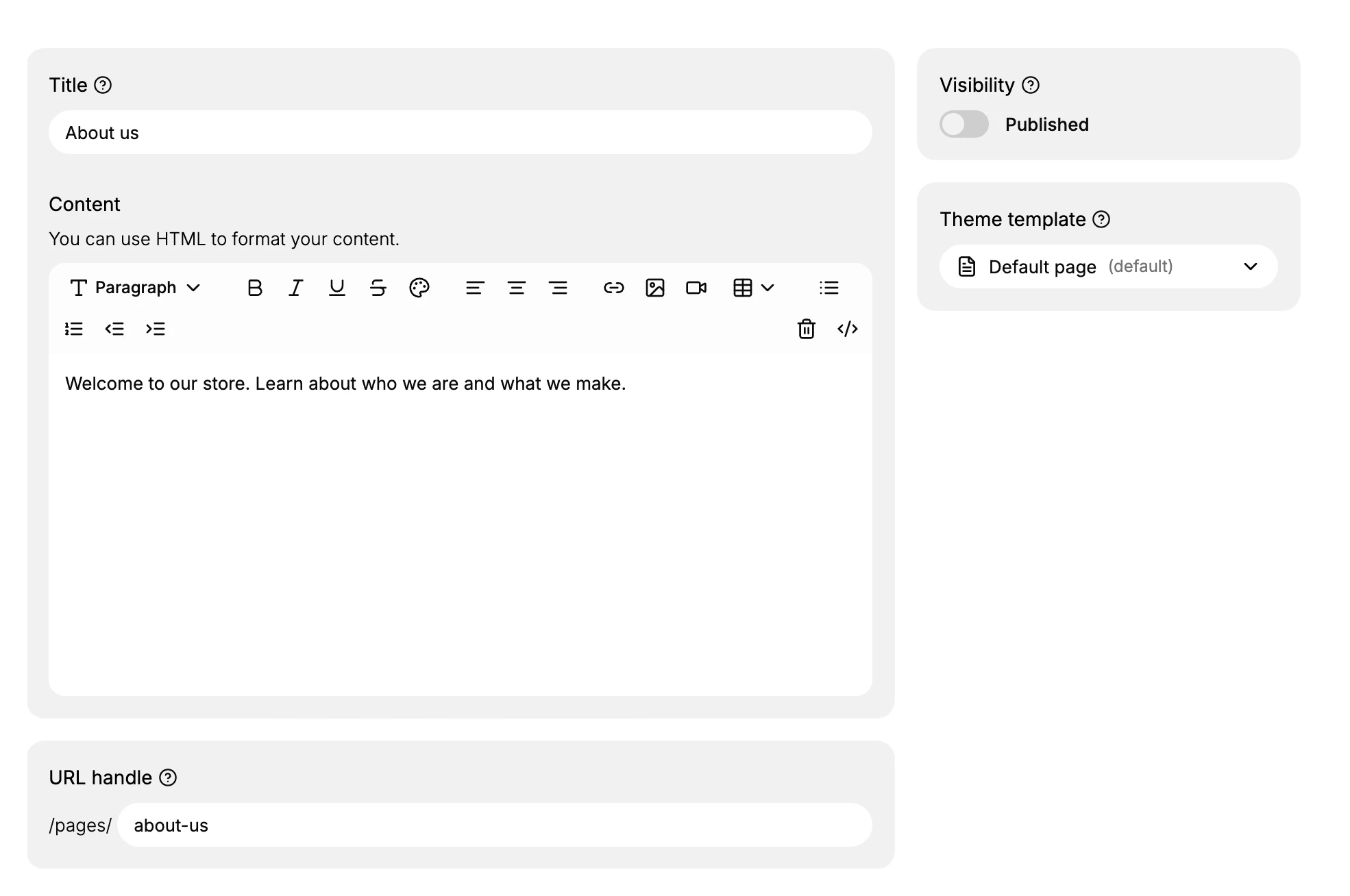
The editor has these parts:
- Title, the name of the page, shown at the top of the page and used to build its web address.
- Content, a rich text editor with a formatting toolbar for headings, bold, links, images, and more. You can also switch to HTML to format the content yourself.
- URL handle, the page's web address under /pages/, filled in from the title and editable.
- SEO settings, where you set how the page appears in search results.
- Metafields, for any custom data defined for pages.
- Visibility, a Published toggle that controls whether the page is live on your store.
- Theme template, which sets the layout the page uses, with a Default page template selected by default.
Create a page
Go to Content > Pages and select Add page to open the editor. In Title, type the name of the page, such as About us; the URL handle fills in from the title. In Content, write the page's text and use the toolbar to format it, or switch to HTML to format it yourself, adding headings, links, and images as needed. On the right, adjust the URL handle if you want a different web address, open SEO settings to control how the page shows in search, and choose a Theme template if you need a layout other than the default. When the page is ready, use the Visibility toggle to publish it, or leave it unpublished while you work, then save the page.
Best practices
- Give the page a clear title, since it names the page and builds its web address.
- Keep the URL handle short and readable, so the web address is easy to share.
- Leave the page unpublished until it is ready, then publish it with the Visibility toggle.
- Fill in the SEO settings for pages you want found in search.
Common mistakes
- Publishing a page before it is finished, rather than leaving it unpublished while you work.
- Changing the URL handle of a live page, which breaks any existing links to the old address.
- Using a page for content that belongs on a product or collection, when pages are for standalone information.
Next steps
Related articles
Still stuck?
- Ask Tanqory AIAsk in your own words. It answers from these articles and links the ones it used.
- Ask in your adminThe assistant in your Tanqory admin answers and makes the change for you once you confirm.
- Contact TanqoryWrite to our privacy, security or legal teams, or talk to sales about a plan or a move.