The Theme Builder
Your online store's look is controlled by its theme, which you edit in the theme builder. Opening the builder shows a live preview of your store in the middle, a tree of the theme's sections on the left, and a settings panel on the right, with a toolbar across the top for the screen size, theme settings, the editor mode, and publishing. This article explains how to open the builder and what its main controls do.
On this page
Your online store's look is controlled by its theme, and you edit the theme in the theme builder. You open the builder with Customize on the Themes page, which shows your store as a live preview you can edit section by section. This article explains the builder and its main controls. Preview a Theme covers previewing your store, and Edit Theme Code covers editing the theme's code.
You open it with Customize on the theme under Online Store, in Themes.
The theme builder
The builder has three parts: the section tree on the left, the live preview in the middle, and a settings panel on the right.
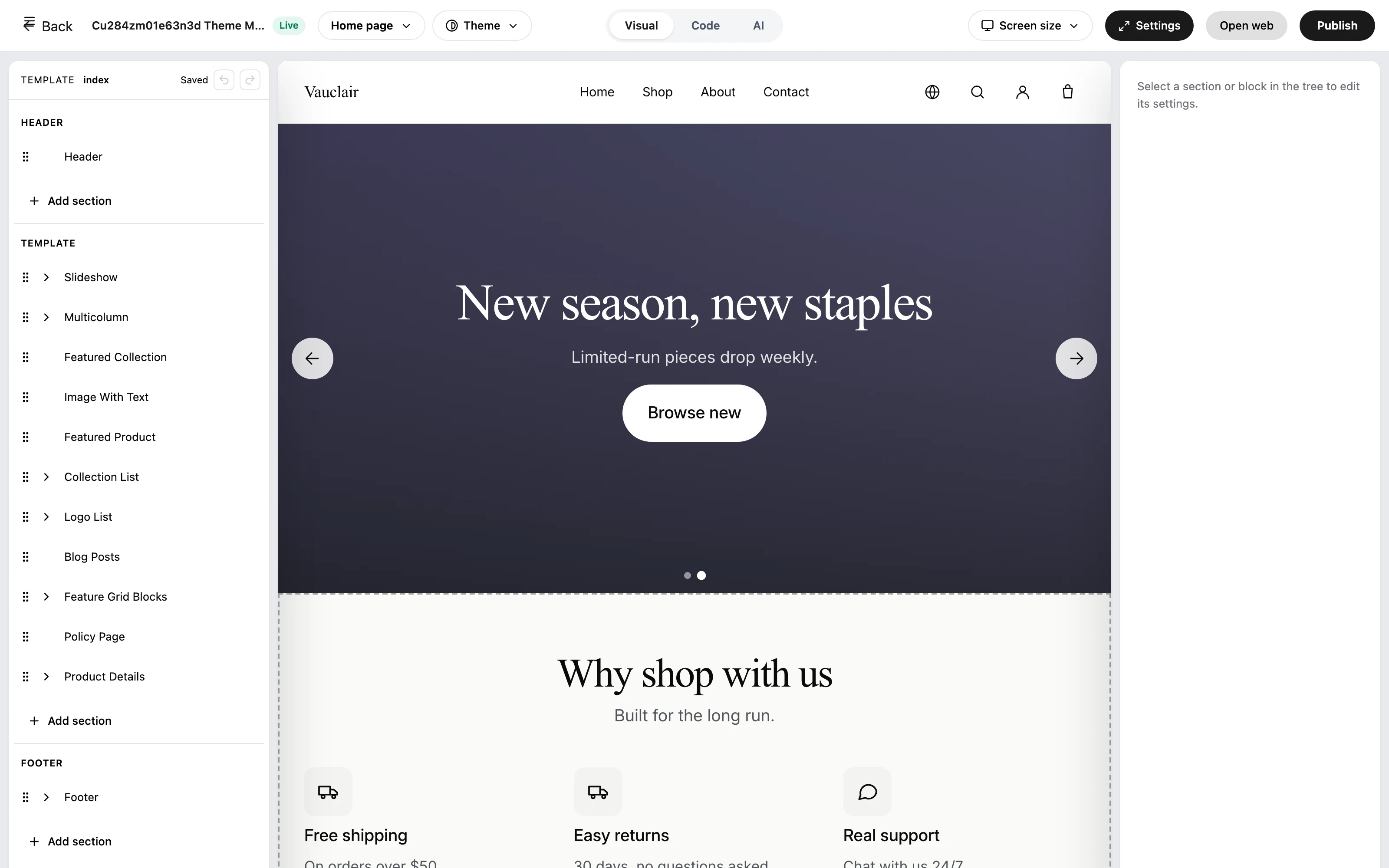
The section tree
On the left, the theme is shown as a tree of sections, grouped into Header, the page Template, and Footer. The template of a page like the home page holds sections such as Slideshow, Multicolumn, Featured Collection, Image With Text, Featured Product, Collection List, and Logo List. Each group has an Add section control to add more, and you can drag a section to reorder it. Selecting a section shows its settings in the panel on the right, where the note reads that you should select a section or block in the tree to edit its settings.
The top toolbar
Across the top, the toolbar has the main controls for the theme:
- Back leaves the builder and returns to the Themes page.
- The theme name sits beside it with a status badge, which reads Live for the theme customers currently see and Preview, not live for one that has not been published.
- Home page chooses which page of the store you are editing.
- Theme and Settings open the theme's overall settings.
- Visual, Code, and AI are a three-way switch for the editor mode, sitting in the middle of the toolbar rather than inside a menu. Code is covered in Edit Theme Code, and AI is described below.
- Screen size previews the store at different device sizes, covered in Preview a Theme.
- Open web opens your live store in a new tab.
- Publish makes your changes the live version of the store.
Build with AI
The AI mode turns the left panel into an assistant that edits the page for you. Instead of finding a section and changing its settings by hand, you describe the change you want and watch it appear in the preview on the right. The panel is headed Build with AI, and its own description reads that you describe the change you want, the assistant edits the page, and you see it happen on the right.
To make it obvious what kind of instruction works, the panel offers ready-made examples you can select instead of typing:
- Add a hero section with the heading "Summer Sale"
- Change the hero heading to "New arrivals"
- Move the featured collection to the top
- Remove the last section
Those examples are worth reading even if you type your own, because they show the useful pattern: name the thing and say what should happen to it. Below the panel is a composer with the placeholder Describe a change to this page, and the model in use is named beside it.
What the AI edits is the page you currently have open, not the whole theme, so switch pages with Home page first if you want to work somewhere else. As with every other change in the builder, nothing reaches customers until you select Publish, which is what makes this safe to experiment with.
A separate AI entry point exists for building a whole theme rather than editing a page, on the Themes page itself. See Themes.
Best practices
- Edit a section by selecting it in the tree, so its settings open in the panel on the right.
- Preview your changes before you publish, so the live store only gets what you intend.
- Publish only when you are ready, since Publish makes your changes live for customers.
Common mistakes
- Publishing before previewing, which puts unfinished changes on the live store.
- Looking for a section in the wrong group, for example a footer link under the template rather than the Footer.
Next steps
Related articles
Still stuck?
- Ask Tanqory AIAsk in your own words. It answers from these articles and links the ones it used.
- Ask in your adminThe assistant in your Tanqory admin answers and makes the change for you once you confirm.
- Contact TanqoryWrite to our privacy, security or legal teams, or talk to sales about a plan or a move.