Customize Your Storefront
The theme customizer is where you build each page from sections, edit their settings in a live preview, switch between pages, and publish when the design is ready.
On this page
The theme customizer is where you design each page of your storefront. You build a page from sections, edit each section in a live preview, and publish when it is ready. You open it from the Themes page, then Customize on your current theme.
Before you begin
- Your role includes Edit online store.
- Open Online Store > Themes in the admin sidebar, then select Customize on your current theme.
The theme customizer
On the Themes page, select Customize on your current theme. The customizer shows a live preview of the page in the middle, with editing tools around it.
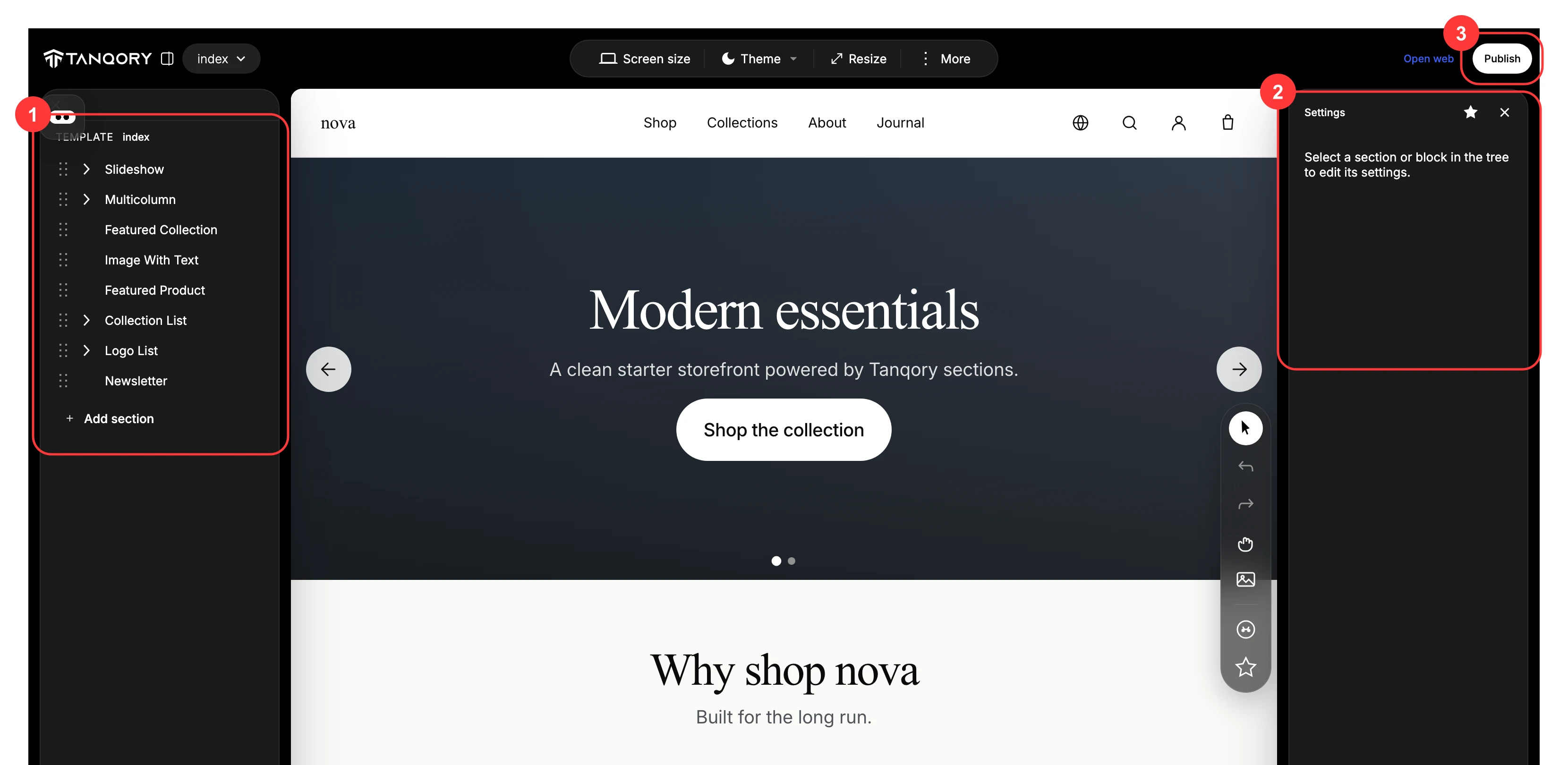
- Section tree (1) on the left lists the sections that make up the page, such as Slideshow, Featured Collection, Image With Text, and Newsletter. Drag a section to reorder it, click one to select it, and use Add section to add another.
- Settings (2) on the right is where you edit the section or block you selected in the tree. Choose a section, and its settings open here.
- Publish (3) at the top right makes your changes live. Until you publish, your edits stay in this theme only and customers keep seeing the published one.
Above the preview, the page selector shows the page you are editing (index is the home page) and lets you switch to others, such as Products, Collections, Cart, Blogs, or the Password page. Screen size switches the preview between desktop and phone, and Open web opens the page on the storefront.
Note: Editing in the customizer changes only this theme, not your live store. Customers see your work only after you click Publish, so you can edit and preview safely first.
Best practices
- Edit and preview before you publish, so customers only ever see a finished page.
- Check both desktop and phone with Screen size, since much of your traffic is on mobile.
- Work one section at a time from the tree, so the page stays organized and easy to follow.
Next steps
Related articles
Still stuck?
- Ask Tanqory AIAsk in your own words. It answers from these articles and links the ones it used.
- Ask in your adminThe assistant in your Tanqory admin answers and makes the change for you once you confirm.
- Contact TanqoryWrite to our privacy, security or legal teams, or talk to sales about a plan or a move.