Manage Themes
The Themes page is where you preview your storefront, customize your current theme, and add or switch to other themes, including creating one with AI. Publishing a theme makes it the one customers see.
On this page
The Themes page is where you manage how your online store looks. From here you preview your storefront, customize the theme your customers see, and add or switch to other themes. You open it from the Themes page under Online Store.
Before you begin
- Your role includes Edit online store.
- Open Online Store > Themes in the admin sidebar, which is the page this article describes.
The Themes page
On the Themes page, the top previews your storefront on desktop and on a phone, with Mobile Preview marking the phone view, and View Store opens the live storefront in a new tab. Below the preview are three parts.
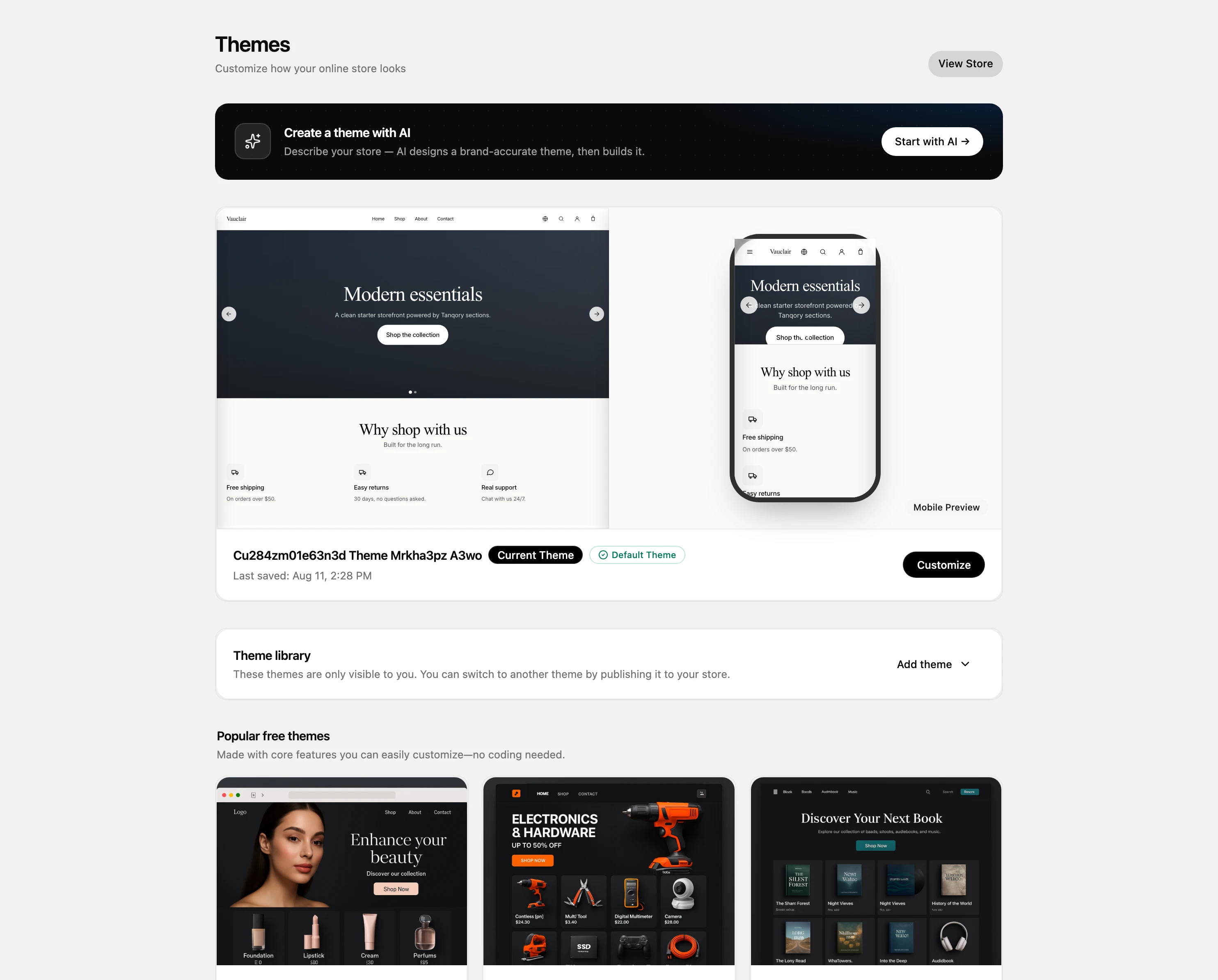
- Current Theme is the theme your store uses now, marked with a Current Theme label, with Last saved showing when it was last edited. Click Customize to open the editor and change its sections and layout. See Customize Your Storefront.
- Theme library holds the themes saved to your store, which only you can see until you publish one. To switch your store to a different theme, publish it from here. Use Add theme to add another, either from Browse theme store or by uploading a theme file.
- Popular free themes are free themes by Tanqory Inc. that you can add in one click. The set offered is Aurora, Forge, Grove, Pulse, Vela, and Vertex, described as made with core features you can customize without coding. Select Add to put one in your theme library, then customize and publish it when it is ready.
Create a theme with AI
Above the theme cards sits a Create a theme with AI panel, which offers a different starting point from picking a ready-made theme. Its own description reads that you describe your store, and AI designs a brand-accurate theme and then builds it. You start it with Start with AI.
This is worth considering when none of the free themes is close to how you want the store to look, since it begins from your description rather than from a fixed design. Treat the result as a starting point rather than a finished storefront: it lands in your theme library like any other theme, so it is visible only to you until you publish it, and you can customize it further before anyone sees it.
Note: A theme in your library is visible only to you until you publish it. Publishing a theme makes it your Current Theme, the one customers see, so customize and preview it first.
Best practices
- Add and customize a theme before you publish it, so customers only ever see a finished storefront.
- Check both desktop and mobile with Mobile Preview and View Store, since much of your traffic is on phones.
- Start from a Tanqory theme such as Aurora or Vela, since they are built to customize without code and are simpler to maintain than a theme you have altered heavily.
Next steps
Related articles
Still stuck?
- Ask Tanqory AIAsk in your own words. It answers from these articles and links the ones it used.
- Ask in your adminThe assistant in your Tanqory admin answers and makes the change for you once you confirm.
- Contact TanqoryWrite to our privacy, security or legal teams, or talk to sales about a plan or a move.