Brand Identity
Set up your store brand identity in one place from Settings, then Brand: logos, colors, cover image, tagline, business description, and social media links.
On this page
The Brand page is where you define your store's identity in one place. You reach it from Settings > General, by opening Brand identity, which takes you to the Brand page. The logos, colors, and other assets you set here build a consistent brand across your store, your marketing channels, and your customer touchpoints, so you set them once instead of repeating them in every place.
What to include
The Brand page groups its elements into two sets, so you know what is core and what is optional.
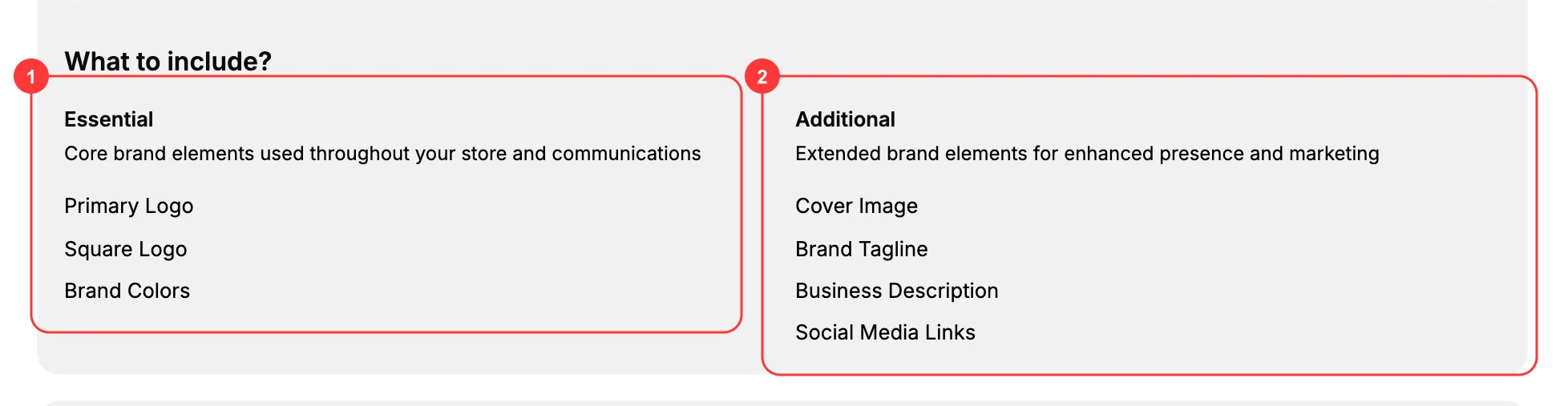
- Essential (1) are the core brand elements used throughout your store and communications: your Primary Logo, your Square Logo, and your Brand Colors. Set these first.
- Additional (2) are extended elements for a fuller presence: a Cover Image, a Brand Tagline, a Business Description, and Social Media Links. Add them as you build out your brand.
Tip: Set the Essential elements first. Your logos and colors appear throughout the storefront, so getting them right gives every other brand element a consistent base to build on.
The brand elements
Each item above is a section you fill in on the Brand page, from top to bottom.
- Brand Logos hold a Primary logo and a Square logo. Upload each one, or pick from your library or stock photos. See Brand Logos.
- Colors hold a Primary palette and Secondary supporting colors used for accents and detail. See Brand Colors.
- Cover Image is a key image that represents your brand. See Brand Cover Image.
- Brand Tagline is a short line that sums up your brand, up to 80 characters.
- Business Description is a short summary of your business, up to 150 characters.
- Social Media Links are links to your social profiles, added one at a time with Add social link. See Brand Social Links.
Brand identity
Below the visual elements, the Brand identity section holds the written side of your brand. The descriptive fields in it sit under a Brand voice label on the page. Where the logos and colors decide how your store looks, these fields describe what it is and how it speaks, so the wording stays consistent wherever your brand is used.
| Field | What it holds |
|---|---|
| Business name | The name your brand trades under |
| Fonts | The typefaces chosen for your brand, picked with Select fonts |
| Brand values | What your brand stands for |
| Brand aesthetic | Your brand's look and feel, described in words |
| Tone of voice | How your brand speaks to customers |
| Keywords | Terms that describe your brand |
Apart from Fonts, which you pick with Select fonts, these are text you write yourself, so the useful discipline is to be specific. "Friendly" describes almost any store, while "plain-spoken, never pushy, no exclamation marks" is something a person can actually write to.
Business details
The Business details section holds the practical facts a customer needs to reach you or visit you.
- Phone number for your business.
- Business hours, set per day from Sunday to Saturday, with Not applicable available for a business that does not keep fixed hours.
- Location, entered as City, State or Province, Postal code, and Country.
- Call-to-action links, a group of addresses customers act on: a Business email, an Appointment URL, an Order-ahead URL, and a Reservation URL. Fill in only the ones your business actually offers.
- Testimonials, for what customers say about you.
Fill these in only where they are true. An appointment link that goes nowhere or hours that no longer match are worse than leaving the field empty, because a customer acts on them before discovering they are wrong.
A Learn more about building your brand link closes the page.
Next steps
- Brand Logos to add your primary and square logos.
- Brand Colors to set your primary and secondary colors.
- Brand Cover Image to add a cover image.
Related articles
Still stuck?
- Ask Tanqory AIAsk in your own words. It answers from these articles and links the ones it used.
- Ask in your adminThe assistant in your Tanqory admin answers and makes the change for you once you confirm.
- Contact TanqoryWrite to our privacy, security or legal teams, or talk to sales about a plan or a move.