Brand Colors
Add your primary and secondary brand colors in Brand settings, choosing each one with a picker that pairs it with a contrasting color for readable text, so your store, social media, and marketing stay consistent.
On this page
Your brand colors live on the Brand page in your store settings, under Colors. Tanqory keeps two groups: Primary for your main brand colors and Secondary for supporting accent colors. Setting them here keeps your colors consistent across your store, social media, and marketing, instead of being scattered through your theme.
Before you begin
- Your role includes Edit online store.
- Open Settings > Brand in the admin sidebar and scroll to Colors.
Add your brand colors
On the Brand page, scroll to Colors. Under Primary, click Add primary colors to open the Choose brand color picker.
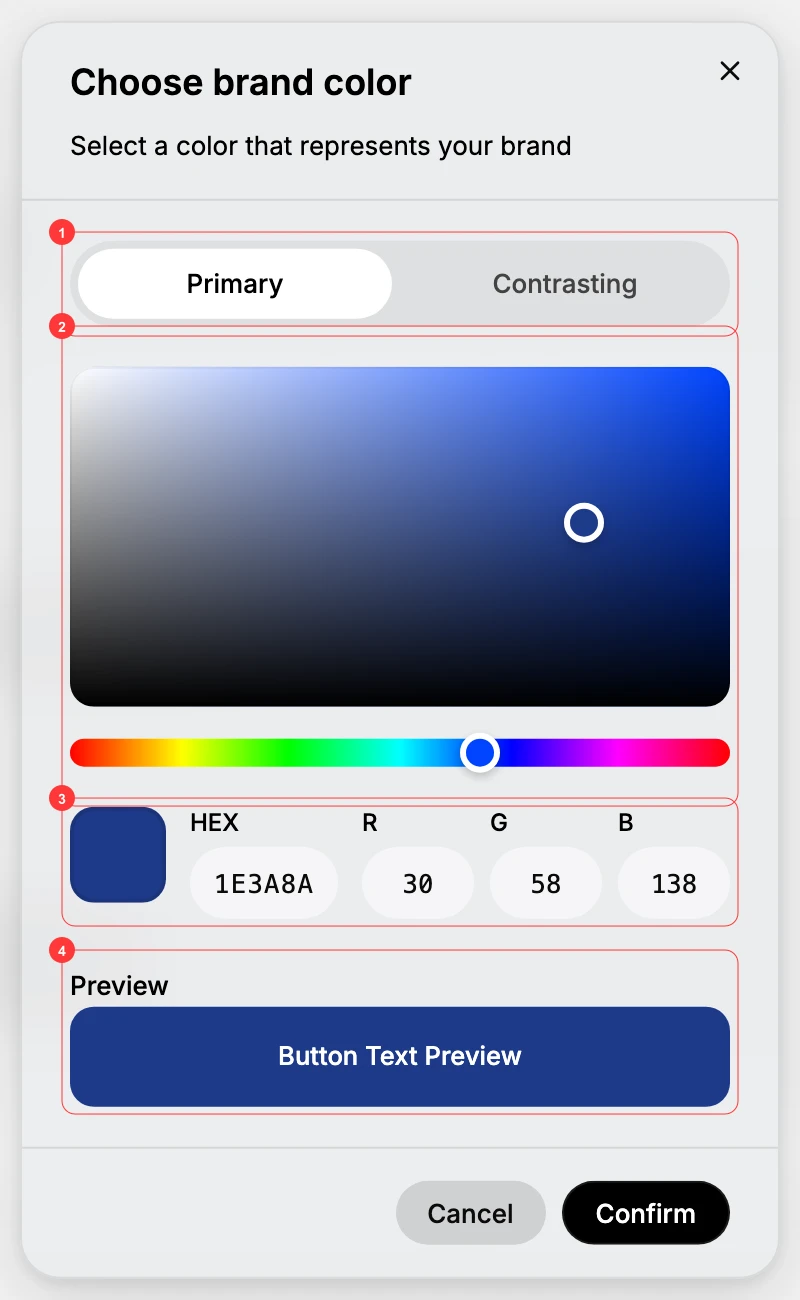
- Primary and Contrasting (1) are the two parts of one brand color. The Primary tab sets the color itself; the Contrasting tab sets the color shown on top of it, such as button text.
- The color area and hue slider (2) let you pick a color by dragging.
- HEX and RGB (3) let you type an exact value instead, for example 1E3A8A for a deep blue.
- Preview (4) shows a Button Text Preview, so you can confirm the contrasting color stays readable on the primary.
Click Confirm to add the color. Add more the same way, and use Add secondary colors under Secondary for your accent colors. When you are done, click Save on the bar at the top of the page.
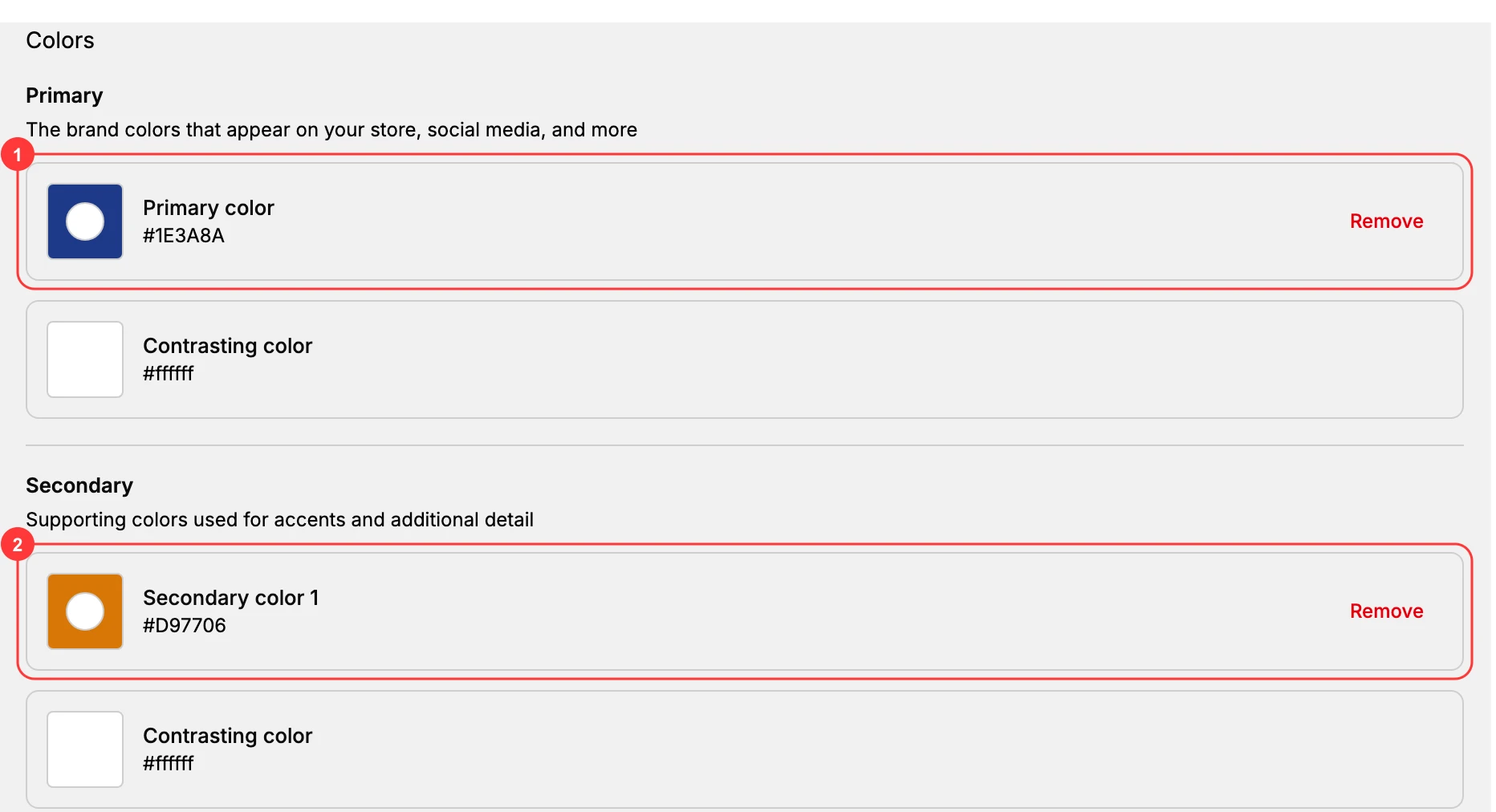
Once saved, the Colors section lists what you set. Each color appears with its hex value and the paired Contrasting color for text, grouped under Primary (1) and Secondary (2). From here you can add more colors or Remove one. As the Primary section notes, these are the brand colors that appear on your store, social media, and more.
Note: Use the Contrasting color and the Button Text Preview together to keep text legible on each brand color. A primary that is too light behind white text, or too dark behind black, is hard to read on buttons and labels.
Best practices
- Set colors once here, so every channel reads the same palette instead of colors hardcoded in the theme.
- Pair each color with a readable contrasting color, and check it in the Button Text Preview before saving.
- Keep the palette small, a primary plus a few secondary accents, so your brand stays recognizable.
Next steps
Related articles
Still stuck?
- Ask Tanqory AIAsk in your own words. It answers from these articles and links the ones it used.
- Ask in your adminThe assistant in your Tanqory admin answers and makes the change for you once you confirm.
- Contact TanqoryWrite to our privacy, security or legal teams, or talk to sales about a plan or a move.