Menus
Build the navigation menus on your storefront. A menu is a named, ordered list of items that link to pages, collections, products, blogs, or custom URLs, and items can be nested for sub-menus.
On this page
A menu is the navigation that customers use to move around your storefront, such as the links in your header or footer. Each menu is a named, ordered list of items, and every item links somewhere: a page, a collection, a product, a blog, or a custom URL. Items can be nested to create sub-menus. You build and manage menus in your store admin under Content, then Menus.
What a menu is made of
| Part | What it does |
|---|---|
| Name | The menu's name in the admin, for example Main menu or Footer menu |
| Handle | A short identifier created automatically from the name. It cannot be changed after the menu is created, and your theme uses it to know which menu to show |
| Menu items | The ordered links in the menu. Each item has a label that customers see and a link to a page, collection, product, blog, or custom URL |
| Sub-items | Items nested under another item, which appear as a drop-down or sub-menu on the storefront |
Before you begin
- Your account can open Content, then Menus.
- You know which links you want in the menu and where each should point.
- Open Content > Menus to open the menus list.
Steps
1. Open Content, then Menus
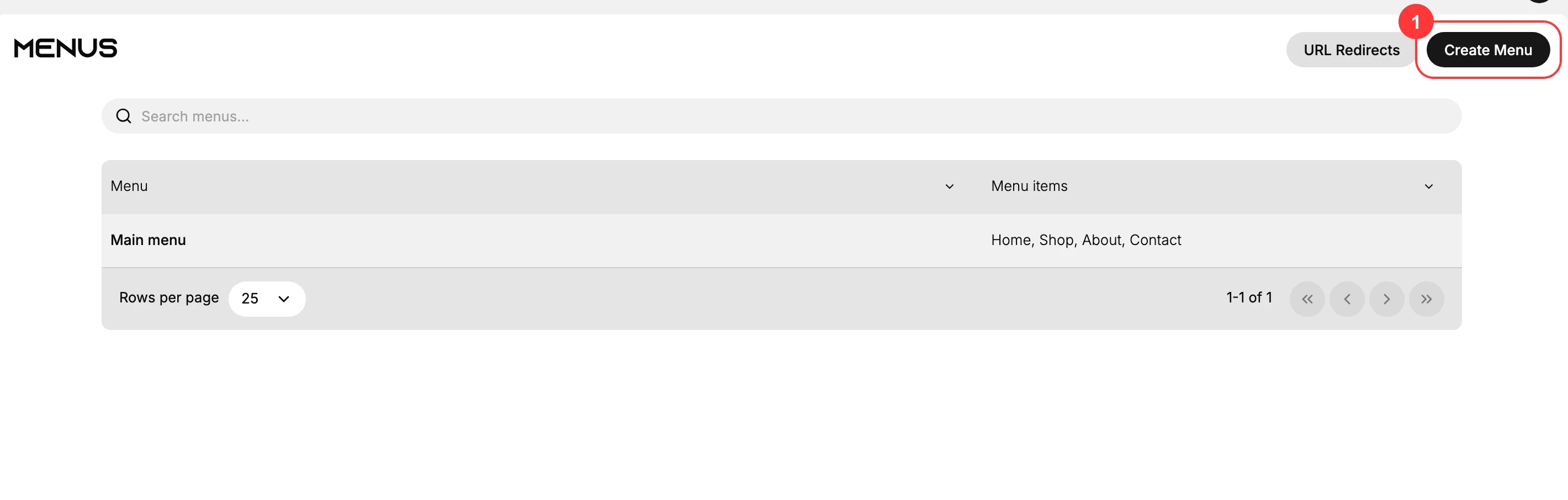
In your store admin, open Content and select Menus. This page lists your menus. Select Create Menu to start a new one.
2. Name the menu and add items
Enter a Name (1) that describes where the menu is used, such as Main menu or Footer menu. The Handle below it is filled in automatically and cannot be changed once the menu is created, so your theme can rely on it.
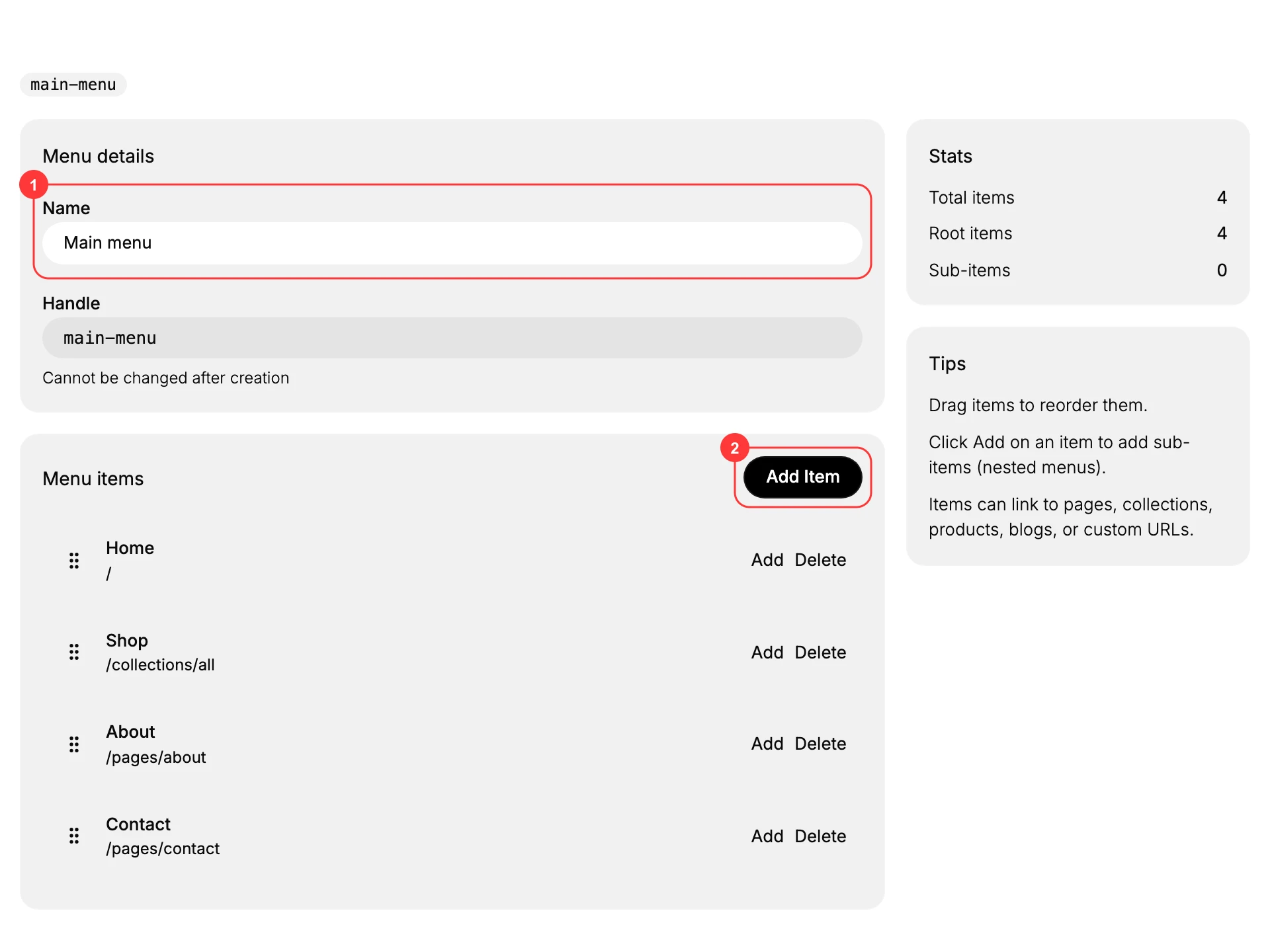
Select Add Item (2) to add a link. For each item, enter the label customers will see and choose the link type, which can be a page, collection, product, blog, or a custom URL such as /collections/all. Drag an item by its handle to reorder it, and use Add on an item to nest sub-items under it. When the menu is ready, save it; your theme then shows it wherever it references that menu's handle, for example as the header or footer navigation.
Best practices
- Keep the top level short. Around five to seven items is easy to scan.
- Use nesting only where it helps, and avoid going more than one level deep.
- Make sure every item points to a page or collection that exists, so customers do not reach a missing page.
- Name menus by where they appear, such as Main menu and Footer menu, so they are easy to tell apart.
Next steps
Related articles
Still stuck?
- Ask Tanqory AIAsk in your own words. It answers from these articles and links the ones it used.
- Ask in your adminThe assistant in your Tanqory admin answers and makes the change for you once you confirm.
- Contact TanqoryWrite to our privacy, security or legal teams, or talk to sales about a plan or a move.