Blog Posts
Write and publish articles inside a blog from Content, then Blog Posts. Each post has a title, rich content, an author, tags, a featured image, and a visibility toggle.
On this page
A blog post is an article you publish inside a blog. You write posts from Content, then Blog Posts, where you give each post a title and content and assign it to a blog. Every post also carries its own author, tags, featured image, excerpt, and a visibility setting that decides whether it is live on your storefront.
How blog posts work
A post always belongs to a blog, which is the container that sets its web address and template. You pick the blog on the post itself, write the content, choose who it is credited to and whether it is published, then save. Blogs creates the blogs a post can go into.
Before you begin
- Your role includes Edit content.
- You have at least one blog to publish into.
- Open Content > Blog Posts to open the blog posts list.
Steps
1. Open the editor and write the article
Go to Content, then Blog Posts, and click Add blog post in the top right to open the New Article editor. The left side of the editor is where you assign and write the post.
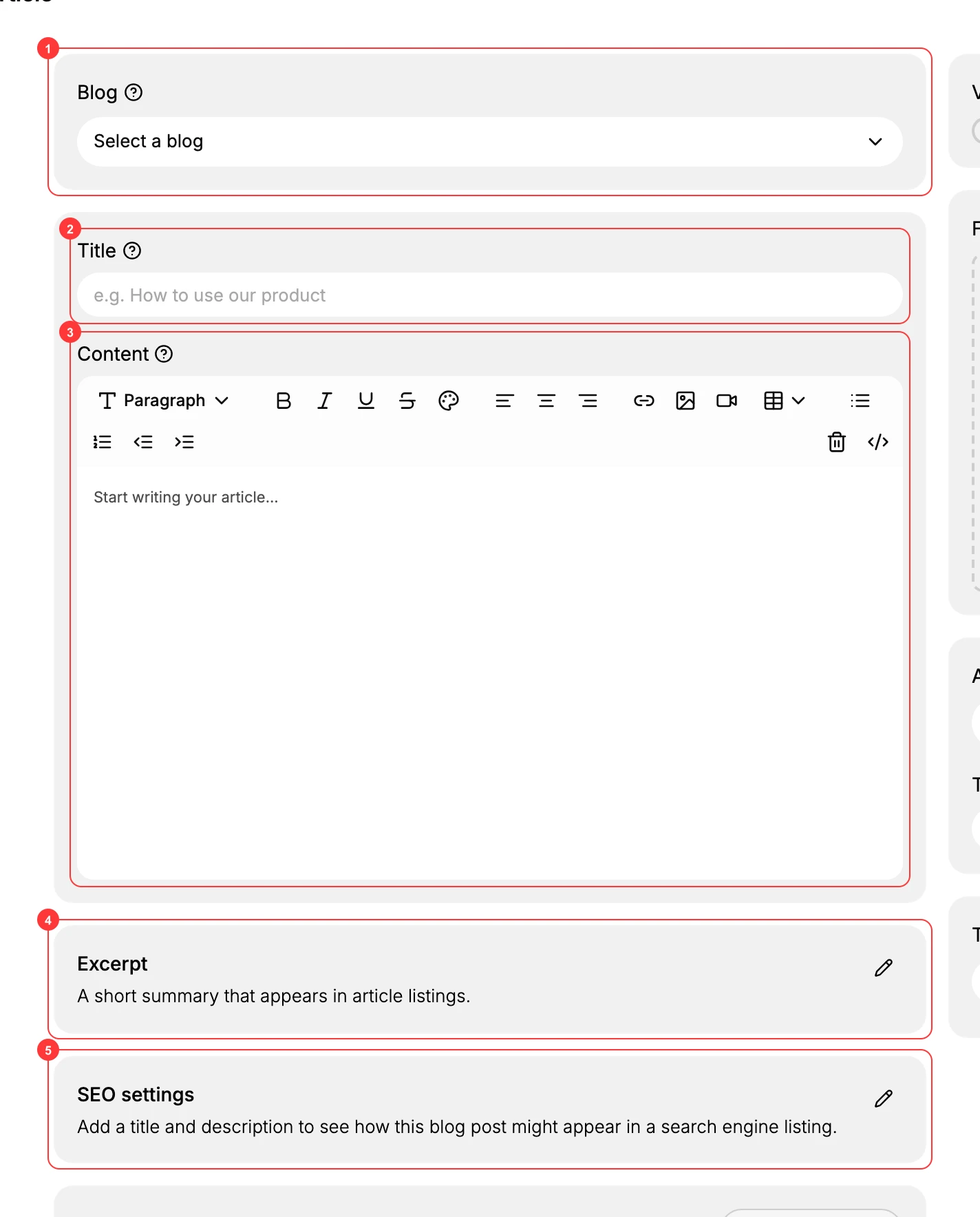
- Blog (1) is the blog this post belongs to. A post always lives in a blog, so select one before you publish.
- Title (2) is the post's headline, shown as the article heading and in blog listings.
- Content (3) is the body. It is a rich text editor with headings, bold, italic, links, images, video, lists, and tables.
- Excerpt (4) is a short summary that appears in article listings, so readers see what the post is about before opening it.
- SEO settings (5) let you add a title and description that control how the post appears in search engine results.
The Metafields card below is optional, for storing extra custom data on the post. See Metafields if you need it.
2. Set the post's details, visibility, and save
The right side holds the post's settings.
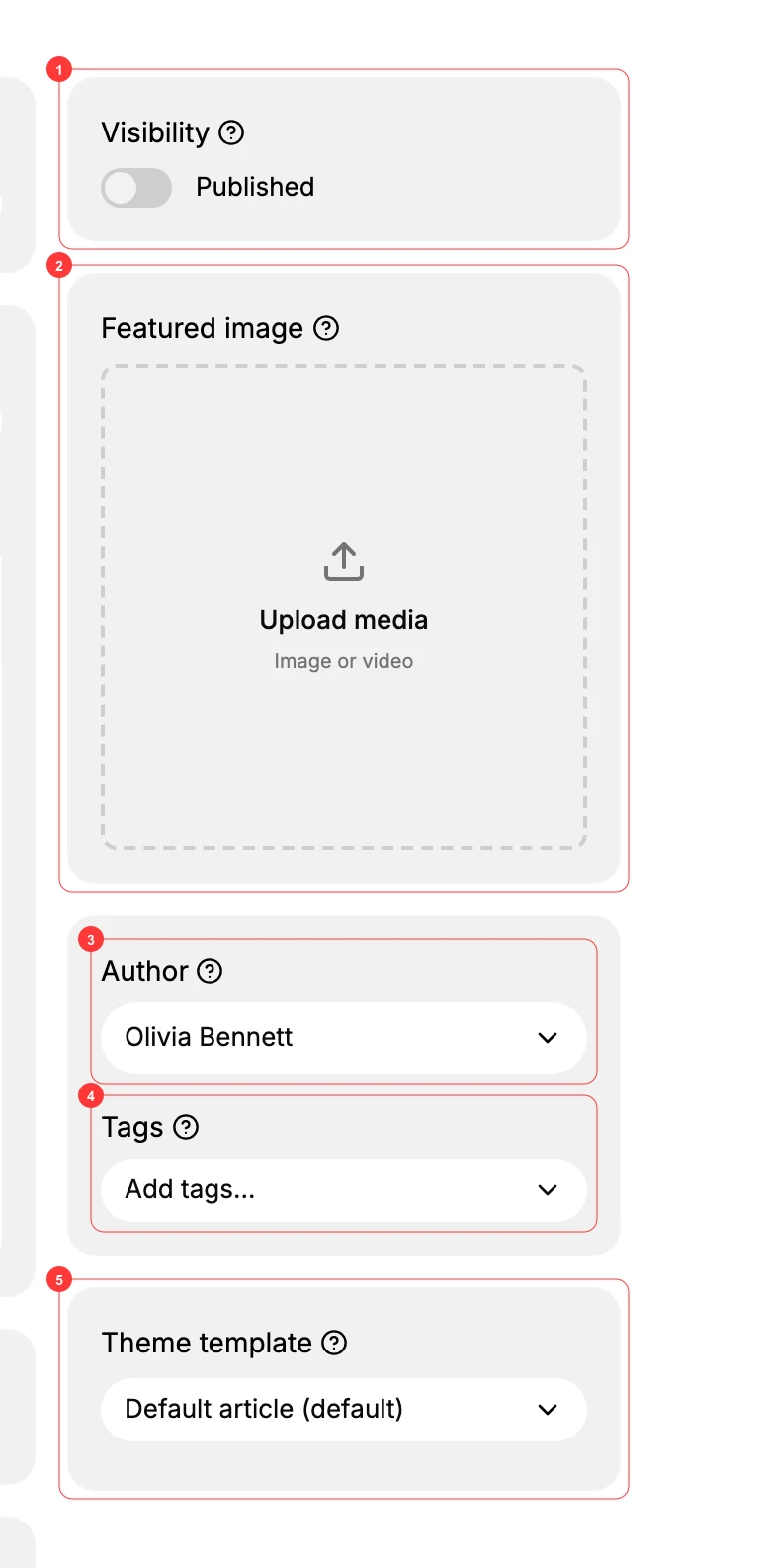
- Visibility (1) turns the post on or off. Switch Published on to make it live on your storefront; leave it off to keep the post as an unpublished draft.
- Featured image (2) is the main image for the post. Upload an image or video to show at the top of the post and in listings.
- Author (3) is who the post is credited to, shown as the byline.
- Tags (4) are labels you add to group related posts together.
- Theme template (5) sets which template the post renders with. Default article is used unless your theme provides another article template.
Save to keep your work. With Visibility set to Published, the post goes live in its blog; otherwise it stays an unpublished draft you can come back to and finish later. Add the blog to your storefront navigation in Menus so readers can reach your posts.
Next steps
- Blogs to create or manage the blogs your posts live in.
- Menus to link a blog from your storefront navigation.
- Files to manage the images you add to posts.
Related articles
Still stuck?
- Ask Tanqory AIAsk in your own words. It answers from these articles and links the ones it used.
- Ask in your adminThe assistant in your Tanqory admin answers and makes the change for you once you confirm.
- Contact TanqoryWrite to our privacy, security or legal teams, or talk to sales about a plan or a move.