Brand Cover Image
Add a cover image to your brand in Settings, then Brand, so Tanqory has a wide brand picture to show alongside your logo and colors.
On this page
The cover image is a wide picture that belongs to your brand, alongside your logos and colors. You set it in your store admin under Settings, then Brand, in the Cover Image section. Adding one gives Tanqory a single brand picture to draw on wherever a wide brand image is shown, so your store stays visually consistent.
Before you begin
- Your account can open Settings, then Brand.
- You have the picture ready, either on your computer, already in your library, or a stock photo you want to use.
- Open Settings > Brand in the admin sidebar and scroll to Cover Image.
Where to set the cover image
Open Settings, then Brand. The Cover Image section sits below Brand Logos and Colors, and holds a single slot for the picture.
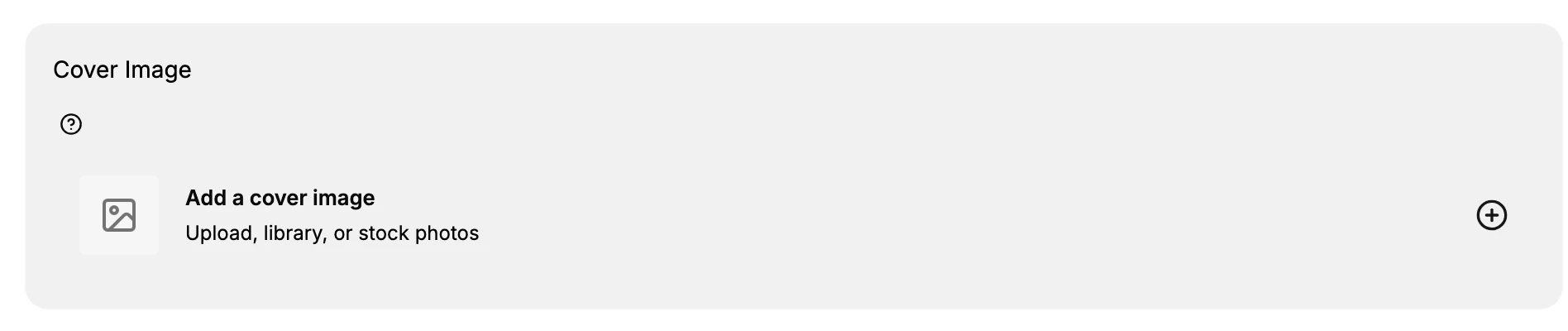
Adding a cover image
The slot reads Add a cover image when it is empty. Select the plus button on the right, then pick where the picture comes from: upload a file from your computer, choose one from your library, or use a stock photo. Once you select a picture, it is saved to your brand and shown in the slot as a preview.
Changing or removing it
After a picture is set, the same slot shows the preview with controls to replace or clear it. Use the replace control to swap in a different picture, or the clear control to empty the slot and return it to the Add a cover image state.
Tip: Use a wide, high-resolution picture that suits your brand, and keep the important part near the center so it still reads well if the sides are trimmed to fit a space.
Best practices
- Choose a picture that sits naturally next to your logo and brand colors, so the whole brand reads as one.
- Use a high-resolution file, so the picture stays sharp wherever it appears.
- Keep any text in the picture minimal, since it can be hard to read at smaller sizes.
If something goes wrong
- The picture did not appear in the slot. Open the slot again and reselect the picture, then confirm the preview shows in the Cover Image section before you leave the page.
- You picked the wrong picture. Use the replace control on the slot to swap in a different one, or the clear control to empty the slot and start again.
- You cannot open or edit the section. Your role may not allow managing brand settings. Ask an owner or admin for access to Settings, then Brand.
Next steps
Related articles
Still stuck?
- Ask Tanqory AIAsk in your own words. It answers from these articles and links the ones it used.
- Ask in your adminThe assistant in your Tanqory admin answers and makes the change for you once you confirm.
- Contact TanqoryWrite to our privacy, security or legal teams, or talk to sales about a plan or a move.