Link Your Storefront to Social
Social profile links live in Brand settings rather than in your theme, in a Social Media Links section that takes one profile address at a time. Keeping them in one place means a single edit when a profile moves, instead of hunting for old links pasted around the store. This covers where the section sits, how to add a link, and which networks the list offers.
On this page
Your social profiles are part of how customers recognize and follow your brand, so it helps to keep their links in one place rather than pasting them into different spots around your store. Tanqory holds them in Brand settings, alongside your logo, colors, and tagline, as part of your brand's social presence. Setting them once here means your social links stay with the rest of your brand identity and are simple to update, so customers are always sent to accounts you actually keep active. This article shows where to add them.
A dead social link is worse than none, because it sends an interested customer to a page that no longer exists. Keeping the links in one place is what makes them quick to check and correct when a profile moves or closes.
Before you begin
- Your role includes Brand settings.
- You have the full web address of each social profile you want to add, such as the URL that opens when you view your Instagram or Facebook page.
- Open Settings > Brand in the admin sidebar, then scroll to Social Media Links.
Add your social links
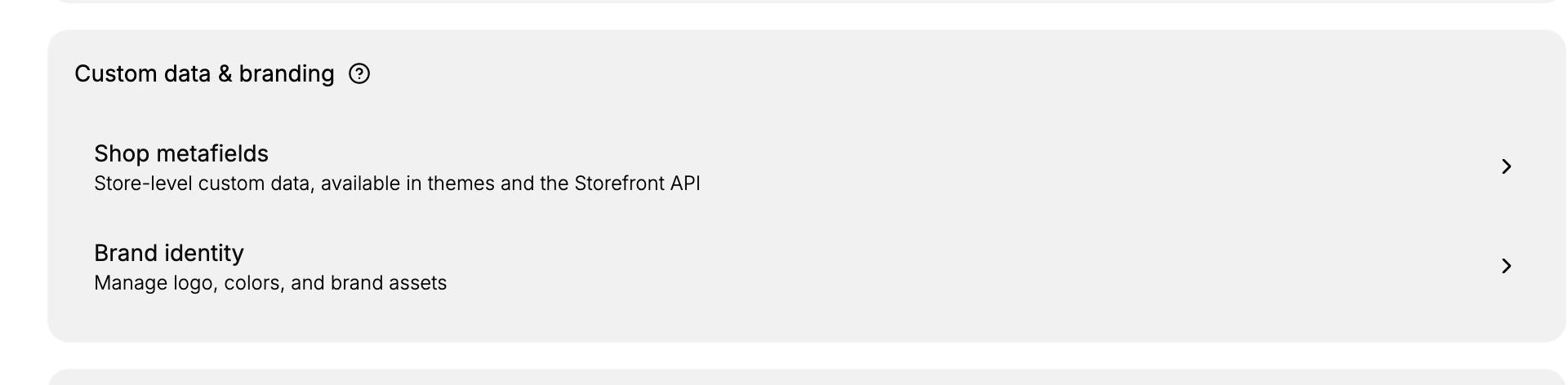
On the Brand page, scroll to Social Media Links. If you are already on the General settings page, you can also reach it by selecting Brand identity ("Manage logo, colors, and brand assets") under the Custom data & branding section. Either route opens the same Brand page, which keeps your visual assets, messaging, and social presence together, so your social links sit here among the other brand elements rather than on a separate page.
- Find the Social Media Links section. On the Brand page, scroll to Social Media Links, grouped with the additional brand elements such as your cover image, tagline, and business description. This is the single place your social profile links are kept.
- Add each social profile link. Select Add social link. You pick the network first, from the list below, and then give the address of your profile on it, in the form the field shows as
https://…. Repeat for each network you are on. Add only the profiles you actively maintain, so every icon a customer taps leads somewhere current.
The networks you can add
The picker holds nineteen networks, so most stores will find theirs here. If yours is not listed, there is no free-text option to add it.
| Group | Networks |
|---|---|
| Broad social | Facebook, X, Threads, Instagram, TikTok, Snapchat, Tumblr, Pinterest |
| Video and audio | YouTube, Vimeo, Twitch, Spotify |
| Messaging | WhatsApp, LINE, KakaoTalk, WeChat, Discord |
| Professional and regional | LinkedIn, Weibo |
The list covers networks that matter in different markets rather than only the largest global ones, so a store can link LINE, KakaoTalk, WeChat or Weibo alongside the networks it already uses. The list is not limited to the networks that are large in the United States.
Once the networks are added, save your work.
- Save your brand settings. Save your changes so the links become part of your brand, kept with the rest of your brand identity in one place you can return to and update whenever an account changes.

The links now sit with the rest of your brand identity rather than inside a theme, which is what turns a moved profile into one edit here instead of a hunt through the store. Adding a network you do not actually post from costs nothing to set up and leaves a dead link in your brand record, so the list is worth keeping to the accounts you use.
Verify the result
- Each social link you added appears in the Social Media Links section of Brand settings.
- Reopening Brand settings shows the links you saved.
- Each link opens the correct profile when you follow it.
Best practices
- Add only the profiles you actively maintain, so customers are not sent to an account you have abandoned.
- Use the full profile address rather than a handle, so the link resolves to the right page.
- Keep the list current, updating or removing a link whenever a profile changes or closes.
- Set these once in Brand settings rather than pasting profile links into separate places, which is harder to keep in step.
Next steps
Related articles
Still stuck?
- Ask Tanqory AIAsk in your own words. It answers from these articles and links the ones it used.
- Ask in your adminThe assistant in your Tanqory admin answers and makes the change for you once you confirm.
- Contact TanqoryWrite to our privacy, security or legal teams, or talk to sales about a plan or a move.