Install a Pixel for Customer Events
A pixel is a small piece of tracking that reports what shoppers do on your store to an outside service, such as an advertising or analytics platform. The Pixels section on the Customer events page is where they go, and it offers two routes in: install one from an app, or add a custom pixel yourself. Putting it in before your first campaign matters, because a pixel cannot report on clicks that happened before it existed.
On this page
A pixel is a small piece of tracking that reports what shoppers do on your store, such as viewing a product or completing a purchase, to an outside service like an advertising platform or an analytics tool. That flow of events is what lets a platform such as a Meta or Google Ads account measure the sales your ads produce and build audiences to advertise to. Without a pixel, those platforms cannot see what happened after a click, so your reporting stays blind to which campaigns actually sold anything. In Tanqory you manage pixels on the Customer events page, and there are two ways to add one: install a pixel app, or add a custom pixel of your own.
The two ways to add a pixel
Which path you take depends on whether the platform you use offers a ready-made app.
- A pixel app connects a service's pixel to your store for you, so you choose the app rather than paste any code. This is the simpler route and the one to prefer when an app exists, because it leaves less room for a setup mistake.
- A custom pixel lets you add your own tracking code when there is no app for it, or when you want direct control. Adding a custom pixel can require a higher plan, so if the option is unavailable on your current plan Tanqory shows an upgrade prompt in place of the editor.
A pixel that is installed but never fires collects nothing. Always confirm it is sending events in the platform's own tools before you rely on its numbers to judge a campaign.
Before you begin
- Your role includes Brand settings.
- You know which platform you want to collect events for, and you have its pixel app or its tracking code ready.
- Open Settings > Customer events in the admin sidebar, where the Pixels section lives.
Add a pixel
On the Customer events page, the Pixels section lists the pixels on your store and shows No pixels yet until you add one, with a short note that you collect customer events using an app pixel or a custom pixel. This page is the single place your store's pixels are managed, so you always return here to add, check, or remove one.
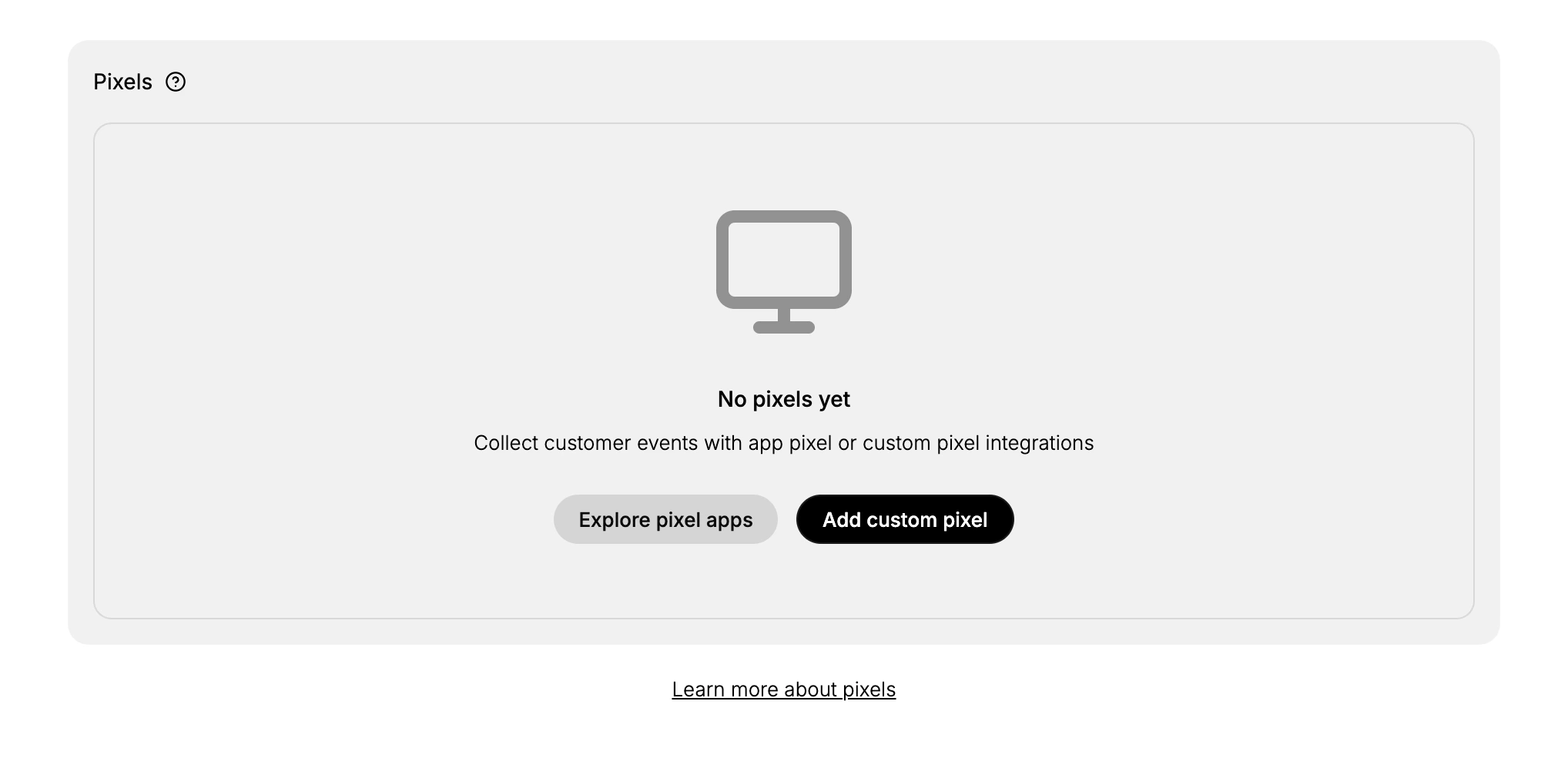
- Choose how to add your pixel. Select Explore pixel apps to find and install an app that connects a platform's pixel for you, as Social Marketing Apps describes, or Add custom pixel to add your own tracking code. If a custom pixel is not on your plan, Tanqory shows an upgrade prompt rather than the editor.
- Install an app pixel. If you chose Explore pixel apps, install the app for your platform and follow its own setup, which connects its pixel to your store, so you get a working pixel without touching any code.
- Or add a custom pixel. If you chose Add custom pixel and your plan includes it, paste your tracking code into the custom pixel editor and save. Only add code from a source you trust, because a pixel runs on your storefront and can see what customers do.
- Confirm it is collecting events. After adding a pixel, confirm it is receiving events using the platform's own tools, such as its events manager or a pixel helper. When views and purchases arrive from your store, the pixel is working and your campaign reports and audiences fill with real data.
A pixel that reports events has done its whole job on the Tanqory side. What happens to those events, and any audience or campaign built from them, belongs to the platform you installed it for, so that is where the next questions are asked rather than in the admin.
Verify the result
- The pixel appears in the Pixels section instead of the No pixels yet state.
- The platform's events tool shows events arriving from your store.
- Key actions such as viewing a product and completing a purchase show up as separate events.
Best practices
- Add only the pixels for platforms you actually use, so you are not sending customer activity to services you do not need.
- Prefer a pixel app over pasting code whenever one exists, since it connects the platform for you with less chance of a mistake.
- Add custom pixel code only from a source you trust, because it runs on your storefront and can read customer activity.
- Confirm a new pixel is firing before you use its numbers to decide where to spend, so you are not acting on empty data.
Next steps
Related articles
Still stuck?
- Ask Tanqory AIAsk in your own words. It answers from these articles and links the ones it used.
- Ask in your adminThe assistant in your Tanqory admin answers and makes the change for you once you confirm.
- Contact TanqoryWrite to our privacy, security or legal teams, or talk to sales about a plan or a move.