Attribution
The Marketing Attribution report shows which channels bring your sessions and sales, so you can see what your marketing is actually producing. This explains what the report measures, how to read its channel breakdown, and how the attribution model shapes the numbers.
On this page
The Marketing Attribution report answers a simple question that is hard to answer without it: which of your channels is actually bringing sessions and sales. You open it from Marketing, then Attribution. It breaks your traffic down by channel over a date range and shows how each one performs, so you can tell where your results are coming from and put more into what works. Reading it well means knowing what it measures and how it decides which channel gets credit for a sale, which is what the sections below cover.
Before you begin
- Set the date range first, since every figure is calculated for the period shown.
- Note which attribution model is selected, because it decides which channel is credited for each sale.
- Open Marketing > Attribution in the admin sidebar.
What the report measures
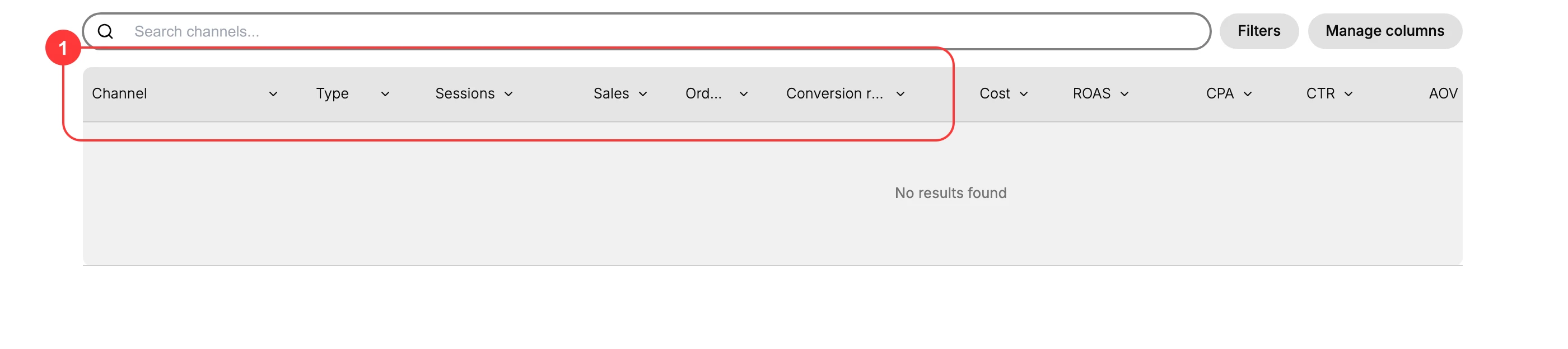
The report lists your channels as rows and shows a set of measures as columns, so each channel can be compared on the same terms. Alongside the table, a chart shows sessions by your top five channels over time, which is where you see a channel rising or falling rather than only its total. A Total row closes the table with the combined figures for the period.
- Channel and Type identify the source of the traffic and what kind it is.
- Sessions, Sales, and Orders show the volume each channel brought.
- Conversion rate shows how well a channel's sessions turned into orders.
- Cost, ROAS, CPA, and CTR appear for supported marketing apps, connecting spend to results, and AOV shows the average order value.
- Orders from new customers and Orders from returning customers split a channel's orders by whether the buyer had bought before. This is the pair that tells you what a channel is actually doing for you: a channel weighted toward new customers is growing your customer base, while one weighted toward returning customers is earning repeat business from people you already had.
A channel that shows no value in a column has nothing to report there rather than a value of zero, which is why unsupported metrics appear empty instead of as 0.
How credit is assigned
The report uses an attribution model to decide which channel gets the credit for a sale, and it opens on Last non-direct click, meaning the sale is credited to the last channel the customer arrived from before buying, skipping any final direct visit. Under this model the channel figures reflect what closed the sale rather than what first introduced the customer.
The model is a control at the top of the report, not a fixed rule, and four others are available: Last click, First click, Any click, and Linear. Switching between them redistributes the credit for the same sales, so the same channel can look strong under one model and weak under another. Always know which model is selected before you draw a conclusion from a channel's numbers. Understanding this is essential to reading the report fairly, so it has its own article: The Attribution Model.
Reading the report
Set the date range and the granularity at the top, then compare channels on the measures that matter to you, such as sales, conversion rate, and, where available, ROAS.
Four controls shape what you are looking at.
- Date range sets the period the figures cover.
- Granularity sets how finely the chart is broken up over that period. A long range read weekly shows a trend, while a short one read daily shows day-to-day movement.
- Search narrows the table to one channel.
- Manage columns changes which measures are shown, so you can put the ones you judge by side by side.
Cost and return metrics behave differently from the rest. They are filled in only when the traffic comes from a supported marketing app, as the report itself notes, so an empty Cost or ROAS means the figure is unavailable for that channel rather than zero.
To dig into a single channel, open its detail. See Attribution Detail.
Taking the report out of the admin
Two actions sit at the top of the report, Print and Export, for when the figures need to leave the admin. Use them to share the report with someone who does not have access, or to keep a record of a period that will later scroll out of your date range.
Set the report up the way you want it before using either one. Choose the date range, the attribution model, and the columns first, because those settings are what define the report you are looking at, and a report exported with the wrong range or a hidden column is the wrong report.
Note: Read a channel's credit as the closing touch, not the whole story. Under this model, a channel that closes sales looks strong while a discovery channel that hands off before the purchase can look weak, so pair the numbers with your own sense of the customer journey before you move budget.
Verify the result
- The report lists your channels with sessions, orders, and sales over the date range you set.
- Cost and return metrics appear for channels that come through a supported marketing app.
- The attribution model control names the model in use, and reads Last non-direct click until you change it, so you know how credit was assigned before reading a channel's figures.
- Orders from new customers and Orders from returning customers appear in the table, splitting each channel's orders by whether the buyer had bought before.
Best practices
- Compare channels over the same date range and model, so the comparison is fair.
- Watch conversion rate alongside sessions, since a channel with fewer but better-converting visits can be worth more.
- Tag your marketing links with UTMs so channels appear cleanly rather than as direct. See UTM Tracking for Campaigns.
- Do not judge a discovery channel by attributed sales alone, because it often hands off before the sale is credited.
Next steps
Related articles
Still stuck?
- Ask Tanqory AIAsk in your own words. It answers from these articles and links the ones it used.
- Ask in your adminThe assistant in your Tanqory admin answers and makes the change for you once you confirm.
- Contact TanqoryWrite to our privacy, security or legal teams, or talk to sales about a plan or a move.