UTM Tracking for Campaigns
A UTM tag is a label you add to a link before you share it, so the visit arrives named instead of anonymous. Without one, the attribution report files that traffic under Direct, which tells you nothing you can act on. This covers the parameters themselves, and why a naming convention matters more than any single tag. It also covers building a tagged link and reading what comes back once the tags are in place.
On this page
A UTM parameter is a short tag added to the end of a link that tells your reporting where a visitor came from. When you share a link from a social post, an advertisement, or an email without these tags, that traffic tends to land in your reports as direct or other, and you lose the ability to tell which channel or campaign drove a sale. Adding consistent UTMs is what makes your marketing traffic show up by channel in Tanqory's attribution report, so you can put more into what works and less into what does not. The report sorts by channel rather than by individual campaign, so keep your campaign names for the platform's own reporting and for your own records. You build the tagged links in a URL builder outside Tanqory, use them in your posts, and read the results back in your admin.
Before you begin
- Your role includes View analytics, since the tags are read from the attribution report rather than set anywhere in the admin.
- You have a naming convention that everyone who posts will follow.
- You have a URL builder, which can be a free online one, a spreadsheet, or a feature in your marketing tool.
- Open Marketing > Attribution in the admin sidebar to read your tagged traffic.
The UTM parameters
A tagged link carries these parameters, and the first three are the ones you will set almost every time.
- utm_source names where the click comes from, for example instagram or newsletter.
- utm_medium names the kind of channel, for example social for an organic post or paid_social for an advertisement.
- utm_campaign names the specific campaign, for example summer-collection or holiday-gift-guide.
- utm_content tells apart variants within a campaign, for example two different images in the same advertisement.
- utm_term is used mainly for paid search keywords.
Keep the naming consistent
Reporting counts differently spelled tags as different channels, so a small inconsistency splits one channel into several rows and hides the true total.
- Use lowercase throughout, since instagram and Instagram are counted separately.
- Pick one word separator, either hyphens or underscores, and use it everywhere.
- Avoid spaces, which get encoded into the link and are easy to get wrong.
- Put a season or date in the campaign name so recurring campaigns stay distinct over time.
Agree your naming convention and write it down before anyone tags a link. It is far easier to keep tags consistent from the start than to untangle a report where one channel has fragmented into a dozen near-identical rows.
Build and use a tagged link
In your URL builder, paste the store page you want to send people to, then fill in the UTM parameters using your naming convention. The builder combines them into a single link that carries the tags. For example, a link to your new collection tagged with utm_source of instagram, utm_medium of social, and utm_campaign of summer-collection reports every click from that post under an Instagram social campaign named summer-collection.
Use that tagged link in your post, advertisement, or email instead of the plain store address, then read the results in the attribution report. Traffic that arrives without UTM tags is grouped as Direct, so the tags are what let the report split your visitors out by channel.
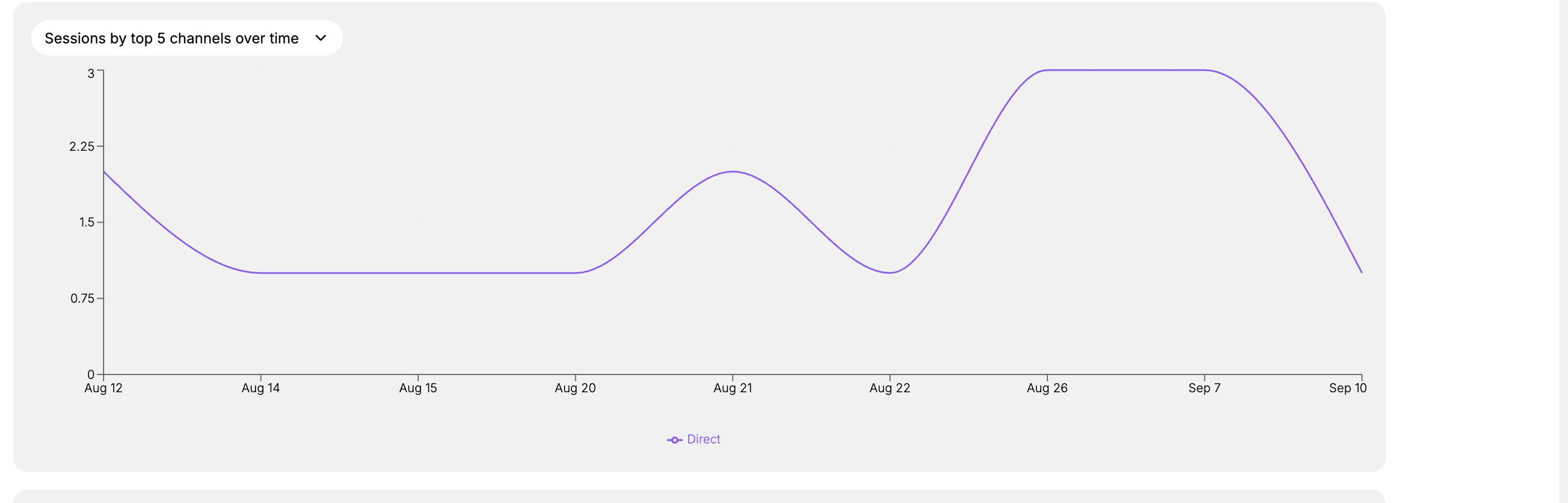
Copy the finished link and use it wherever you are sharing, such as a social post, an advertisement, a profile bio, or an email, so everyone who clicks carries your tags to your store. The Attribution report then breaks your traffic down by channel, with columns for sessions, orders, sales, and conversion rate, so the channel and campaign you tagged appear as their own rows rather than hidden inside Direct. Give it time to collect clicks before you read too much into the early numbers.
What the report shows once your links are tagged
The report lists your channels as rows, each with a Type beside it. Type is the part your tags decide: a link tagged as a social source lands under Social rather than Direct, and the report can filter on it. The seven types are Direct, Social, Search, Email, Referral, Paid and Other.
Each channel then carries the same set of measures, so channels can be compared on equal terms.
| Measure | What it tells you |
|---|---|
| Sessions | How many visits that channel brought |
| Sales and Orders | What those visits were worth, and how many became orders |
| Conversion rate | How often a visit from that channel turned into an order |
| AOV | The average order value from that channel |
| Orders from new customers and Orders from returning customers | Whether a channel brings new people or brings existing ones back |
| Cost, ROAS, CPA and CTR | Paid performance, filled in only for connected marketing apps |
A channel with nothing to report in a column shows a dash rather than a zero, so an empty Cost means the figure is not available for that channel, not that it cost nothing.
Two more controls sit at the top: the date range with a granularity of Hourly, Daily or Weekly, and the attribution model, which opens on Last non-direct click. Print and Export take the figures out of the admin once you have set it up the way you want. Attribution has the report in full.
Verify the result
- Clicking your tagged link and then opening the attribution report shows the channel you tagged, rather than direct.
- The report groups by channel, not by campaign, so a campaign name is not listed on its own. Use the tagged link's own platform reporting when you need results per campaign.
- Sessions and any resulting orders line up under the right channel.
Best practices
- Write your naming convention down where the whole team can see it, so tags stay consistent across people and campaigns.
- Keep every tag lowercase with one separator, which stops one channel from splitting into several rows.
- Add a season or date to campaign names, so this quarter's campaign does not blur into last quarter's.
- Test a tagged link before you publish it widely, since a broken tag quietly sends that traffic back to direct.
Next steps
Related articles
Still stuck?
- Ask Tanqory AIAsk in your own words. It answers from these articles and links the ones it used.
- Ask in your adminThe assistant in your Tanqory admin answers and makes the change for you once you confirm.
- Contact TanqoryWrite to our privacy, security or legal teams, or talk to sales about a plan or a move.