Social Marketing Apps
Apps add what the store does not do on its own, and a marketing or social tool is one of the commonest reasons to install one. The Apps page counts what you already have and separates Tanqory apps from third-party ones. This covers finding an app, what installing involves, and reviewing the list afterwards so the store carries only the tools it still uses.
On this page
Apps extend what your store can do beyond what is built in, and a marketing or social tool is a common reason to add one, whether that is scheduling posts, tracking a campaign, or connecting another service. In Tanqory you find and manage them on the Apps page, which shows what you have installed and lets you browse the app store to add more. Because every app you install is another tool and another vendor to manage, the habit worth keeping is to add one only when it solves a real problem, so your store stays lean and each app earns its place. This article shows where the Apps page is and how installing works; the setup inside any given app is covered by that app itself.
Every installed app can read parts of your store once you grant it access. Add apps only from sources you trust, give each one only the access it needs, and remove any you have stopped using so you are not leaving open doors into your store.
Before you begin
- Your role includes Brand settings.
- You have a specific job in mind for the app, such as scheduling posts or syncing a catalog, so you can judge whether an app is worth adding.
- Open Apps in the admin sidebar to browse and install apps.
Find and install an app
From the admin, open Apps. The page counts what you have installed, split into Tanqory apps and third-party apps, and lists each installed app below with a Configure action for opening its own settings. When nothing is installed yet, a No apps installed state takes the place of that list. This is where you return to add an app or review what you already run.
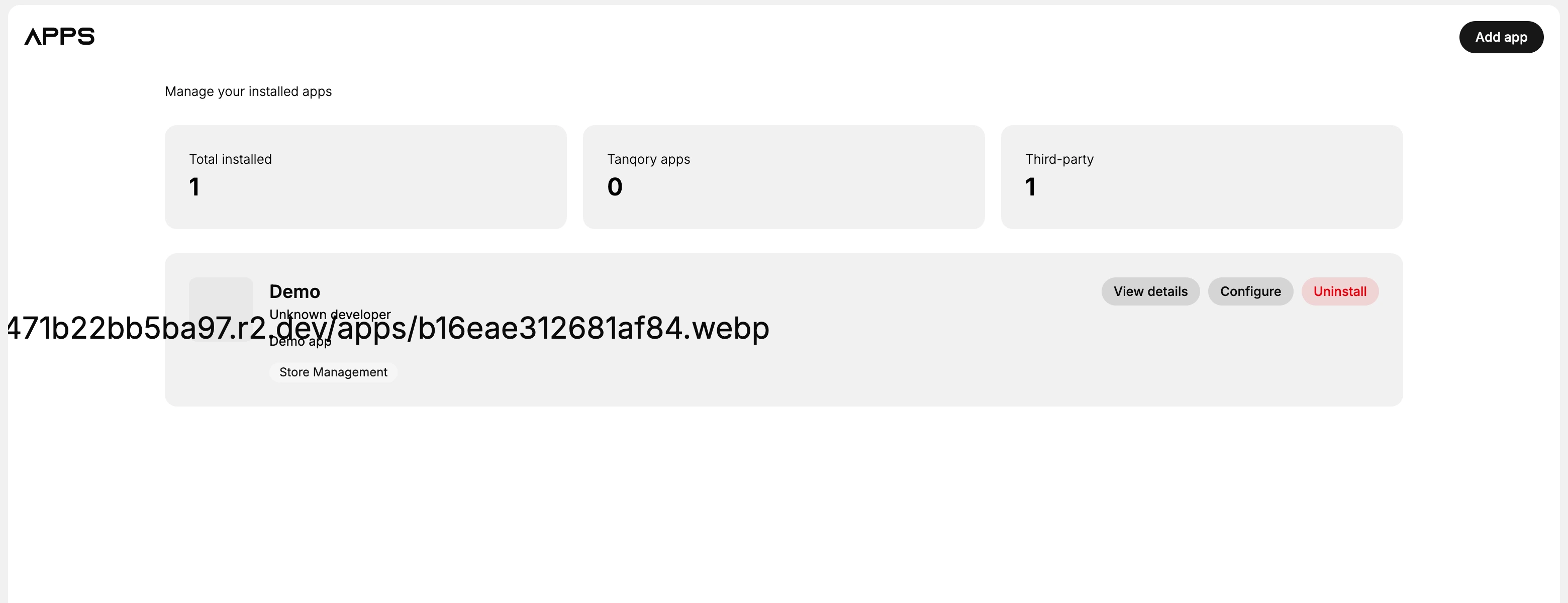
- Browse the app store. Select Add app to open the app store, then search for the job you want done, such as social scheduling or marketing, rather than a brand name, so you compare the apps that genuinely solve your problem instead of the first one you recognize.
- Install the app you choose. Open an app's listing and install it, granting only the access it genuinely needs, since it can read parts of your store once installed. After installing, the app appears in your installed apps count on this page, which confirms it is connected.
- Set it up and review it later. Follow the app's own setup to connect it to whatever it works with, such as your social accounts. Come back to the Apps page from time to time to remove anything you no longer use, so your store is not paying for or exposed to tools it has outgrown.
An installed app is part of your store rather than a tool sitting beside it. It keeps whatever access you granted until you remove it, and it counts towards the totals at the top of this page, which is what makes the review in step 3 worth doing rather than intending.
Verify the result
- The app appears in your installed apps count on the Apps page.
- The app's own dashboard or settings open and connect as expected.
- Removing an app you no longer use drops it from the installed count.
Best practices
- Add an app only for a specific job you cannot do with built-in features, so you are not paying for and managing tools you do not use.
- Grant each app only the access it needs, since installed apps can see parts of your store.
- Prefer one app that covers several needs over several overlapping ones, which keeps costs and upkeep down.
- Review your installed apps periodically and remove the ones you have stopped using.
Next steps
Related articles
Still stuck?
- Ask Tanqory AIAsk in your own words. It answers from these articles and links the ones it used.
- Ask in your adminThe assistant in your Tanqory admin answers and makes the change for you once you confirm.
- Contact TanqoryWrite to our privacy, security or legal teams, or talk to sales about a plan or a move.