Brand Overview
Your brand assets, logos, colors, cover image, tagline, description, and social links, are all managed on one Brand page. See Brand Identity for the full guide.
On this page
Your store's brand assets, logos, colors, cover image, tagline, business description, and social links, are all managed on one Brand page in your admin, along with the written and practical details of your business. This overview points you to that page and to the detailed guide for each asset, so you can set your brand up in one place.
The Brand page
Open the Brand page from Settings, then General, by clicking Brand identity. The page groups its elements into two sets so you know what is core and what is optional.
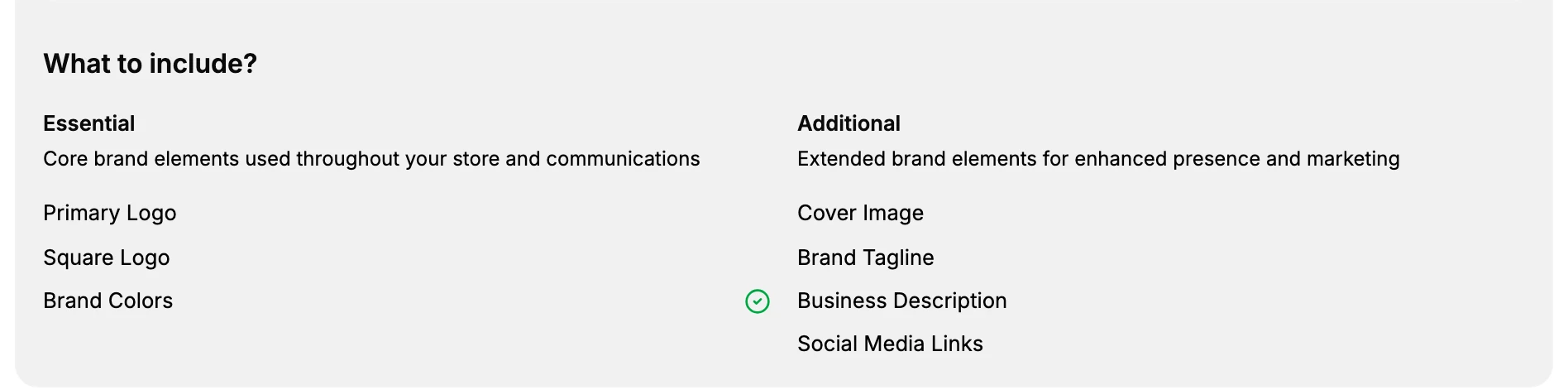
- Essential: Primary Logo, Square Logo, and Brand Colors, the core elements used throughout your store.
- Additional: Cover Image, Brand Tagline, Business Description, and Social Media Links, for a fuller brand presence.
Brand Identity walks through the whole page.
Set up each asset
- Brand Logos for your primary and square logos.
- Brand Colors for your primary and secondary colors.
- Brand Cover Image for a cover image.
- Brand Social Links for links to your social profiles.
The Brand Tagline (up to 80 characters) and Business Description (up to 150 characters) are short text fields you fill in directly on the Brand page.
What else the page holds
The Essential and Additional sets above are the summary card at the top of the page. Scrolling past them, the same page carries two more sections that are easy to miss:
- Brand identity, the written side of your brand: business name, fonts, brand values, brand aesthetic, tone of voice, and keywords.
- Business details, the practical facts customers act on: phone number, business hours, location, call-to-action links such as a business email or a reservation URL, and testimonials.
Both are covered in Brand Identity.
Next steps
- Brand Identity for the complete Brand page guide.
- Files to manage the images you upload.
Related articles
Still stuck?
- Ask Tanqory AIAsk in your own words. It answers from these articles and links the ones it used.
- Ask in your adminThe assistant in your Tanqory admin answers and makes the change for you once you confirm.
- Contact TanqoryWrite to our privacy, security or legal teams, or talk to sales about a plan or a move.