Storefront Preferences
Set store-wide options on the Preferences page: password access, the social sharing image and home page SEO, automatic country and language redirection, spam protection, and crawler access.
On this page
The Preferences page gathers the settings that apply to your whole online store rather than to a single page. From one place you control who can reach the store, how it looks when a link to it is shared, how visitors are routed by their country or language, whether forms are protected against spam, and how external tools are allowed to access the store. Open it from the main navigation with Online Store > Preferences.
Store access
The first section, Store access, holds Password protection. When it is on, visitors must enter a password before they can see any of your storefront pages, which is useful while you are still building the store or before a public launch. Because this section has its own setup, with the password and the message shown to visitors, it is covered in full in Password-Protect Your Storefront.
Social sharing image and SEO
This section sets how your store is represented when it is shared and how its home page appears in search results.
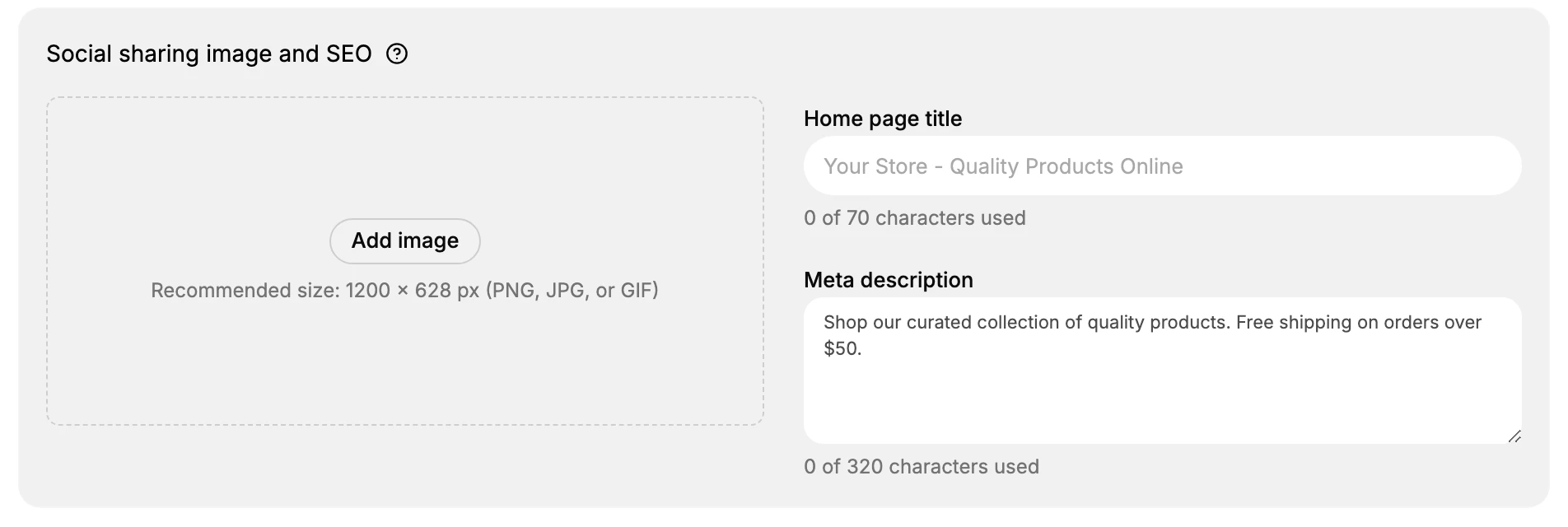
- Social sharing image is the picture used when a link to your store is shared. Select Add image and upload one at the recommended size of 1200 by 628 pixels, as a PNG, JPG, or GIF. A correctly sized image keeps the preview from being cropped awkwardly.
- Home page title is the title used for your home page, with a counter that fills up to 70 characters. Keep it within the limit so it is not cut short where it appears.
- Meta description is a short summary of your home page, with a counter that fills up to 320 characters. Write it as one or two clear sentences about what your store offers.
Automatic redirection
Automatic redirection sends each visitor to the version of your storefront that matches them, instead of leaving them on a single default storefront.
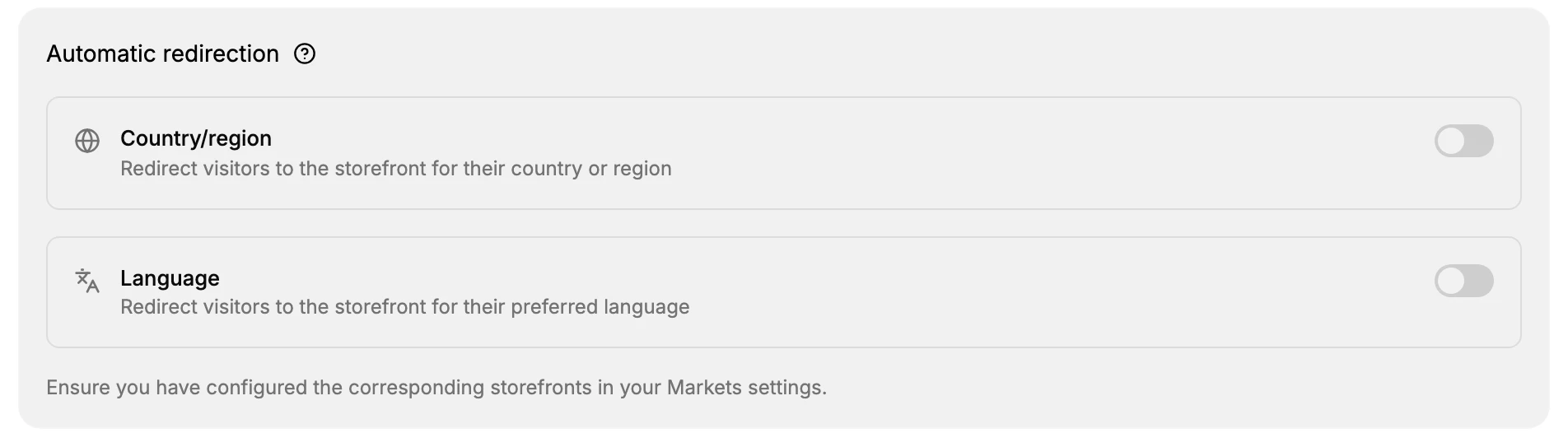
- Country/region redirects visitors to the storefront set up for their country or region.
- Language redirects visitors to the storefront for their preferred language.
Both toggles are off until you turn them on. For either one to send visitors anywhere, you first need the matching storefronts in place, which is why the page reminds you to configure them in your Markets settings.
Note: Turning these on without the matching markets configured has no effect, since there is no other storefront to redirect to. Set up your markets first, then enable the redirects.
Spam protection
Spam protection adds an hCaptcha challenge to forms so automated bots have a harder time submitting them.
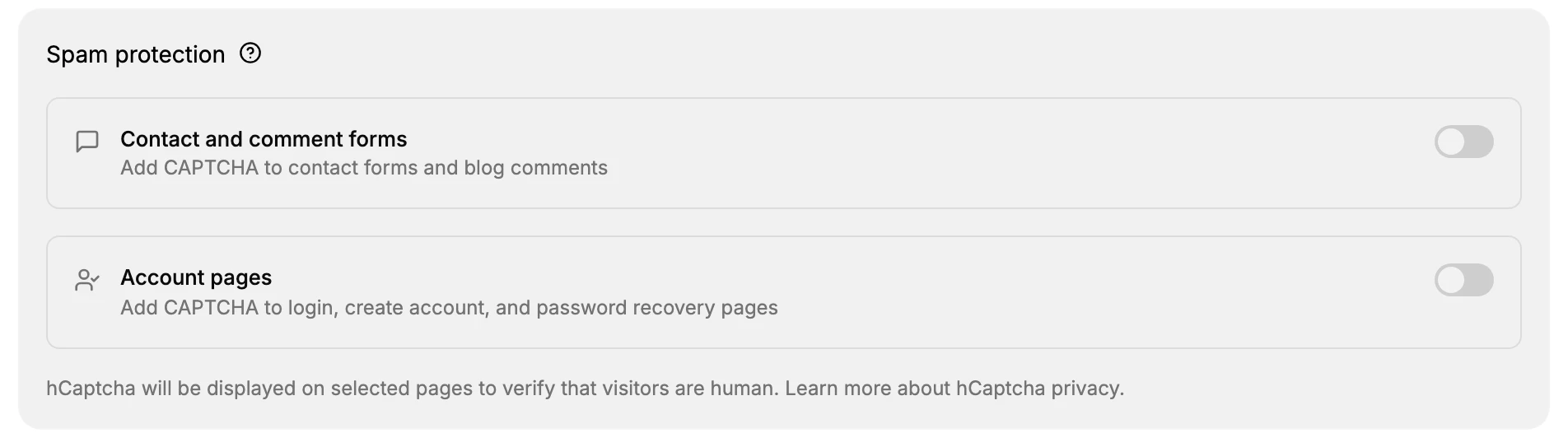
- Contact and comment forms adds the CAPTCHA to your contact forms and blog comments.
- Account pages adds the CAPTCHA to the login, create account, and password recovery pages.
When a toggle is on, hCaptcha appears on those pages to confirm a real person is filling in the form. Use it if you start receiving spam submissions, and leave it off if you would rather keep the forms friction free.
Crawler access
The last section, Crawler access, lets you create signatures that give external tools secure, controlled access to your store. You start with Create signature, and the All, Active, and Expired tabs let you review the signatures you have made. A new store has none yet and shows "No signatures created yet" until you create the first one. This is an advanced option, so leave it untouched unless a tool you use specifically asks you to create a signature.
Next steps
- Password-Protect Your Storefront to set up Store access.
- Customize Your Storefront to design the pages themselves.
- Brand Identity to set your logos, colors, and tagline.
Related articles
- Manage Themes
- Files
- SEO Overview maps the search settings on products, collections and pages, which are set on each item rather than here.
- Meta Title and Meta Description compares the character allowances across the store, including the 320 this page gives the home page description.
Still stuck?
- Ask Tanqory AIAsk in your own words. It answers from these articles and links the ones it used.
- Ask in your adminThe assistant in your Tanqory admin answers and makes the change for you once you confirm.
- Contact TanqoryWrite to our privacy, security or legal teams, or talk to sales about a plan or a move.