Password-Protect Your Storefront
Turn on password protection in Online Store preferences so visitors must enter a password to see your storefront, with a message you write, which is useful before a launch or while the store is not yet public.
On this page
Password protection puts your storefront behind a single password, so only visitors who have it can see your pages. It is useful while you are still building the store, before a public launch, or whenever you want to keep the storefront private. You turn it on from the Preferences page under Online Store, in the Store access section.
Before you begin
- Your role includes Edit online store.
- Open Online Store > Preferences in the admin sidebar, where Store access sits at the top.
Turn on password protection
On the Preferences page, at the top, in Store access, set up the following.
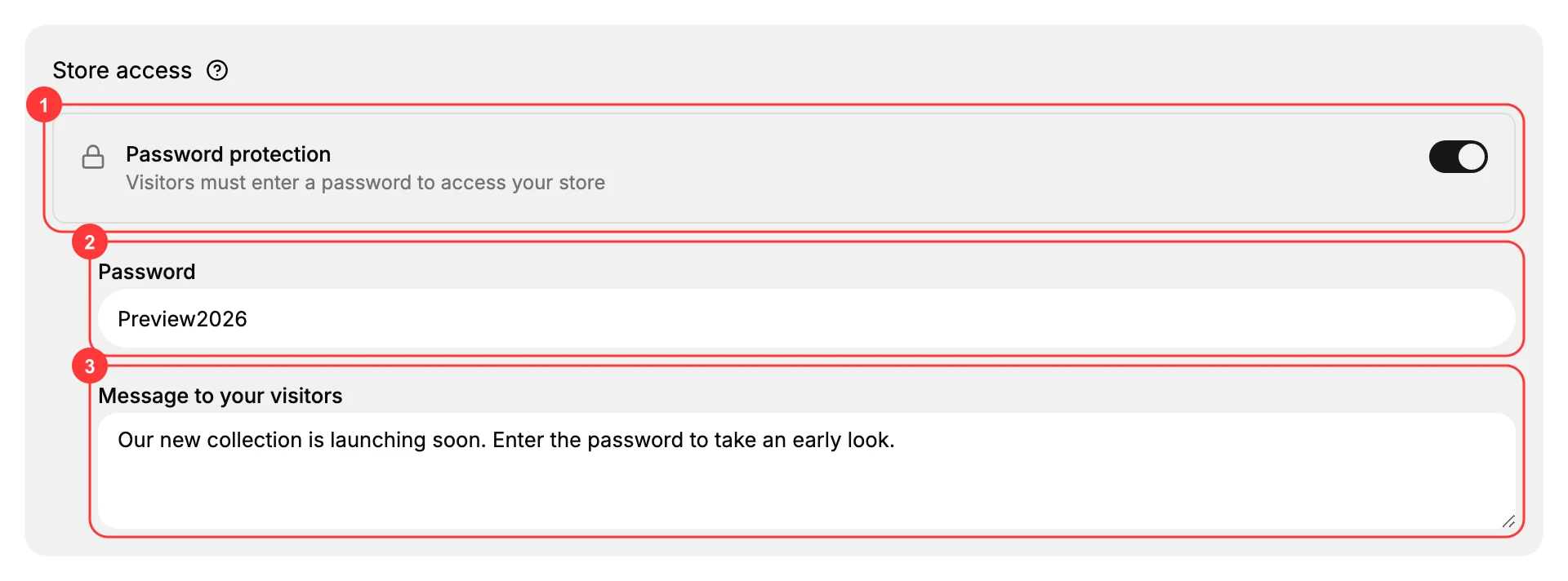
- Password protection (1) is the toggle that turns the feature on. Once it is on, visitors must enter a password to access your store, and the password and message fields appear.
- Password (2) is the password visitors must type to enter. Choose something hard to guess rather than an obvious word.
- Message to your visitors (3) is the note shown on the password page, for example Our new collection is launching soon. Enter the password to take an early look.
Click Save on the bar at the top of the page. Your storefront now shows a password page, and only visitors who enter the password reach your pages.
Note: Remember to turn Password protection off when you are ready to go public. While it is on, no one without the password can see your store, so it is easy to leave customers locked out after launch.
Best practices
- Use a password that is hard to guess, not the store name or a word like "comingsoon".
- Write a message that matches your brand and tells visitors what to expect, such as a launch date.
- Share the password only with the people who need early access, such as reviewers or wholesale buyers.
Next steps
Related articles
Still stuck?
- Ask Tanqory AIAsk in your own words. It answers from these articles and links the ones it used.
- Ask in your adminThe assistant in your Tanqory admin answers and makes the change for you once you confirm.
- Contact TanqoryWrite to our privacy, security or legal teams, or talk to sales about a plan or a move.