File Details
Open a file to see its preview, type, dimensions, size, URL, and where it is used, then rename it, edit its alt text, or delete it from one page.
On this page
Selecting a file in the Files library opens its detail page. This is where you see everything about a single file and manage it, including a preview, its type and dimensions, its URL, and a list of every place in your store that uses it. From this page you can rename the file, edit its alt text, open it in an image editor, or delete it.
You reach this page from your store admin under Content, then Files, by selecting any file in the list.
What the page shows
| Section | What it shows |
|---|---|
| Preview | The image itself, with Edit in Canva and Open image editor to change it |
| Details | The file type, dimensions, size, date added, and the file URL |
| Used in | Every place in your store that currently uses the file |
| File details | The editable file name and alt text |
Before you begin
- Your account can open Content, then Files.
- Open Content, then Files, to open the file library.
Manage a file's details
In your store admin, open Content, then Files, and select a file from the list to open its detail page.
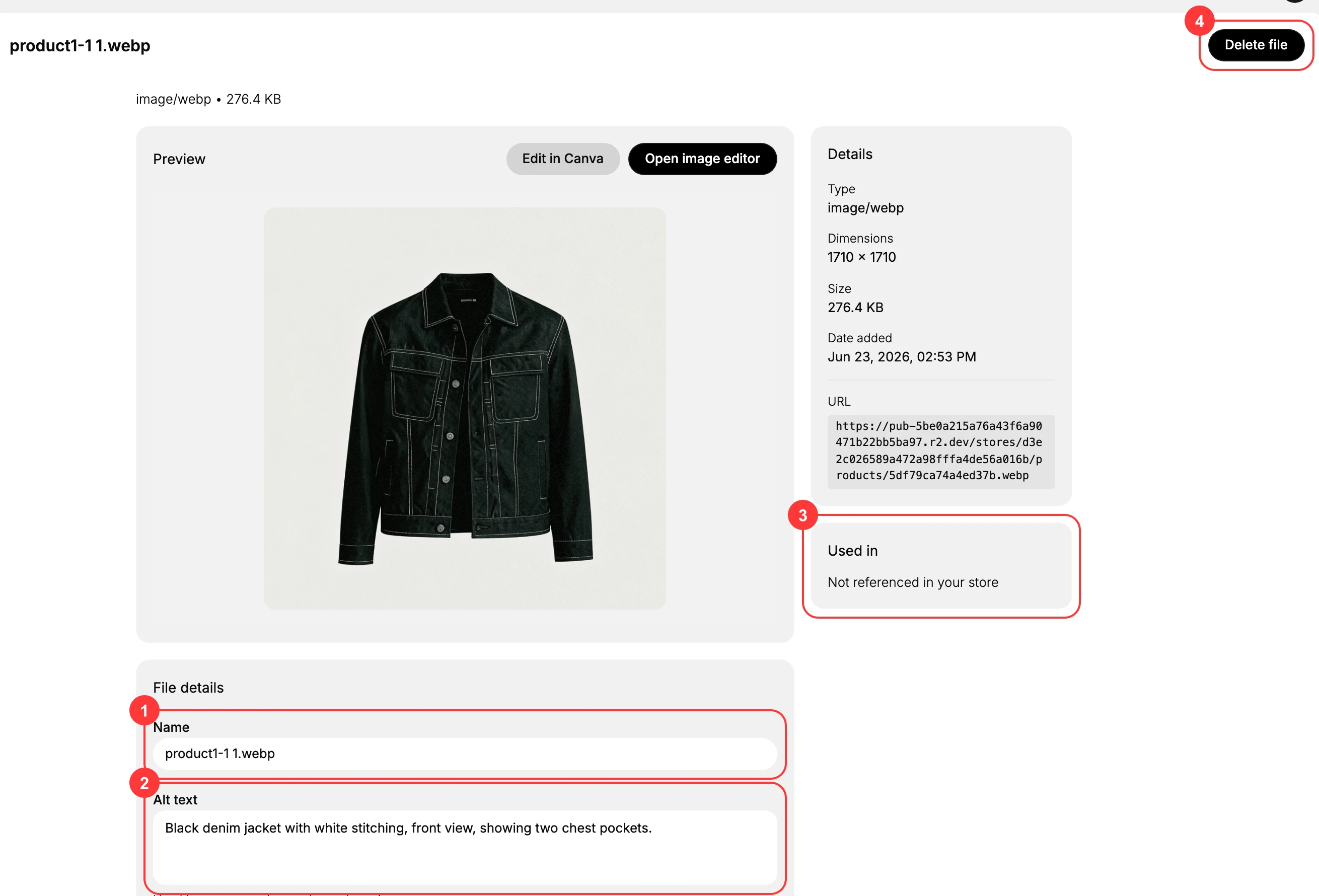
In the File details section you can edit the Name (1) to give the file a clear, recognizable name that is easy to find later. Use the Alt text (2) to describe the image. Alt text is read aloud by screen readers, shown when the image cannot load, and used by search engines, so it helps both accessibility and search. The Details panel lists the file type, dimensions, size, date added, and the file URL you can use elsewhere. The Used in (3) panel lists every place in your store that references the file, so check it before any change that could break those references. To change the image, use Open image editor or Edit in Canva above the preview; to remove the file, select Delete file (4), but review the Used in panel first, since deleting a referenced file breaks those places.
Best practices
- Write descriptive alt text for every image. It improves accessibility and helps search engines.
- Check the Used in panel before deleting, so you do not break a page or product that still uses the file.
- To swap an image while keeping its link, use Replace on the Files list instead of deleting and re-uploading.
- Rename files to something recognizable so they are easy to find in a large library.
Next steps
Related articles
Still stuck?
- Ask Tanqory AIAsk in your own words. It answers from these articles and links the ones it used.
- Ask in your adminThe assistant in your Tanqory admin answers and makes the change for you once you confirm.
- Contact TanqoryWrite to our privacy, security or legal teams, or talk to sales about a plan or a move.