Upload a File from a URL
Add a file to your library by pasting its web address. Tanqory downloads the file and stores its own copy, so you can use it in your store even if the original link changes.
On this page
Upload from URL adds a file to your Files library by pasting the file's web address. Tanqory downloads the file and stores its own copy, so you get a Tanqory-hosted file you can use anywhere in your store. This is handy when an image lives on another site or a supplier sends you a direct link, and you want your own stable copy instead of relying on someone else's link.
You start from your store admin under Content, then Files.
When to use it
- You are moving images from another platform and have their links.
- A supplier or brand sends you a direct link to an image.
- You want a stable, Tanqory-hosted copy of a file that currently lives elsewhere.
Before you begin
- Your account can open Content, then Files.
- The file is available at a public web address that anyone can open.
- Open Content > Files in the admin sidebar, which is where files are uploaded and stored.
Upload a file from a URL
In your store admin, open Content, then Files, then select Upload from URL at the top of the page. In the dialog that opens, paste the file's address into the field and start the upload.
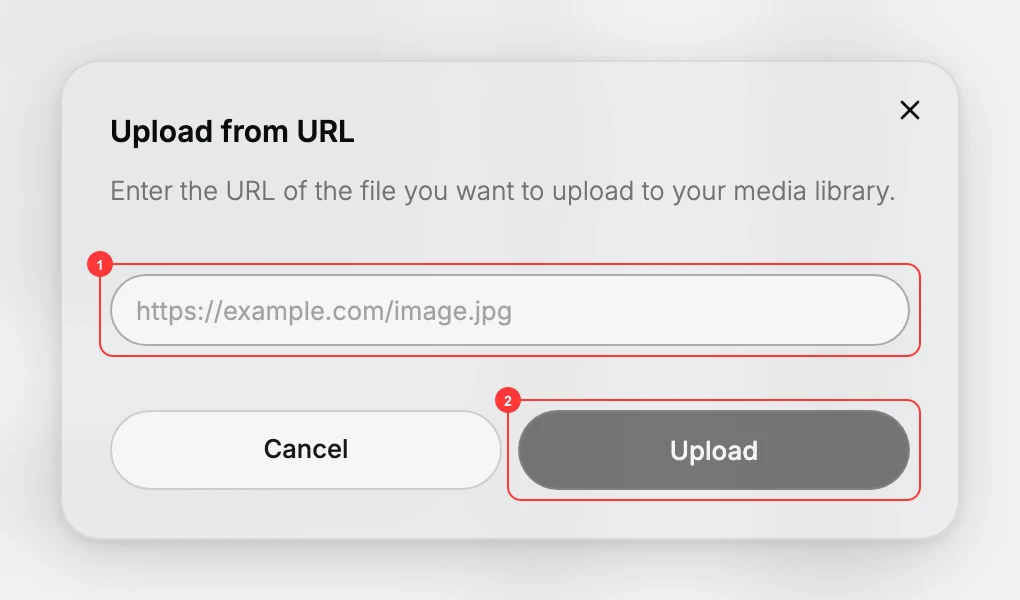
- URL field (1): paste the full web address of the file, for example a link ending in .jpg, .png, or .pdf.
- Upload (2): select this to download the file. Tanqory fetches it from the address and saves its own copy in your library.
After the upload finishes, the file appears in the Files list as a Tanqory-hosted file with its own URL, which you can get from the file's Copy link action and use across your store.
Best practices
- Make sure the address is public. If a sign-in or a private link is required, Tanqory cannot reach the file.
- Use an https address where possible.
- After uploading, use the Tanqory copy in your store rather than the original outside link, so your store keeps working even if that link goes away.
If something goes wrong
- The upload fails or nothing is added. The address may not be publicly reachable. Open the link in a private browser window: if it asks you to sign in, or shows a page instead of the file, Tanqory cannot fetch it either. Use a public link that opens the file directly.
- You pasted a page, not a file. The URL needs to point straight at the file, so it usually ends in an extension such as
.jpg,.png, or.pdf. A link to a gallery or a product page is not a direct file address. - The original link needs a login or is private. A file behind a sign-in, an expiring share link, or a private drive cannot be reached. Move the file to a public address first, then upload from there.
- You cannot open Upload from URL. Your role may not allow managing files. Ask an owner or admin for access to Content, then Files.
Next steps
Related articles
Still stuck?
- Ask Tanqory AIAsk in your own words. It answers from these articles and links the ones it used.
- Ask in your adminThe assistant in your Tanqory admin answers and makes the change for you once you confirm.
- Contact TanqoryWrite to our privacy, security or legal teams, or talk to sales about a plan or a move.