Product Variants
Define options like Size and Color on a product, and Tanqory generates a purchasable variant for every combination. Covers the option-type picker, option values, adding multiple options, and one-off variants.
On this page
A variant is a distinct purchasable form of a product, such as a tee in Small or Large, or Navy or Black. Rather than create a separate product for each combination, you define options (such as Size and Color) on one product, and Tanqory generates a variant for every combination of option values.
The Variants section sits near the end of the Product Detail Page, after Shipping (and its Customs information), and before Search engine listing and Subscriptions. The full editor order is Product details, Media, Pricing, Inventory, Shipping, Variants, Search engine listing, and Subscriptions.
You'll work under Products in the admin sidebar, in the Variants section of the product editor. Product Detail Page covers the surrounding sections.
Before you begin
- You have the Edit products permission.
- You know your variant axes, usually one to three (for example, Size, or Size and Color). Each axis you add multiplies the number of variants.
- Open Products in the admin sidebar, open the product, and scroll to its Variants section.
Steps
1. Open the product and scroll to Variants
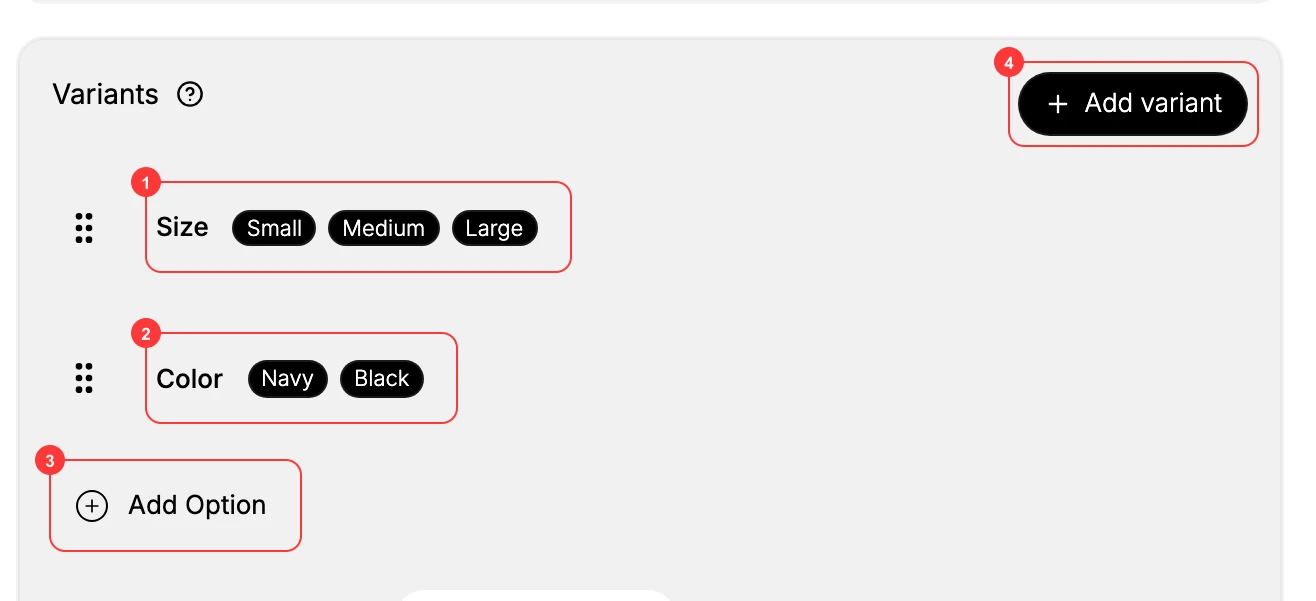
Open the product from Products in the admin sidebar (or click Add product) and scroll to the Variants section. A product with no variants shows the empty section with two controls: Add Option (build variants from options) and Add variant (add a single one-off variant).
2. Add an option and choose its type
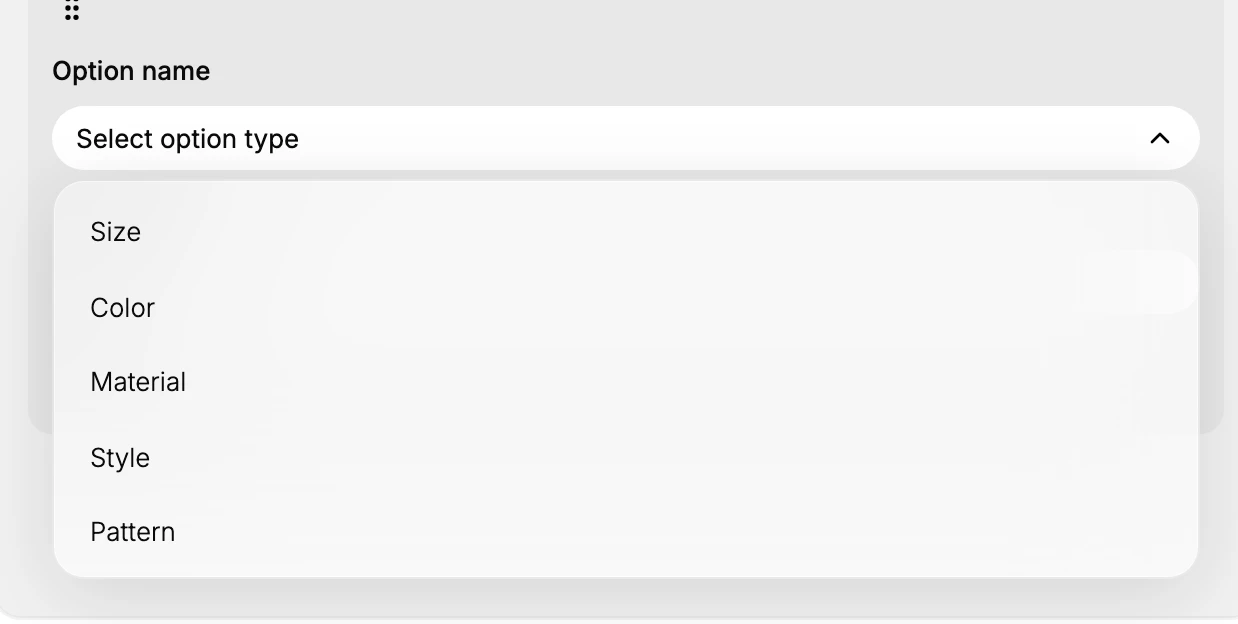
Click Add Option. An option block appears with a drag handle on its top-left and an Option name field labeled Select option type. Rather than typing the name free-hand, you pick from a list of standard option types:
Size, Color, Material, Style, Pattern, Weight, Length, Width, Height, Flavor, Scent
A Custom entry at the end of the list lets you name your own axis when none of the standards fit. Choosing from the standard list keeps option names consistent across your catalog (so "Color" is always "Color", never "Color" or "color"), which matters for filtering and reporting; reach for Custom only when you genuinely need an axis the list does not cover. Pick the type that matches the axis you are defining.
3. Add the option's values
Under Option values, type each value into the field (placeholder e.g., S, M, L, XL) and press Enter. Each value becomes its own row with a drag handle for reordering and a trash icon to delete it; an Add another value field always sits at the bottom for the next one. For a Size option you might add Small, Medium, Large.
When the option is complete, click Done to collapse it, or Delete to remove the whole option.
4. Add more options (and reorder them)
Click Add Option again to add a second or third axis, for example adding Color with Navy and Black on top of Size. Tanqory combines the axes: Size (Small, Medium, Large) combined with Color (Navy, Black) produces six variants (Small with Navy, Small with Black, Medium with Navy, and so on). Each saved option shows as a row with its value pills and a drag handle; use the handle to change the order the options appear in.
Keep to one to three options. Each axis multiplies the variant count, and beyond three the combinations become hard to manage and overwhelming for shoppers.
5. Manage the generated variants
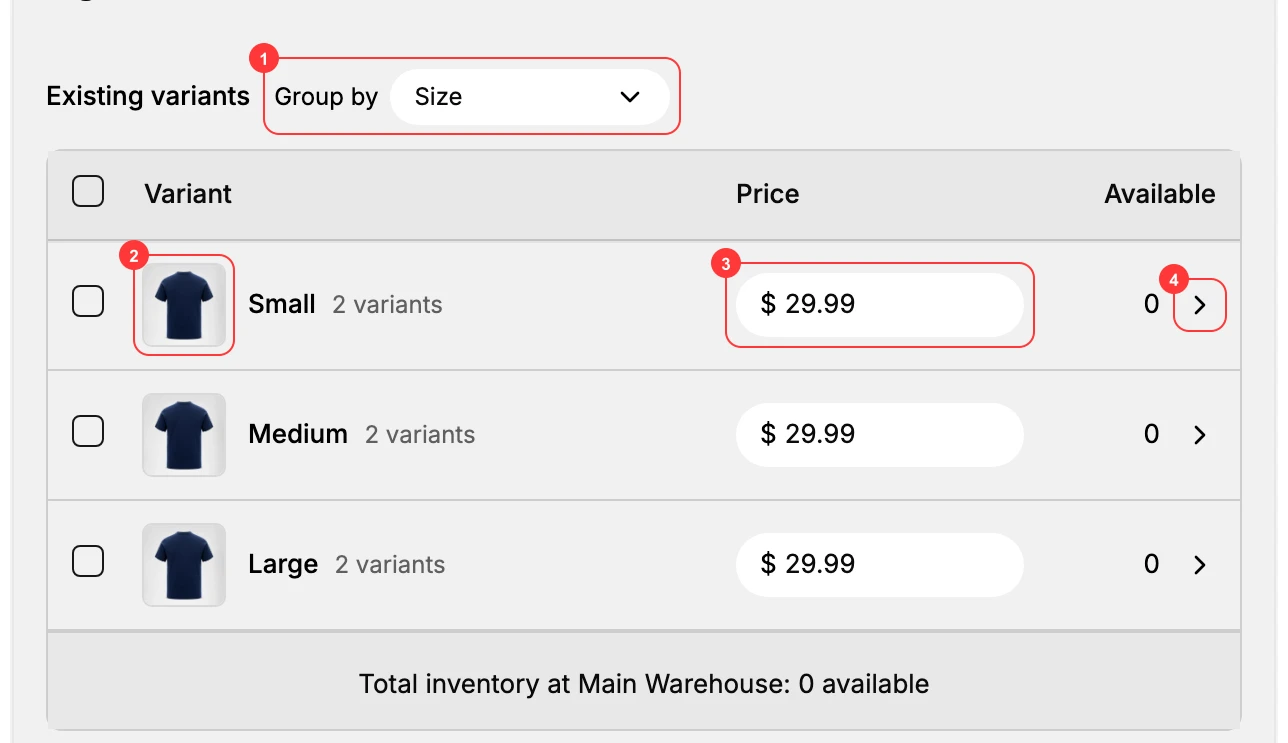
As soon as your options have values, Tanqory generates one variant per combination and lists them under Existing variants: three Size values combined with two Color values give 6 variants total. A banner reminds you that new variants start with 0 inventory ("Please set quantities for each location").
The table has three columns, Variant, Price, and Available, plus a Group by control (group the rows by Size, Color, or list them flat). From the table you can:
- Edit price inline: type directly into the Price field for a variant or group.
- Set a per-variant image: click the image icon on a row to assign one of the product's media files to that variant (so the photo swaps when a shopper picks it).
- Expand a group: click the expand arrow to drill into the individual variants (for example, Small opens to Small with Navy and Small with Black).
- Open full variant details: use the edit icon for the rest of a variant's fields, namely SKU, Weight, Barcode, Compare-at price, and Cost.
The footer totals stock per location, showing Total inventory at Main Warehouse: 0 available, until you set quantities.
6. Add a one-off variant (optional)
Use Add variant at the top of the section to add a single variant directly, instead of (or in addition to) generating the full cross-product from options. This is useful for a special edition or a bundle that does not fit the regular option grid.
7. Save
Variant changes are part of the product edit, so click Save in the floating bar at the top of the editor to commit your options and the variants they generate. The store header shows You have unsaved changes until you do.
Verify the result
- The Existing variants table lists the expected count (three Size values by two Color values, so 6) and the grouped rows match your values.
- Each variant has a price; set quantities so Available is no longer 0.
- On the storefront product page, the variant picker offers your options, such as Size and Color, and their values.
- After Save, the You have unsaved changes banner clears.
Best practices
- Use one to three options, no more. Each axis multiplies variants; four or more axes create an unmanageable grid and choice overload for shoppers.
- Let the option-type picker standardize names. Choosing "Size" or "Color" from the list keeps every product consistent for filtering and search.
- Order values the way shoppers think. Drag value rows into a natural order, such as Small, Medium, Large, not alphabetical.
- Reach for one-off Add variant sparingly. Options that generate the grid scale better than hand-adding variants one by one.
- Set quantities right after generating. New variants start at 0 inventory, so fill Available per location so nothing reads as out of stock.
Common mistakes
- Too many option axes. Five axes can mean hundreds of variants, which is a management and inventory headache.
- Inconsistent value spelling. Sm on one product and Small on another breaks storefront filters. Keep values uniform.
- Forgetting to Save. Building options without saving leaves the storefront unchanged; the unsaved changes banner is the reminder.
- Modelling a true separate product as a variant. If two "variants" have different photos, descriptions, and purpose, they are separate products, not variants.
If something goes wrong
- No variants appear after adding an option: make sure the option has at least one value and you clicked Done; an option with no values generates nothing.
- Cannot type an option name: Option name is a picker (Select option type); choose a standard type from the list, or pick Custom at the end to enter your own.
- Wrong option order on the storefront: drag the option blocks by their handle into the order you want, then Save.
- Too many variants to manage: collapse to two axes, or split one axis into separate products.
- Permission denied: your role lacks the Edit products permission; ask an admin to grant it.
Next steps
Related articles
Still stuck?
- Ask Tanqory AIAsk in your own words. It answers from these articles and links the ones it used.
- Ask in your adminThe assistant in your Tanqory admin answers and makes the change for you once you confirm.
- Contact TanqoryWrite to our privacy, security or legal teams, or talk to sales about a plan or a move.