Locations
Locations are the places you hold stock and ship orders from, and the rest of the store is built on them. This article covers the Locations page and its plan-limited active count, creating a location and the two toggles that decide what it may do, and the location page itself, where you edit the address, see which delivery methods it offers, bind it to a market, or deactivate it.
On this page
Locations are the places your store holds stock and ships orders from: a warehouse, a fulfillment center, a shop counter. Everything downstream leans on them. Inventory is counted per location, every order is assigned to one to be fulfilled, and shipping rates are quoted from one, so the list you keep here decides what the rest of the store has to work with.
One location is the default, used whenever nothing else names one. You manage them all in Settings > Locations.
Before you begin
- Your role includes the Locations settings permissions, such as Edit locations and Add locations, which let you manage the store's locations.
- You know the address the location ships from, since that address is what rates and labels are calculated against.
- You know how the location will be used, whether its stock should fulfill online orders and whether it should send transfers to your other locations.
- Go to Settings, then open Locations.
The Locations page
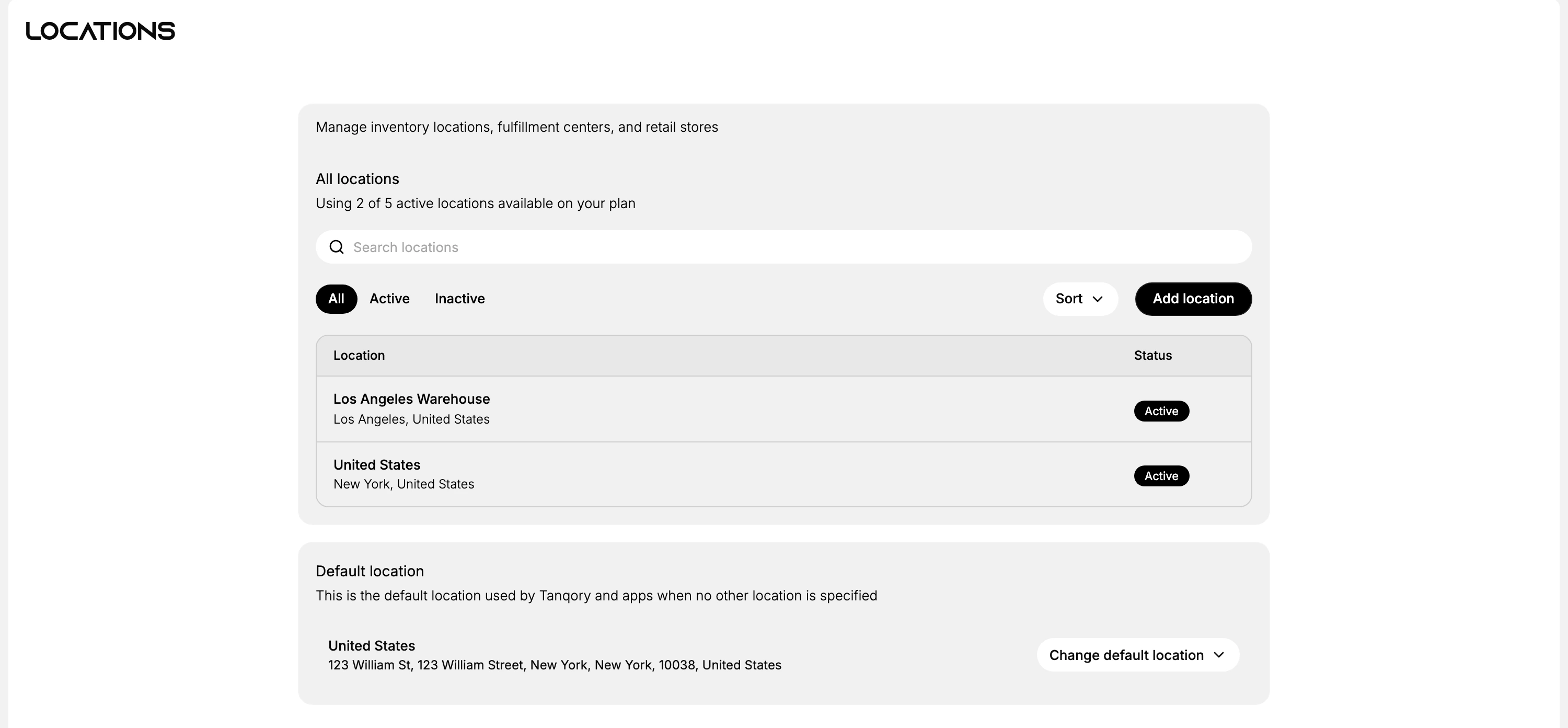
The page is two cards. All locations is the list, and Default location below it names the one that stands in when nothing else does.
| Part | What it is for |
|---|---|
| All locations | Every location as a row of Location and Status, headed by your plan's active count |
| Search locations | Finds a location by name once the list is long enough to need it |
| All, Active, Inactive | Narrows the list to one status |
| Sort | Reorders the list |
| Add location | Opens the page where a new location is created |
| Default location | Names the default and carries Change default location to move it elsewhere |
The line above the list, Using 2 of 5 active locations available on your plan, is the one to read before you add anything. The count is of active locations, so a location you have stopped using is worth deactivating rather than leaving it to use up one of your active slots.
The default is not marked in the list itself. The Default location card underneath is where it is named, and its description says what it is for: the location used by Tanqory and apps when no other location is specified. To change which location is the default, select Change default location on that card and pick another.
Adding a location
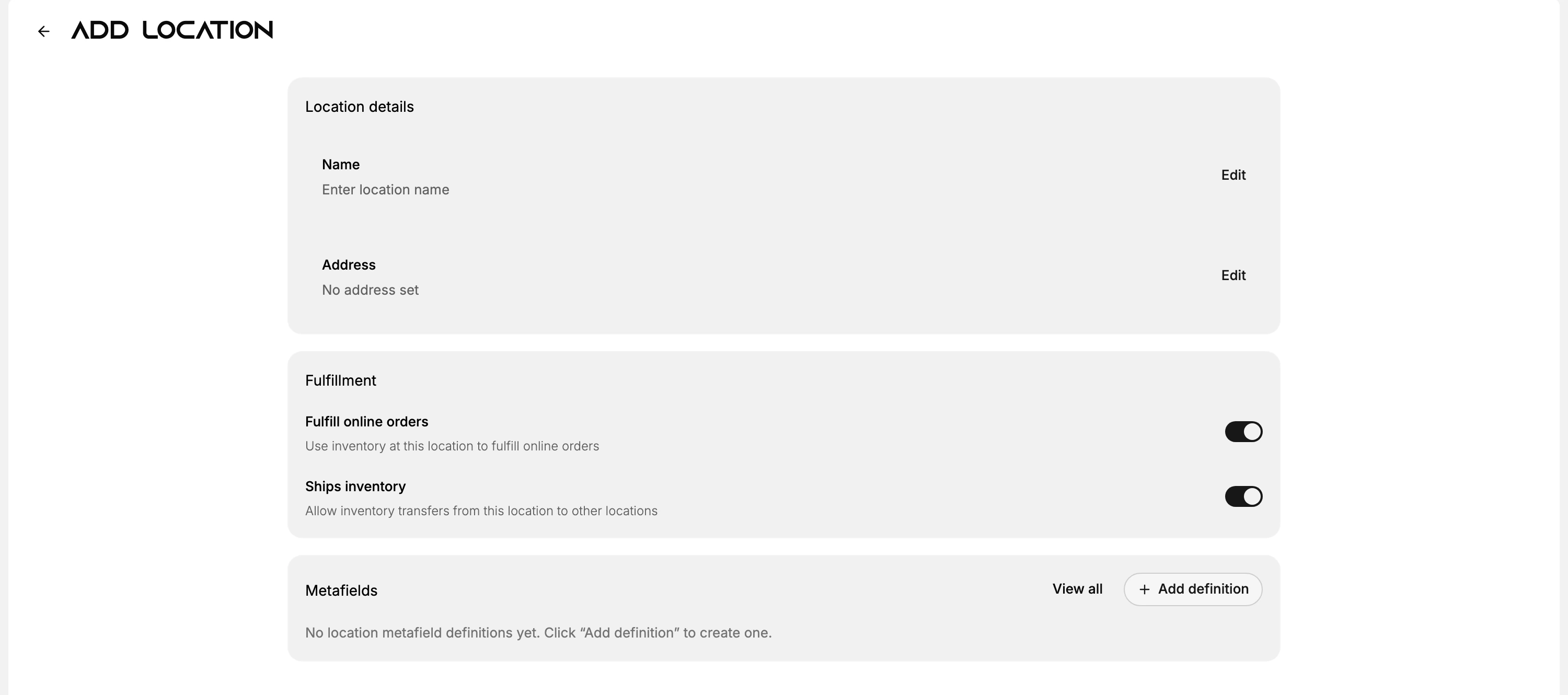
Add location opens a page with the same shape as an existing location, but empty.
1. Name the location
Name sits behind an Edit action rather than an open field. Choosing Edit opens a small dialog that asks for a short, identifiable name, and it warns that a location offering local pickup shows this name to customers at checkout and in notifications. Name it for the customer as well as for yourself, since a name like Main Warehouse means more to a shopper than a code does.
2. Set the address
Address also sits behind an Edit action. Enter the full address this location ships from, because that address is what shipping rates and labels are calculated against, so an inaccurate one quietly makes every quote and label wrong.
3. Choose what the location can do
Two toggles under Fulfillment decide what the location is allowed to do, and both arrive on. Leave one on to allow it, turn it off to hold the location back from that job.
| Toggle | What it allows |
|---|---|
| Fulfill online orders | Uses the stock at this location to fulfill online orders |
| Ships inventory | Allows inventory transfers from this location to your others |
A Metafields card at the foot takes custom fields, extra fields you define yourself, if you need them.
4. Save
Nothing is committed while you fill this in. The moment you change anything, a bar appears at the top reading You have unsaved changes with Discard and Save. The location joins your list, and counts toward your active total, only when you select Save.
Managing a location
Selecting a location in the list opens its own page. That page holds more than the one you created the location on.
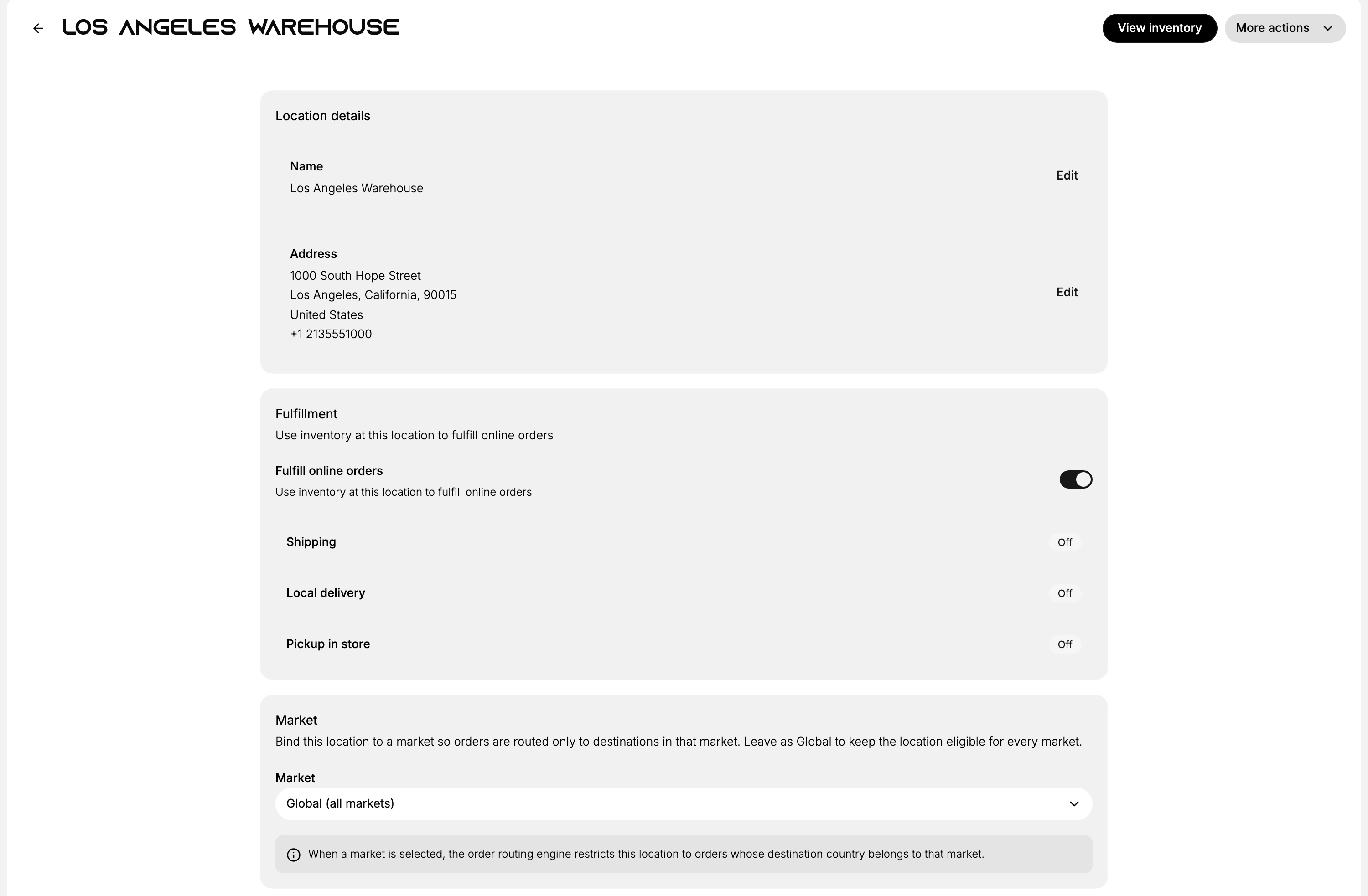
Two controls sit in the header. View inventory jumps to what this location is holding. More actions carries a single item, Deactivate location. Because only active locations count toward your plan limit, a location you deactivate frees up its slot and stays in the list under the Inactive tab rather than being deleted.
The rest of the page is three cards.
| Card | What it holds |
|---|---|
| Location details | The Name and the Address, each behind an Edit action, the address running street to country |
| Fulfillment | The Fulfill online orders toggle, and a readout of the delivery methods this location offers |
| Market | The market the location is bound to, if any |
Two of those three are worth knowing a little more about.
Shipping, Local delivery and Pickup in store, sitting under the Fulfillment toggle, are a readout rather than a switch. They report whether this location offers each method, all three reading Off on the page above, and none of them is set here. Selecting any of the three opens Settings > Shipping and delivery.
Market stays at Global (all markets) until you change it, which leaves the location eligible for every market. Bind it to one and order routing only assigns this location orders whose destination country belongs to that market, which is what you want when a location should serve a single region rather than everywhere.
Best practices
- Name locations the way you will read them later. The name is what you pick from in orders, transfers and reports, and it can reach customers through pickup.
- Set the full address. It is where the location ships from, so rates and labels are only as accurate as it is.
- Keep the default sensible. It is the fallback for anything that does not name a location, so it should be the place you actually ship from most.
- Deactivate rather than delete. An inactive location is out of the plan's active count but still in the list, so nothing about it is lost.
If something goes wrong
- You cannot add another location. Read the active count above the list. You may be at the limit your plan allows, in which case deactivate one you no longer use.
- A location is not being given orders. Check that it is Active, that Fulfill online orders is on, and that its Market is not bound to a region the order does not belong to.
- Orders go to the wrong location. The assignment is made by your routing rules rather than here, which Order Routing covers.
- You cannot change these settings. Your role may not allow managing store settings. Ask an owner or admin.
Next steps
Related articles
Still stuck?
- Ask Tanqory AIAsk in your own words. It answers from these articles and links the ones it used.
- Ask in your adminThe assistant in your Tanqory admin answers and makes the change for you once you confirm.
- Contact TanqoryWrite to our privacy, security or legal teams, or talk to sales about a plan or a move.