Create and Edit Shipping Zones
The steps to add a shipping zone to a profile and keep it current: name it, choose the countries and regions it covers (down to individual provinces), and save, with how to edit or delete a zone afterwards.
On this page
A shipping zone is a group of countries or regions that you ship to under one set of rates. Zones answer one question in your shipping setup: where do you ship, and at what price for each place. A customer only sees a shipping option at checkout when their delivery address falls inside a zone that has at least one rate. Until you create a zone, no price can be quoted and the order cannot be completed.
Zones live inside a shipping profile, not on their own page. Every store starts with a General profile that covers all products that are not assigned to a custom profile, and you build your zones inside it. Within a profile you group your destinations into as many zones as you need, then attach rates to each zone. This article covers creating a zone, choosing its destinations, and adding the rate that makes it quotable. How Shipping Zones Work explains what a zone is and how it sits between your profile and your rates.
Before you begin
- Your role includes Shipping settings, the permission that lets you change the store's shipping configuration.
- The countries and regions you want to ship to are already added to your Markets, the countries and regions you have set up to sell in. The zone destination picker draws from your Markets, so a country has to exist there before you can add it to a zone.
- You know roughly how you want to group destinations, for example one zone for your home country and one for the rest of the world.
- Open Settings > Shipping and delivery in the admin sidebar. The Shipping section there is collapsed by default, so select its heading to open it, then select the profile whose zones you want to change.
Steps
1. Open your shipping profile
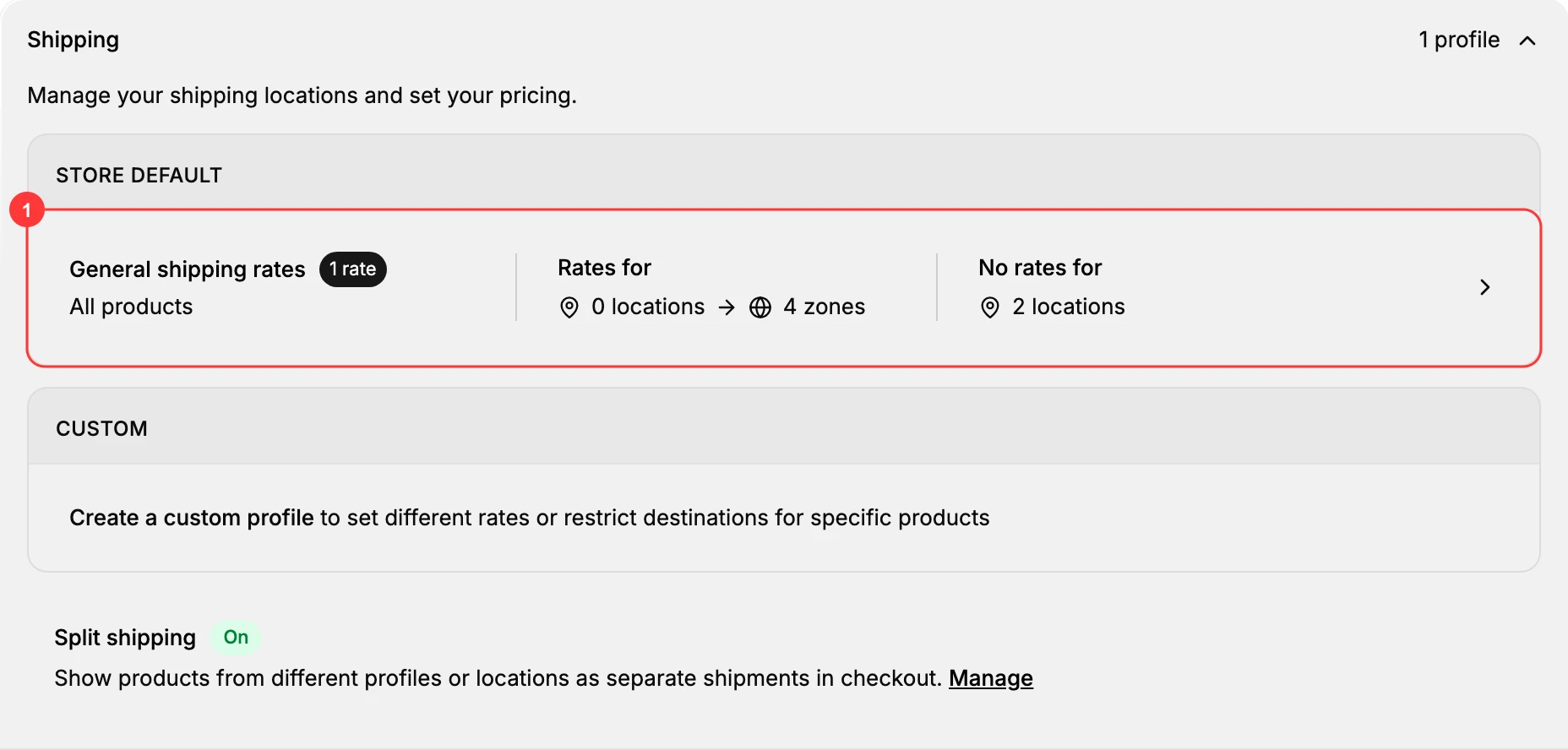
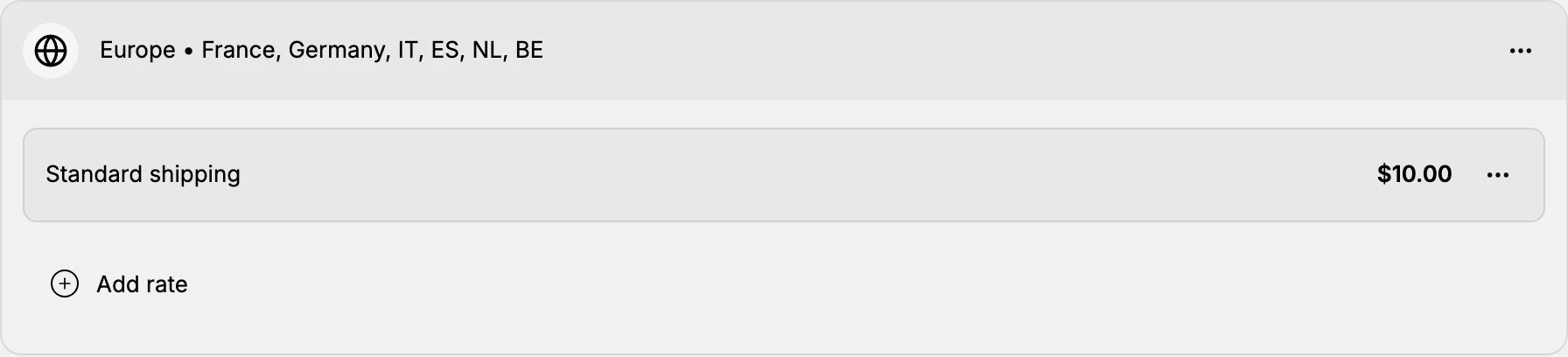
Open Settings, then Shipping and delivery. The Shipping section is collapsed when the page opens, showing only a count such as 1 profile, so select its heading to expand it. Under STORE DEFAULT it then reveals General shipping rates (1), the profile that covers all products not assigned to a custom profile, with a summary of how many rates it holds and how many zones and locations it reaches. Select that row to open the profile. The profile page lists its fulfillment locations at the top and a Shipping zones section below, where every zone for this profile is created and listed. Opening the profile is what gives you access to the zone controls, since zones do not exist outside a profile.
2. Add a shipping zone
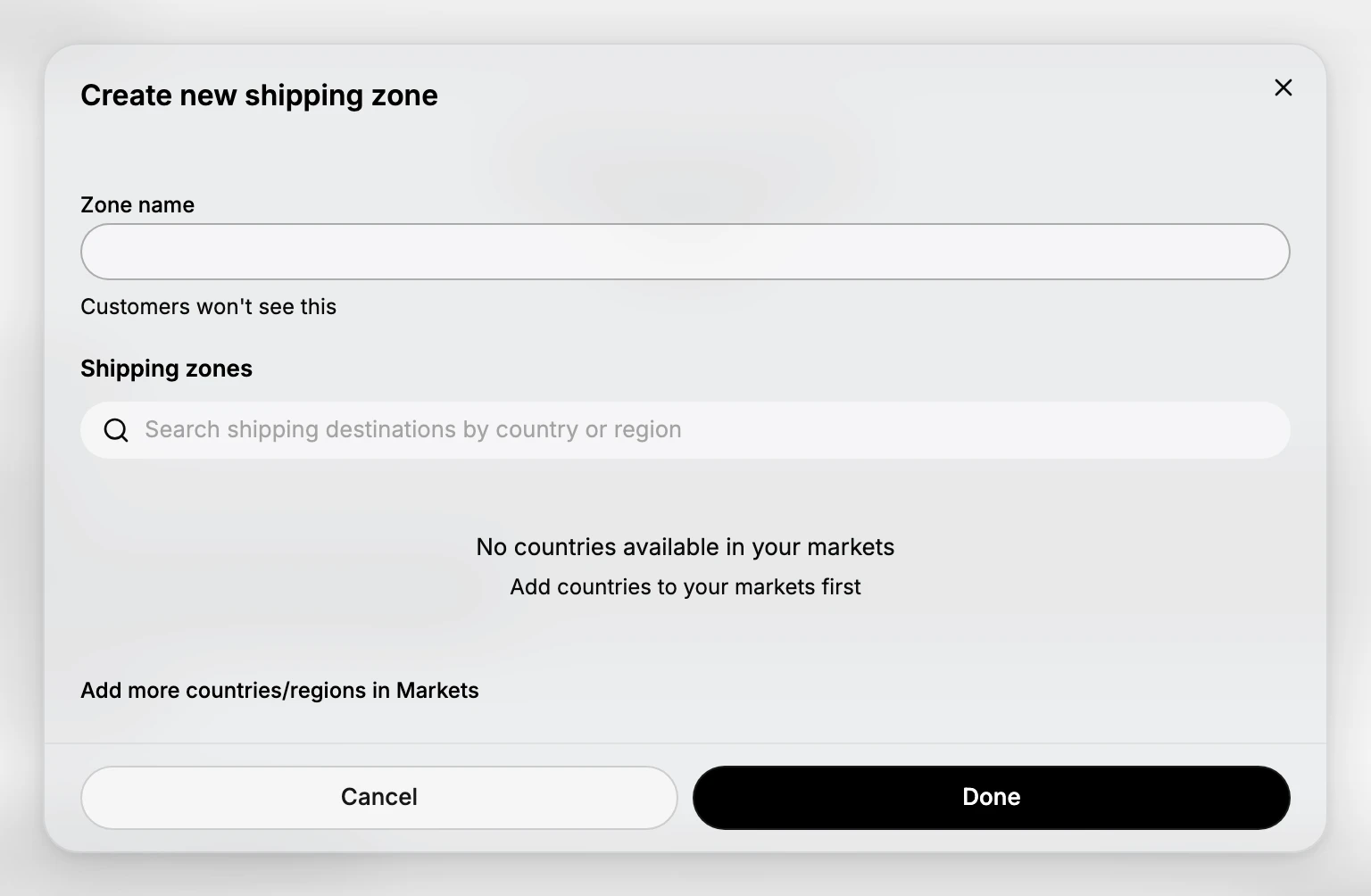
In the Shipping zones section, select Add shipping zone. This opens the Create new shipping zone dialog, where you name the zone and choose the destinations it covers. Nothing is saved until you finish the dialog, so you can open it to look around and cancel without changing your setup.
3. Name the zone
Type a Zone name that describes the destinations it holds, such as Domestic, Europe, or Rest of world. This name is internal, shown by the note "Customers won't see this", so choose one that makes the zone easy to recognize when you manage several of them. A clear name is what lets you tell zones apart later when you attach different rates to each.
4. Add the destinations
Tick the checkbox next to each country or region you want the zone to cover. A 0 selected counter beside Select all on this page keeps count as you go, and Select all on this page ticks everything currently showing in one action. Use the search box, placeholded Search shipping destinations by country or region, to find a destination quickly in a long list.
To cover only part of a large country, open its row with the provinces dropdown, such as 0 of 12 provinces, and tick the individual provinces or states you ship to. This is how a zone covers one region of a country at a different price from the rest.
The list is drawn from the countries and regions in your Markets, so it is usually shorter than the whole world, and a count at the foot of the list shows how many are available to you. Anything not in a market is not offered here, and Add more countries/regions in Markets at the bottom of the dialog is the way to add it before you come back. Group destinations that should share the same price into the same zone, because every destination in a zone is quoted the rates you attach to that zone.
5. Save the zone
Select Done to create the zone and return to the profile, where the new zone now appears in the Shipping zones section. At this point the zone exists but has no rate, so it still cannot quote a price. The profile keeps showing an "Add a zone and rate" reminder until you complete the next step.
6. Add rates to the zone
Add at least one rate to the zone so a price can appear at checkout for its destinations. A zone without a rate is skipped at checkout, and a customer shipping to a country that is not in any zone sees no shipping option at all. Shipping Rates Setup covers the rate types you can add: flat, weight-based, and carrier-calculated.
Verify the result
- The new zone is listed in the Shipping zones section of the profile.
- After you add a rate, a test checkout to an address inside the zone shows a shipping option with that rate.
- A test checkout to a country that is in no zone shows no shipping option, which is the expected way to block destinations you do not ship to.
Edit or delete a zone
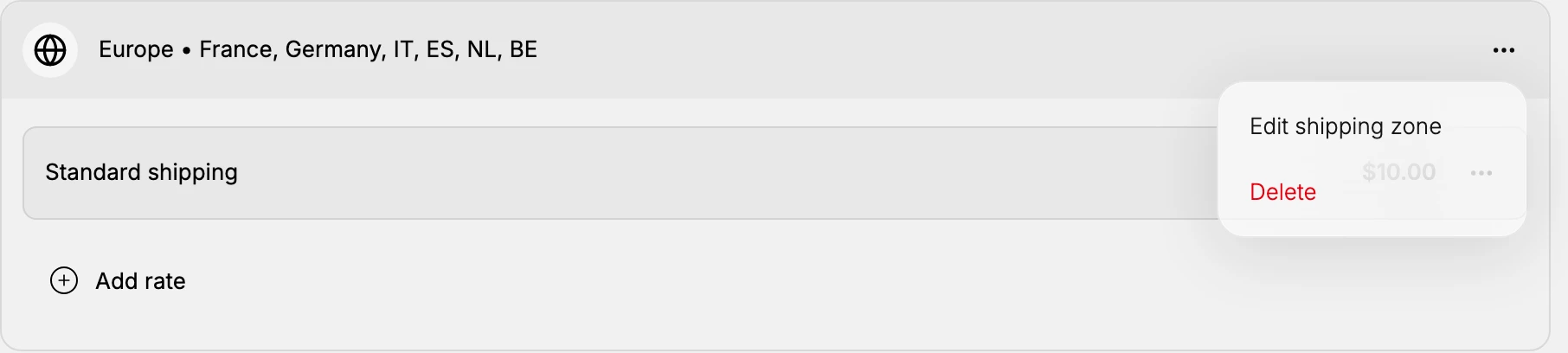
Once a zone exists, its actions menu, the three-dot control on the zone's row, is how you change or remove it.
- Edit shipping zone reopens the same dialog you used to create it, so you can rename the zone or adjust which countries and regions it covers. Use this when a zone's destinations change rather than building a second zone for the same area.
- Delete removes the zone and any rates attached to it. Since a destination that belongs to no zone gets no shipping option at checkout, deleting a zone quietly stops quoting for every country it held, so remove one only when you no longer ship to those places.
Best practices
- Name each zone after the pricing it carries, not just the geography, so a zone like Rest of world tells you straight away which rates belong to it.
- Keep destinations that share a price in one zone, and split them into separate zones only when their rates need to differ.
- Review your zones whenever you start selling into a new market, since a country left out of every zone silently loses its checkout shipping option.
Common mistakes
- A country in no zone at all. A destination that belongs to no zone has no rate, and a customer there cannot complete checkout. After changing zones, check that everywhere you sell to is still covered.
- The same country in two zones. Overlapping zones make it ambiguous which rate applies. Keep each destination in one zone.
- A zone with no rates in it. An empty zone is the same as no zone to the customer: they reach checkout and find nothing to select.
- Naming zones only by geography. A name like Europe says nothing about what it costs. A name that carries the pricing is easier to keep straight once you have several.
- Forgetting Markets. The destination picker draws from your Markets, so a country you have not added there cannot be put in a zone.
Next steps
Related articles
Still stuck?
- Ask Tanqory AIAsk in your own words. It answers from these articles and links the ones it used.
- Ask in your adminThe assistant in your Tanqory admin answers and makes the change for you once you confirm.
- Contact TanqoryWrite to our privacy, security or legal teams, or talk to sales about a plan or a move.