Customize Packing Slips
Every packing slip your store prints comes from one HTML and CSS template. This article covers what the default slip already prints, the placeholders and logic tags that put each order's own values on it, and how to preview a change against a real order before you save it or put the original back.
On this page
A packing slip is the sheet you print and drop in the box before it ships. It says what is inside, which order it belongs to, and where it is going, so whoever opens the parcel can check it against what they bought.
Tanqory prints every slip from one template written in HTML and CSS, with the order's own values dropped in through placeholders. Edit it once and every slip that follows uses the new version. The page for it is under Settings, then Shipping and delivery, in the Documents section, and describes itself as the packing slip that is printed when you fulfill an order.
What the default slip shows
You do not start from a blank page. The template that ships with the store already prints a working slip, shown here for a real three-item order.
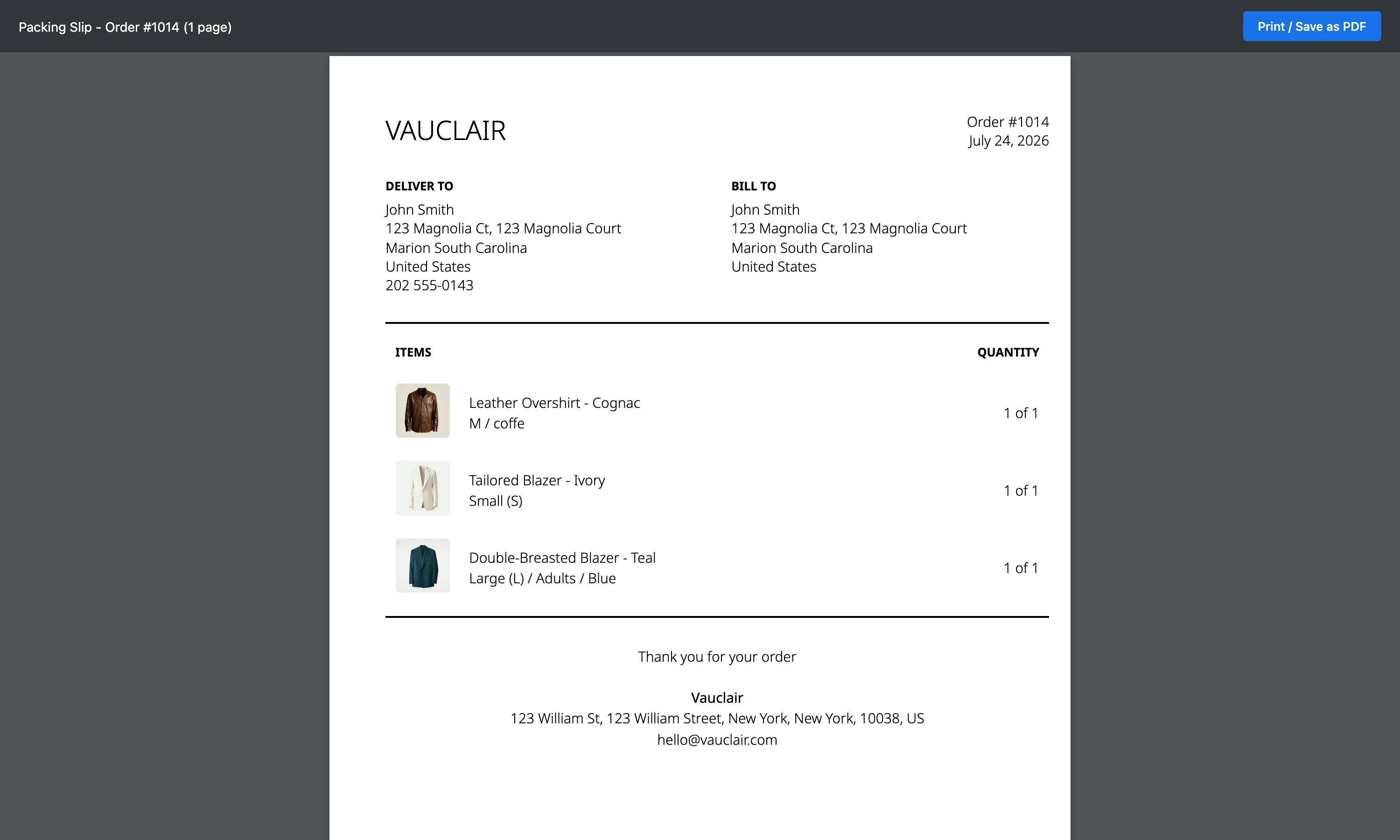
| Section | What it prints |
|---|---|
| Store name | Your store name, top left |
| Order number and date | The order reference and the date it was created, top right, with a PO number line when there is one |
| Deliver to | The shipping address, with the customer's name, company and phone |
| Bill to | The billing address in the same shape, without the phone |
| Items and quantity | Each item with its photograph, its variant and its SKU when it has them, and a quantity that reads as this shipment out of what was ordered, such as 1 of 1 |
| Partial shipment line | A line saying other items from the order are not in this shipment, printed only when that is true |
| Notes | The note on the order, printed only when the order carries one |
| Delivery Instructions | The delivery instructions on the order, printed only when there are any |
| Footer | A thank-you line, then your store name, address, email, and your domain if the store has one |
Keep that structure, restyle it with CSS, or add and remove sections in the HTML. It is your layout once you save it.
Three ways to reach a slip
A slip can be opened from three places, and they do not all show the same picture.
| Opened from | What you get |
|---|---|
| Print, then Print packing slip, on an order | That order's own slip, headed Packing Slip - Order # with its page count, product photographs included |
| Print, then Print packing slips, on the Orders list | The same for several orders at once, after ticking their rows |
| Preview template on the template page | The saved template against a sample order, with a grey square standing in for each product photograph |
The two order routes are the ones that show a real slip, so use them when you want to see what will actually go in the box. The template route is for while you are working on the layout.
The bulk route is worth knowing if you pack in batches: tick the orders in the list and a bar appears above it carrying Print, alongside Mark as, Create shipping labels and Capture payment.
One thing about Preview template is worth knowing before you rely on it: it renders the template that is saved. An edit still sitting in the editor does not appear in it. So the order of work is edit, save, preview, and Revert to default is the way back if the result is wrong.
The placeholders you can use
There is no drag-and-drop editor here. Changing the slip means changing HTML, and most stores never need to, so if you are happy with the slip above you can stop at this point.
If you are going to edit it, there are only two shapes to learn. Double curly braces put a value from the order on the page. These are the ones the default template uses, written out in full so they can be copied as they stand.
| Placeholder | What it puts on the slip |
|---|---|
{{ shop.name }} |
Your store name, used at the top of the slip and again in the footer |
{{ shop_address.summary }} |
Your store's full address on one line, in the footer |
{{ shop.email }} |
Your store's email, in the footer |
{{ shop.domain }} |
Your store's domain, in the footer |
{{ order.name }} |
The order reference, printed as Order #1014 |
{{ order.po_number }} |
The purchase order number, only when the order has one |
{{ order.created_at }} |
The date the order was created |
{{ order.note }} |
The note on the order, under a Notes heading, only when there is a note |
{{ shipping_address.name }} |
The name the parcel is going to |
{{ shipping_address.company }} |
The company on the delivery address, only when there is one |
{{ shipping_address.address1 }} |
The first street line of the delivery address |
{{ shipping_address.address2 }} |
The second street line, only when there is one |
{{ shipping_address.city_province_zip }} |
City, province or state, and postal code on one line |
{{ shipping_address.country }} |
The delivery country |
{{ shipping_address.phone }} |
The delivery phone number |
{{ billing_address.name }} |
The name on the billing address |
{{ billing_address.company }} |
The company on the billing address, only when there is one |
{{ billing_address.address1 }} |
The first street line of the billing address |
{{ billing_address.address2 }} |
The second street line, only when there is one |
{{ billing_address.city_province_zip }} |
City, province or state, and postal code on one line |
{{ billing_address.country }} |
The billing country |
{{ line_item.image }} |
The item's photograph |
{{ line_item.title }} |
The item's name |
{{ line_item.variant_title }} |
The variant, such as a size and color, only when the item has one |
{{ line_item.sku }} |
The item's SKU, only when it has one |
{{ line_item.shipping_quantity }} |
How many of the item are in this shipment |
{{ line_item.quantity }} |
How many were ordered, printed after the shipment figure as 1 of 1 |
{{ group.title }} |
The name of a group the item belongs to, printed as For or Part of |
{{ delivery_method.instructions }} |
The order's delivery instructions, under a Delivery Instructions heading, only when there are any |
A placeholder can be passed through a filter, written after a vertical bar, which is how {{ order.created_at }} prints as a plain date and how the item photograph is sized. The template also creates two values of its own with {% assign %}, desired_image_size and resolution_adjusted_size, which set how large the item photographs print. Change the first and the second follows it.
Logic tags
Placeholders insert a value. Logic tags, written with curly braces and percent marks, decide whether a block is printed at all and how many times, which is how one template copes with every order.
- Conditionals,
{% if ... %}through{% endif %}, print a block only when there is something to print. The default template uses them for the company line and the PO number, so an order without either leaves no empty row behind. - Loops,
{% for line_item in line_items_in_shipment %}through{% endfor %}, repeat the item row once per item, which is why you write one row and the slip lists them all.
The template's own loop does more than this. Stripped to the part that matters, an item loop is just this.
{% for line_item in line_items_in_shipment %}
  {{ line_item.title }}{% if line_item.variant_title != blank %} - {{ line_item.variant_title }}{% endif %} x {{ line_item.quantity }}
{% endfor %}
Before you begin
- Your role includes Shipping settings, the permission that lets you change the store's shipping configuration, where the template lives.
- Any HTML or CSS you mean to paste in is ready, since this editor is not the place to work a design out from scratch.
- You have a copy of the current template if the edit is a large one. Reverting returns the original, not your last version.
- Go to Settings > Shipping and delivery, then open Packing slip template under Documents.
Steps
1. Open the packing slip template
The page opens with the current template already loaded, line-numbered, in the Template code editor.
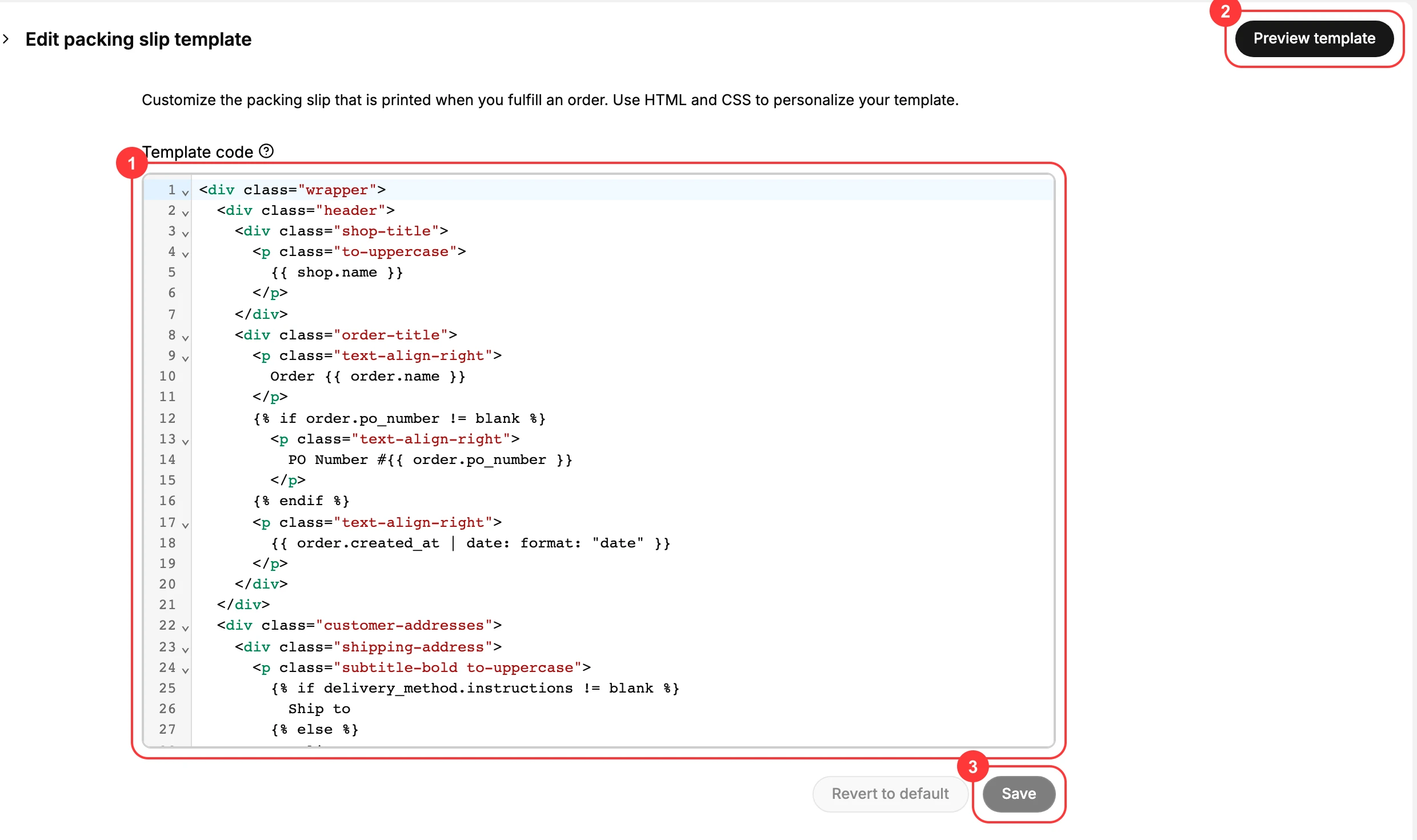
Save and Revert to default both start greyed out. Nothing on this page is live until the template differs from what is saved, so opening it to read is safe.
2. Edit the template code
Work in the Template code area (1). HTML changes the structure, CSS changes the look, and the placeholders and logic tags above are what put each order's own values in.
Leave in the placeholders you still want. Deleting one does not leave a gap you can see in the editor, but it leaves a gap on every slip that prints afterwards.
3. Preview the slip
Preview template (2) sits in the page header and opens a new tab, Packing Slip Preview, carrying Print / Save as PDF so you can put the slip on paper before it goes anywhere near a customer.
It renders what is saved, so preview after you save rather than before. On the sample order it draws a grey square where each product photograph goes; open a real order and take Print, then Print packing slip, when you want to see the photographs too.
4. Save, or go back to the original
Save (3) applies the template to every slip printed from then on, and it is also what makes your change visible to Preview template. Revert to default beside it puts the original template back, which is the way out of an edit that did not work, and it is the original that comes back rather than the version you had before this one.
Best practices
- Print one before you trust it. Use Print packing slip on a real order, not only the template preview. A slip that looks right on screen can still come out cut off on your paper size.
- Put your return or contact details in the notes area. It is the part of the slip a customer reads when something is wrong.
- Keep a copy of the code before a large edit. Revert gives you the original, not the version you had ten minutes ago.
- Leave the order placeholders alone unless you mean it. They are what makes the slip about this order rather than a blank form.
Common mistakes
- Expecting Preview template to show an unsaved edit. It renders the saved template, so a change you have not saved is not in the picture you are judging.
- Editing without printing a test. Every future slip uses this template, so a mistake runs until somebody notices it in a box.
- Expecting prices on it. A packing slip lists what is in the parcel. It is not an invoice.
- Leaving an out-of-date store address in place. Anything wrong in the footer goes out in every parcel you send.
Next steps
Related articles
Still stuck?
- Ask Tanqory AIAsk in your own words. It answers from these articles and links the ones it used.
- Ask in your adminThe assistant in your Tanqory admin answers and makes the change for you once you confirm.
- Contact TanqoryWrite to our privacy, security or legal teams, or talk to sales about a plan or a move.