Saved Package Sizes
A saved package is a package size you keep so its dimensions and weight are reused for rate calculation and label buying, instead of being re-measured on every order. You can save your own custom sizes or select a carrier's standard packaging, such as a USPS or UPS package. Setting one as the default means rates and labels use it automatically.
On this page
A saved package is a package size you keep in your store so you do not measure and type it in every time you fulfill an order. Once saved, its dimensions and weight are used to calculate shipping rates at checkout and are pre-selected when you buy a shipping label, which keeps rate quotes accurate and label buying quick. Saved packages live in Settings > Shipping and delivery, in the Packages section. This article explains the kinds of saved package and how they are used, and Packages has the step-by-step of adding one.
Before you begin
- Your role includes Shipping settings, the permission that lets you change the store's shipping configuration.
- You know the packaging you ship in, whether your own boxes or a carrier's standard packaging.
- Open Settings, open Shipping and delivery, and find the Packages section.
Why save package sizes
Saving the packages you ship in means the sizes are entered once and reused, rather than re-measured per order. That has a few benefits.
- Accurate rates. The saved dimensions and weight are what a carrier uses to price a shipment, so quotes match what you will be charged.
- Faster labels. Your default saved package is pre-selected when you buy a label, so you are not re-entering sizes each time.
- Consistency. Everyone fulfilling orders picks from the same known sizes, so shipments are measured the same way.
Two kinds of saved package
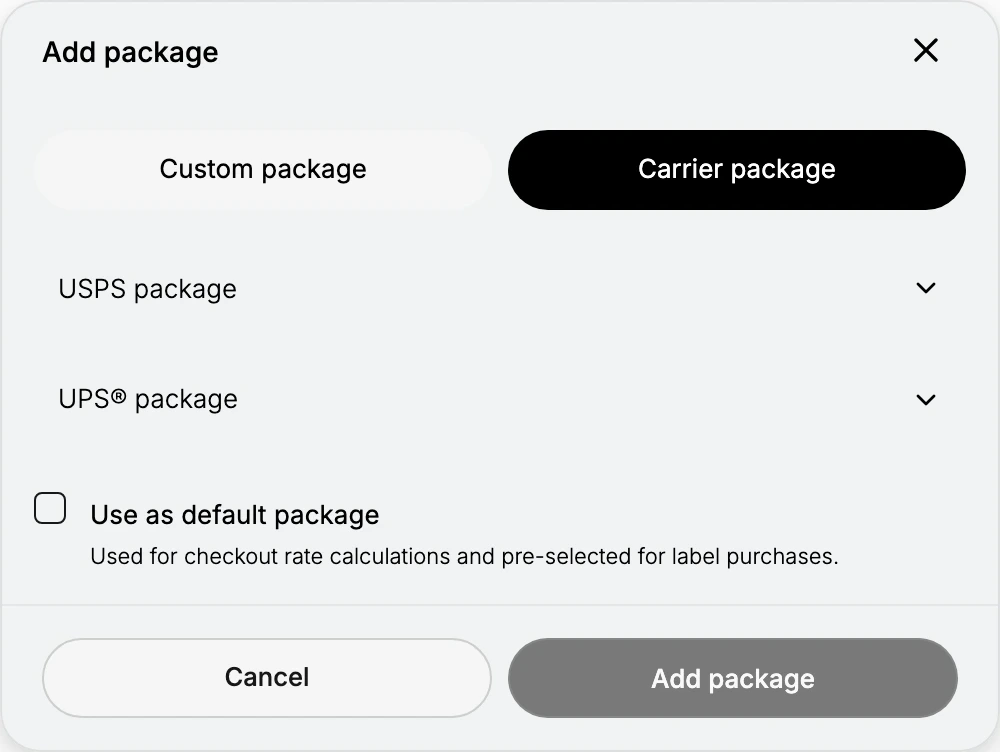
A saved package is either your own packaging or a carrier's. Both are saved and reused the same way; what differs is whether you measure it or pick it from a list. On a store with no carrier account connected, the dialog offers the custom kind only, so the choice below appears once a carrier is connected.
| Kind | What it is |
|---|---|
| Custom package | Your own packaging, where you set its type as a box, an envelope or a soft package, then its dimensions, weight and name |
| Carrier package | A carrier's standard packaging that you select rather than measure, such as a USPS package or a UPS package |
A carrier package saves you from measuring when you ship in the packaging a carrier provides. On the Carrier package tab you pick from the carrier's predefined packages. This tab appears only once you have connected a carrier account; without one, the dialog adds custom packages only.
The default saved package
One saved package can be set as the default, marked in the list as the store default. The default is the package used for checkout rate calculations and the one pre-selected when you buy a label, as the dialog notes. Setting your most-used package as the default means rates and labels use it without you choosing it each time.
Managing your saved packages
Saved packages appear in the Packages section, each showing its name, dimensions, and weight. From there you add a new one, or edit an existing one to change its details. Delete sits beside a package you no longer ship in, though not beside the one marked Store default, so the package your rates and labels rely on cannot be removed while it holds that role. The full add flow, including the fields for a custom package, is covered in Packages.
Best practices
- Save the few packages you use most. A short list of real sizes is quicker to pick from than many rarely-used ones.
- Use a carrier package when you ship in carrier packaging. It avoids measuring and matches what the carrier expects.
- Set a default. Make your most common package the default so rates and labels use it automatically.
- Keep sizes current. Edit a saved package if you change the packaging you use, so rates stay accurate.
If something goes wrong
- The wrong size is pre-selected at label buying. Set the package you use most as the default so it is pre-selected.
- A carrier package is not what you expected. Confirm you picked the correct carrier's package on the Carrier package tab.
- You cannot change these settings. Your role may not allow managing store settings. Ask an owner or admin.
Next steps
Related articles
Still stuck?
- Ask Tanqory AIAsk in your own words. It answers from these articles and links the ones it used.
- Ask in your adminThe assistant in your Tanqory admin answers and makes the change for you once you confirm.
- Contact TanqoryWrite to our privacy, security or legal teams, or talk to sales about a plan or a move.