Shipping Labels
The Shipping labels page is where you buy discounted carrier labels for the orders that are ready to fulfill, grouped by destination. You can estimate a cost with the rate calculator before you commit, and track how your recent shipments are performing on delivery speed and tracking coverage. Buying a label handles the postage, barcode, and tracking together, so you skip the trip to a carrier counter and re-typing addresses.
On this page
The Shipping labels page is where you buy carrier shipping labels at discounted rates for the orders that are ready to fulfill, without leaving your admin. From one place you can buy labels for a batch of orders, estimate a rate before you commit, and see how your recent shipments have been performing. Buying labels here means the postage, the barcode, and the tracking are handled together, which saves the trip to a carrier counter and the manual re-entry of addresses. You open it under Orders > Shipping labels in your admin.
Before you begin
- Your role includes Fulfill orders, since buying a label is a fulfillment action rather than a settings change.
- You have orders that are paid and ready to fulfill, so there are fulfillments to buy labels for.
- Open Orders, then open Shipping labels.
What the page shows
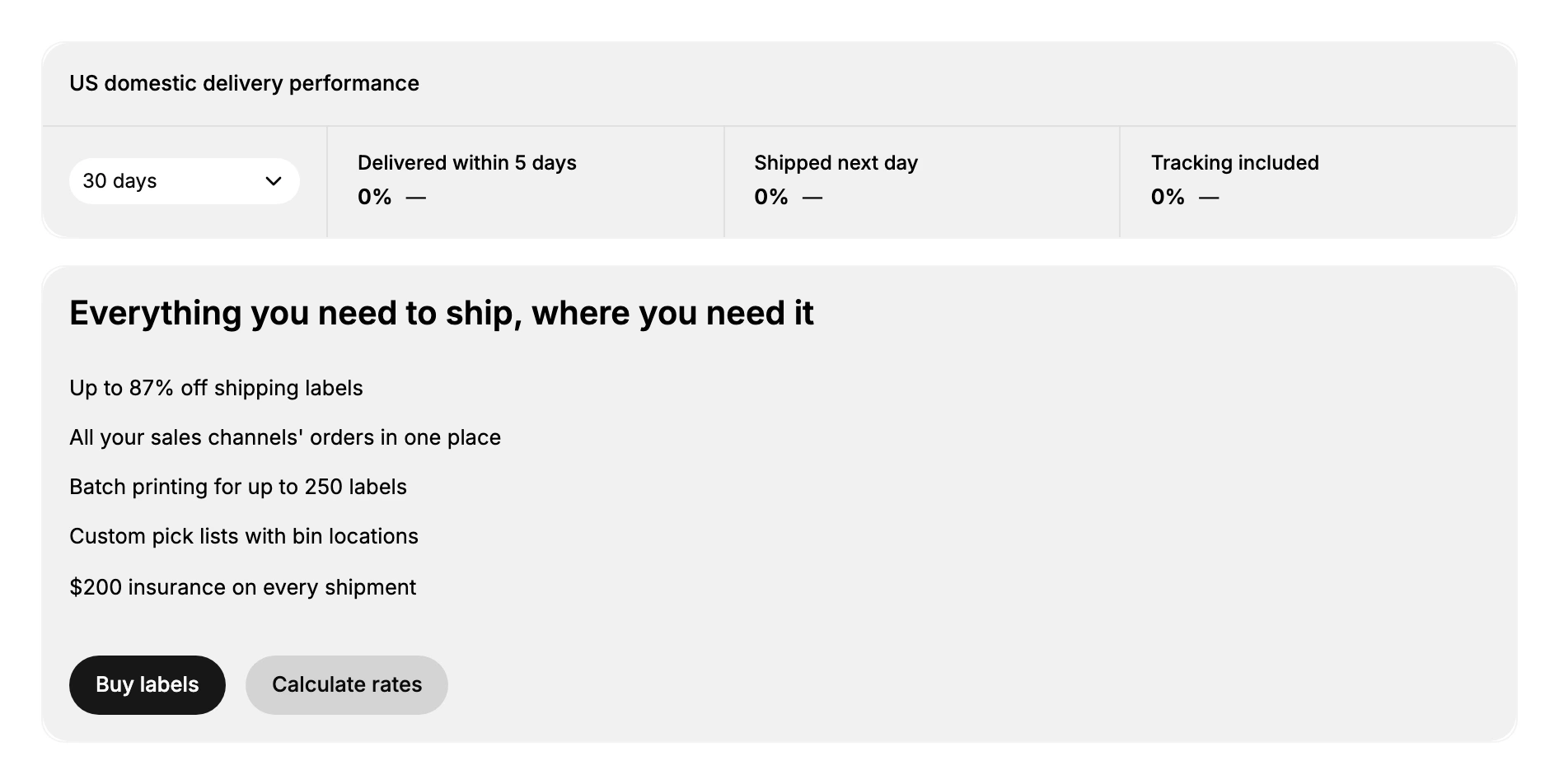
When you open Shipping labels before you have bought any, the page has two parts. At the top is a delivery performance panel that summarizes your recent shipments. Below it is a panel that introduces what buying labels through Tanqory gives you, with the actions to buy labels or estimate a rate.
Delivery performance
The top panel reports your US domestic delivery performance over a period you choose, so you can see how recent shipments are doing without opening them. The date range starts at the last 30 days, and you can switch it to the last 7, 14, or 90 days. It reports three measures.
| Measure | What it tells you |
|---|---|
| Delivered within 5 days | The share of shipments that reached the customer within five days |
| Shipped next day | The share of orders that shipped the day after they were placed |
| Tracking included | The share of shipments that went out with a tracking number |
These figures stay at zero until you start buying labels and shipping orders, because they are calculated from the labels you buy here. Once shipments are flowing, the panel gives you an ongoing read on your fulfillment speed and tracking coverage. You can also hide the panel with Hide analytics, the single entry under More actions, if you do not need it.
What buying labels gives you
The lower panel, headed Everything you need to ship, where you need it, lists what you get by buying labels through Tanqory rather than paying a carrier directly. These are the benefits shown on the page, and Learn more about buying shipping labels below them opens the fuller explanation.
| Benefit | Why it helps |
|---|---|
| Up to 87% off shipping labels | You pay discounted carrier rates instead of full retail postage |
| All your sales channels' orders in one place | Orders ready to ship are gathered together, not scattered |
| Batch printing for up to 250 labels | You can print a large batch of labels in one run |
| Custom pick lists with bin locations | Staff can pick items faster using your storage locations |
| $200 insurance on every shipment | Each shipment carries baseline insurance against loss or damage |
Buying labels
Selecting Buy labels opens the Create shipping labels dialog, which introduces itself as creating labels for orders ready to fulfill and groups those orders by destination. Each group names the destination and counts what it covers, as with the United States group below, and you pick the group you want labels for.
The dialog closes on Cancel or Create labels. Cancel is the way out: opening this dialog and reading it buys nothing.
Create labels takes you into the purchase itself, where you check the addresses, confirm the weight and package, and choose a shipping service before the label is bought. That is where the money is spent and where you get the label to print and the tracking number, and it is covered step by step in Buy a Shipping Label.
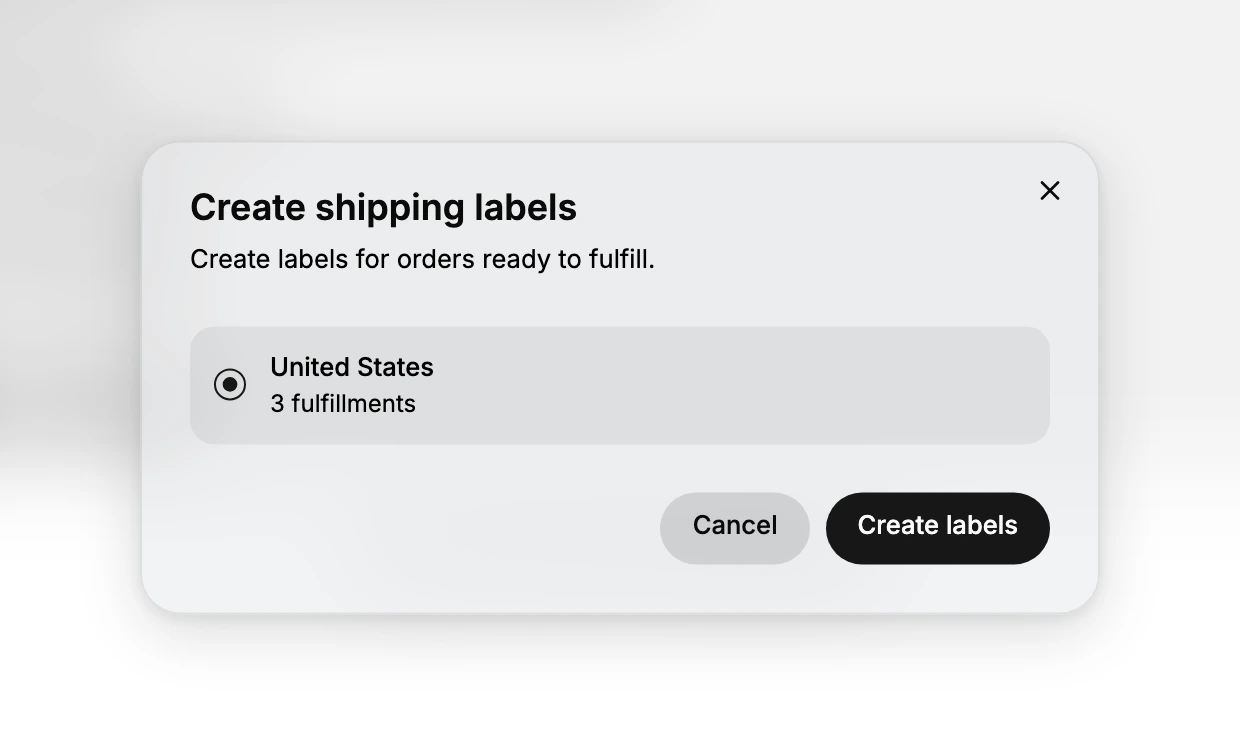
Choose the destination group and select Create labels to start buying labels for those fulfillments. Grouping by destination lets you handle all the orders going to the same country together, which is faster than opening each order on its own.
Buying a label is a paid action: the postage is charged when you complete the purchase. Confirm the destination group and the fulfillments it covers before you continue, since a purchased label represents real postage.
Estimating a rate first
If you want to know the cost before you buy, select Calculate rates to open the Shipping rate calculator. You enter where the parcel ships from and to and its size, and the calculator estimates what you would pay at Tanqory's discounted rates, so you can compare before committing. It uses the following fields.
| Field | What to enter |
|---|---|
| Shipping from | The origin, either a saved location or a custom address |
| Shipping to | The destination country and address |
| Package | A saved package or custom dimensions |
| Total weight | The parcel weight, in pounds |
| Dimensions | The length, width, and height, in inches |
With the fields filled in, select Calculate discounted rates to see the estimate. Because it only estimates, running the calculator does not buy anything or charge you.
Best practices
- Estimate before a large batch. Use the rate calculator to check the cost of a size and destination before you buy many labels at once.
- Enter accurate weight and dimensions. The rate follows the parcel size, so correct figures avoid being undercharged and later adjusted by the carrier.
- Buy by destination. Handle each destination group together to move through a batch of orders quickly.
- Watch your performance panel. The delivery and tracking figures show whether shipments are going out and arriving on time.
If something goes wrong
- No orders to select. The Create shipping labels dialog only lists orders that are ready to fulfill; if none are ready, there is nothing to buy a label for yet.
- The performance figures are all zero. They populate from labels you buy here, so they stay at zero until you have shipped with Tanqory labels.
- You cannot buy labels. Your role may not allow managing orders and fulfillment. Ask an owner or admin.
Next steps
Related articles
Still stuck?
- Ask Tanqory AIAsk in your own words. It answers from these articles and links the ones it used.
- Ask in your adminThe assistant in your Tanqory admin answers and makes the change for you once you confirm.
- Contact TanqoryWrite to our privacy, security or legal teams, or talk to sales about a plan or a move.