Buy a Shipping Label
Buying a shipping label inside Tanqory purchases postage from a carrier for the order, so you get a label to print and tracking, without leaving the admin. On the Buy shipping label page you check the delivery and ship-from addresses, confirm the item weight, pick the package, and choose from the rates the carriers return. This article walks through that page up to buying the label, and covers the Shipping labels page that several orders can be labeled from at once.
On this page
Buying a shipping label here is buying postage. Tanqory gets it from the carrier for this order, and what comes back is a label to print and a tracking number, without you going to the carrier yourself.
The whole job sits on one screen, the Buy shipping label page, and nothing is charged until the last button on it.
The Buy shipping label page
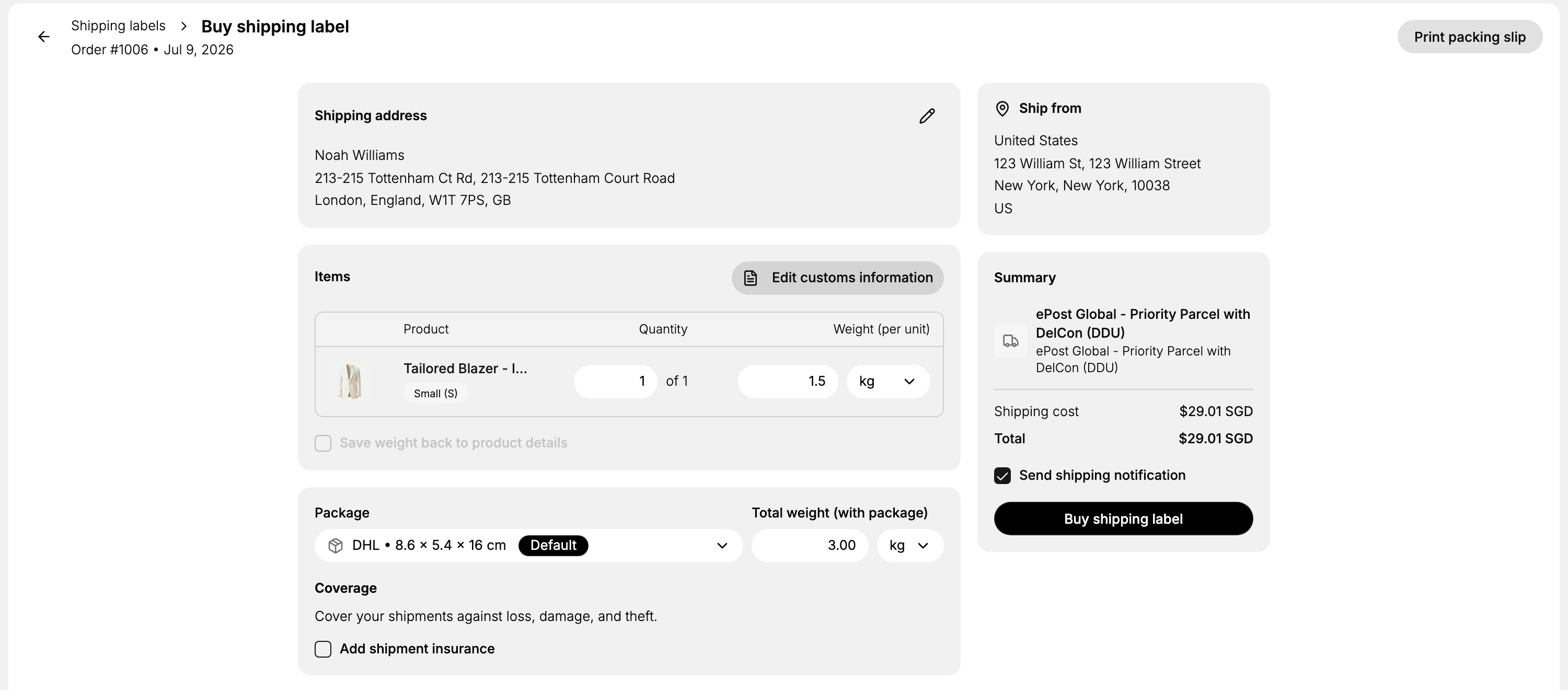
Across the top: a breadcrumb back to Shipping labels, the order's number and date, and Print packing slip on the right.
| Card | What it holds |
|---|---|
| Shipping address | The customer's address, with a pencil to correct it |
| Ship from | The location the parcel leaves from |
| Items | Each product, the quantity being shipped, and the weight per unit |
| Package and total weight | The box the parcel travels in, and the weight of the parcel with that box counted in |
| Coverage | The option to add shipment insurance before you buy |
| Shipping service | The carrier services for this parcel, each with a price and a delivery estimate |
| Summary | The chosen service, the cost and total, the notification, and the button that buys |
The Shipping labels page
That breadcrumb points at Orders > Shipping labels, where labels are a section of their own rather than something that exists only inside an order.
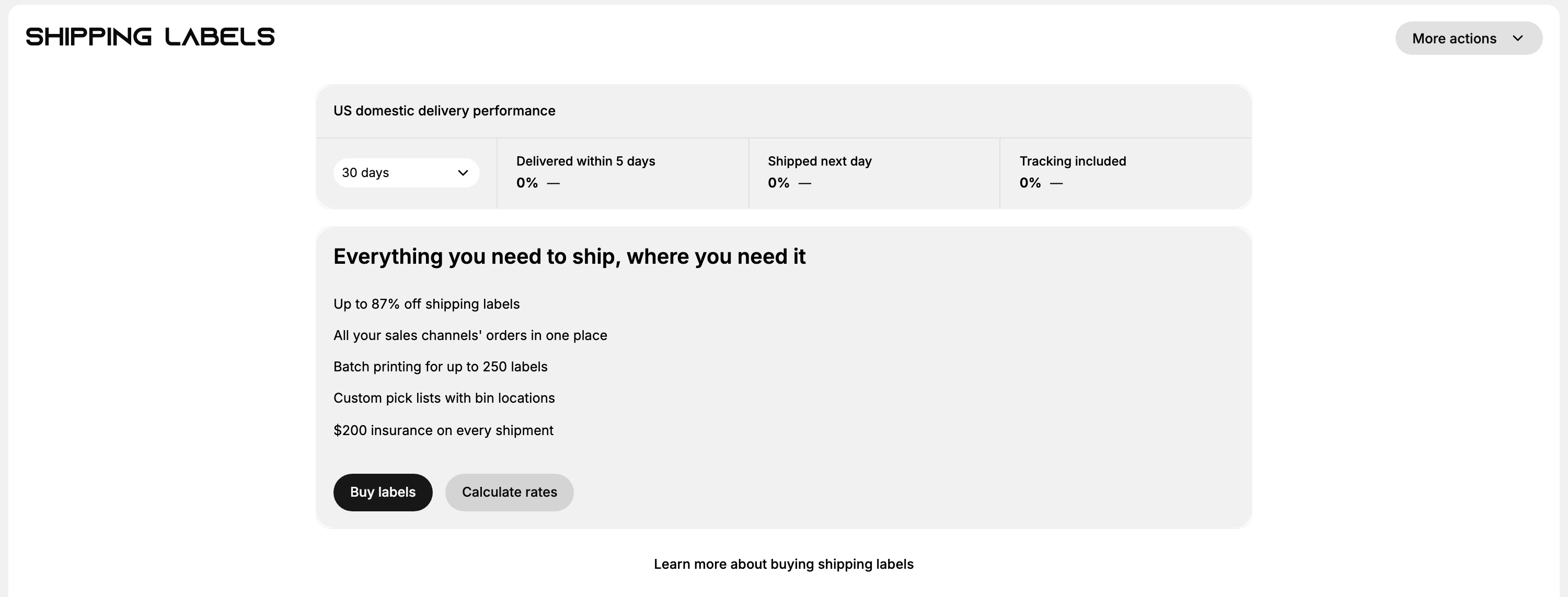
| Control | What it opens |
|---|---|
| Buy labels | Create shipping labels, which gathers the orders ready to fulfill and groups them by the location they ship from, with a count beside each |
| Calculate rates | A Shipping rate calculator asking for a location to ship from, a destination, a package or your own dimensions, and a total weight |
| More actions | Hide analytics, which puts the performance card away |
Those two buttons cover the cases this page exists for. Buy labels is the route when several orders are ready at once, rather than opening each one in turn. Calculate rates prices a parcel with no order behind it, so you can find out what a shipment would cost before you have taken the sale.
The card above them, US domestic delivery performance, reports Delivered within 5 days, Shipped next day and Tracking included over a period you choose, thirty days unless you change it.
There is a third way in, from the Orders list itself. Tick the rows you want and a bar appears above the list carrying Create shipping labels, next to Print, Mark as and Capture payment, which is the same batch idea reached from where the orders already are.
The rest of this article follows a single order.
Before you begin
- The order is unfulfilled and has a shipping address. A label is postage to a place, so an order without one has nothing to price.
- Your products carry weights, or you are ready to type the weight here. The weight is what the carrier prices.
- You have decided who pays for speed. The prices on offer are far apart, and that choice is yours before you buy.
- Your role includes Edit orders.
- Go to Orders, open the order, and select Create shipping label on its fulfillment card.
Steps
1. Open the Buy shipping label page
An unfulfilled order carries two buttons at the foot of its fulfillment card, and they do different things.
- Mark as fulfilled records that the items went out, however they went.
- Create shipping label buys postage. This is the one.
The page opens with the order number and date across the top, so you can check you have the right order before touching anything.
2. Check where it is going, and where from
Shipping address is what the label will carry, printed exactly as it stands. A missing unit number is not something a carrier works out for you, and the pencil in the corner of the card corrects it here.
Ship from is the location the parcel leaves. It is half of the distance being priced, so on a store with more than one location it deserves a glance rather than an assumption.
3. Confirm the weight
The Items card holds the product, the quantity in a field with the ordered count beside it so the line reads 1 of 1, and the Weight (per unit) with its own unit.
That weight is where the price starts, since the total further down the page is built out of it. If it is wrong or missing, fix it before going further: the carrier weighs the parcel at their end, and the difference comes back to you as an adjustment after the fact.
Two more controls sit on this card.
- Save weight back to product details writes the weight you used onto the product, so the next order of the same item starts correct.
- Edit customs information is where contents, values and origins are declared for anything crossing a border. A parcel that leaves without it waits at the border while somebody asks what is inside.
The product name is a link, so the product is one click away when the weight needs fixing at its source rather than only for this parcel.
4. Pick the package, then read the total weight
Package is what the parcel travels in, shown with its dimensions and tagged Default when it is the one the store starts with. Opening the selector lists the packages the store has saved, each with its own weight, and offers Add new package when the box in front of you is not among them. Saved Packages covers that list.
Total weight (with package) beside it is the parcel on the scale rather than the goods on their own. The page above reads 3.00 kg for a 1.5 kg blazer in a box that weighs 1.5 kg itself.
Change that figure and every price in the list is quoted again, which is how you can tell it is the number the rates are built on and not a note for your own records.
Coverage underneath offers Add shipment insurance, described on the page as cover against loss, damage and theft. It is not selected for you, so an expensive parcel carries it only if you say so.
5. Choose the service
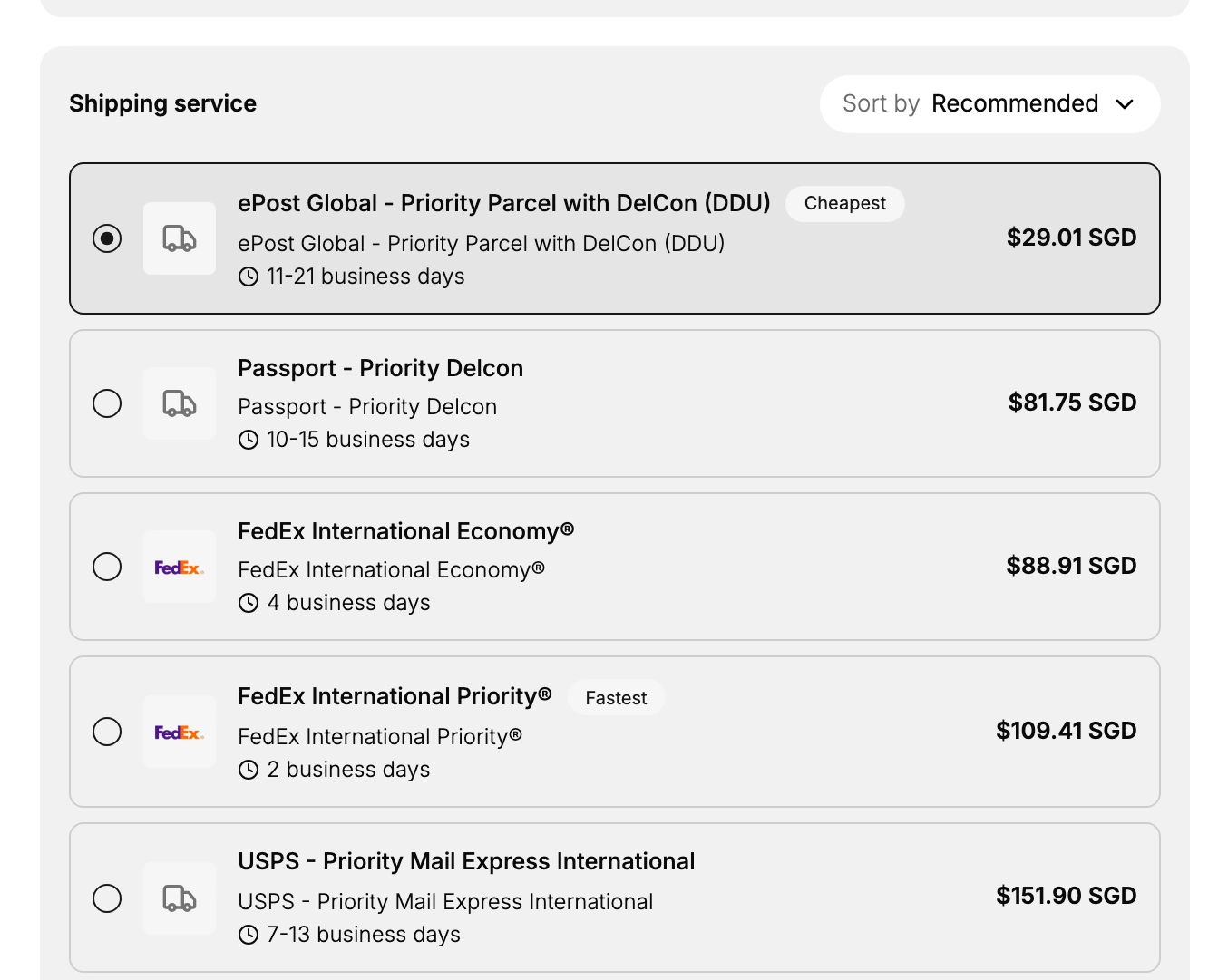
The list is not one carrier's menu. The parcel above, a single blazer from New York to London, drew nine services from five carriers.
| Service | Estimate | Price |
|---|---|---|
| ePost Global, Priority Parcel with DelCon | 11 to 21 days | $29.01 SGD |
| Passport, Priority Delcon | 10 to 15 days | $81.75 SGD |
| FedEx International Economy | 4 days | $88.91 SGD |
| FedEx International Priority | 2 days | $109.41 SGD |
| USPS, Priority Mail Express International | 7 to 13 days | $151.90 SGD |
| DHL Express, EXPRESS WORLDWIDE | 4 to 5 days | $531.79 SGD |
| DHL Express, EXPRESS 12:00 | 4 to 5 days | $560.44 SGD |
| DHL Express, EXPRESS 9:00 | 4 to 5 days | $610.58 SGD |
| DHL Express, MEDICAL EXPRESS | 4 to 5 days | $796.67 SGD |
Estimates are in business days. The prices read in Singapore dollars because that is the currency this store's carrier account returns.
Two lines are marked for you, Cheapest and Fastest, and they were not the same line. Price does not track speed either: the DHL service at $531.79 costs nearly five times the FedEx one at $109.41 and still arrives later. Read the estimate beside the price rather than the price alone.
Sort by at the top right opens on Recommended, and also offers Price (lowest first) and Speed (fastest first).
Selecting a service updates the Summary at once. Picking the two-day FedEx line moved the total from $29.01 to $109.41 on the spot, so you can try one, then another, and watch the figure before committing to any of them.
6. Read the summary and buy
The Summary names the service you picked, gives the Shipping cost and the Total, and carries Send shipping notification, which arrives ticked and emails the customer that the parcel is on its way.
Leave the notification on for an ordinary sale, since it is the message the customer is waiting for. Clear it only when you have already told them yourself.
Then Buy shipping label. The postage is charged at the total shown, it is not undone from this page, and what comes back is the label to print and a tracking number recorded against the order.
Everything before that last button is free to change: switch services, edit the weight, change the package, correct the address. Buy shipping label is the only control on this page that spends money, so read the Total beside it before you press it.
Verify the result
- The order shows the label against its fulfillment, with the tracking number.
- In the Orders list, the Label status column for that order no longer reads No label.
- The amount charged matches the Total you read in the Summary.
- The customer has the shipping email, if you left the notification ticked.
Best practices
- Fix the weight at the source. Save weight back to product details spares you the same correction on every future order.
- Read the estimate, not only the price. The cheapest and the fastest are rarely the same line, and the gap between them runs to weeks.
- Check the total weight, not only the item weight. The package is counted in, and that combined figure is what the rates are quoted against.
- Do customs before you buy, not after. The declaration travels with the label, and a parcel stopped at a border costs more time than the postage saved.
- Check the address against the order. The label prints what the card says, including a mistake.
Common mistakes
- Buying with a weight nobody checked, which the carrier corrects later at your expense.
- Leaving the default package on a parcel that does not fit it, so the weight the rate was built on was never the real one.
- Skipping customs on an international parcel, which is what holds it at the border.
- Taking the first service in the list without reading what the others cost or when they arrive.
- Clearing the notification out of habit, leaving the customer with no word that their order shipped.
Next steps
Related articles
Still stuck?
- Ask Tanqory AIAsk in your own words. It answers from these articles and links the ones it used.
- Ask in your adminThe assistant in your Tanqory admin answers and makes the change for you once you confirm.
- Contact TanqoryWrite to our privacy, security or legal teams, or talk to sales about a plan or a move.