Add a Tracking Number
If you ship an order yourself or through a carrier outside Tanqory, you can add the tracking number so the customer can follow their parcel. The Add tracking window lets you enter the tracking number and the shipping carrier, add more than one number when the order ships in several parcels, and choose whether to email the customer the tracking details. This article walks through adding tracking to a fulfilled order.
On this page
When you ship an order yourself or through a carrier outside Tanqory, adding the tracking number lets the customer follow their parcel. You add it from the order's fulfillment card, in the Add tracking window, where you enter the tracking number and the shipping carrier and choose whether to email the details to the customer. This article walks through that window.
You open it with Add tracking on a fulfilled order's fulfillment card, reached from Orders.
The Add tracking window
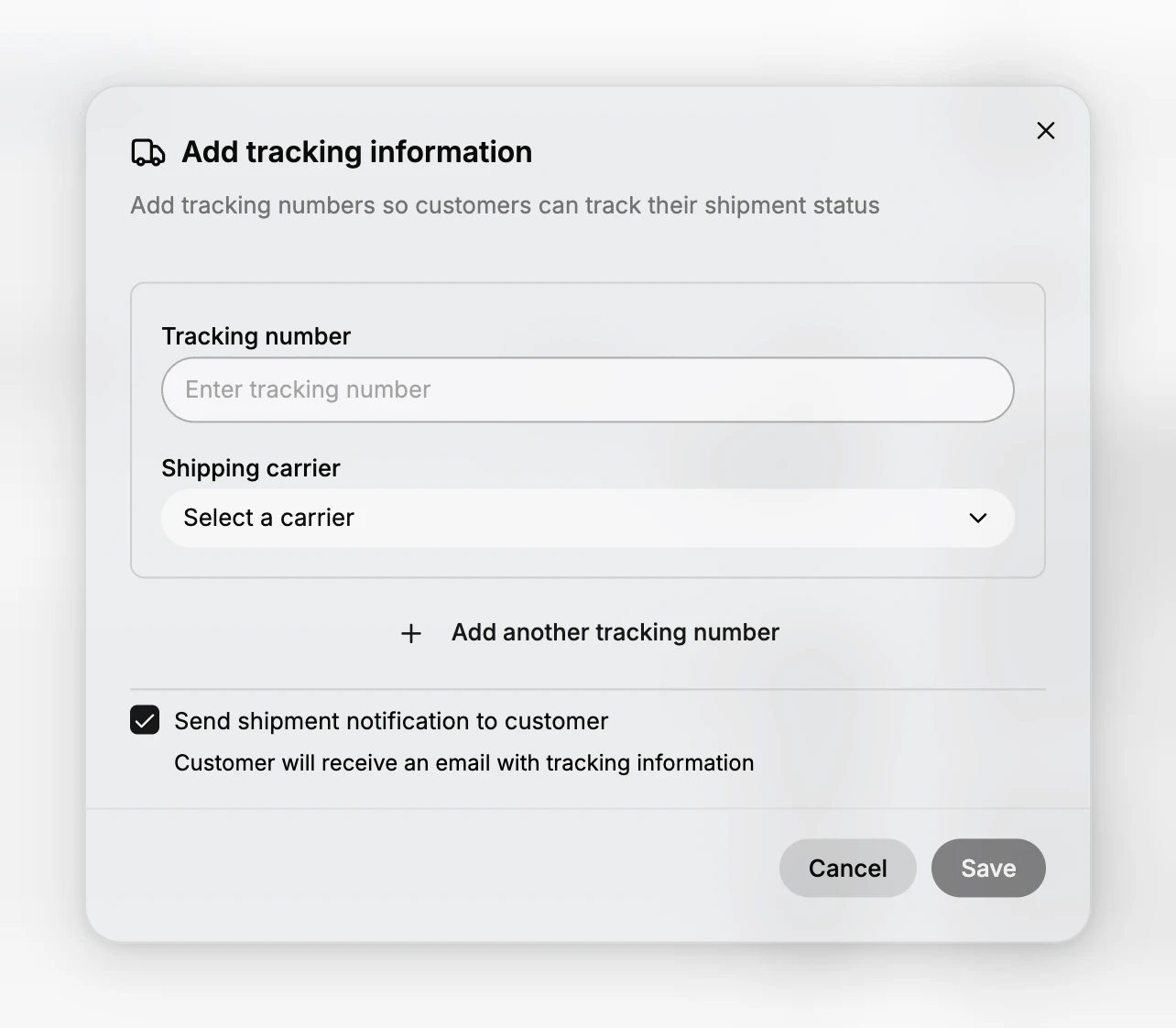
The window has a field for the tracking number, a dropdown for the shipping carrier, a link to add another tracking number, and a checkbox to email the customer, with Cancel and Save at the bottom. Its own subtitle says what it is for: adding tracking numbers so customers can track their shipment status.
Two things are worth understanding before you fill it in.
The tracking number and the carrier work as a pair. The number identifies the parcel and the carrier says whose system that number belongs to, so a number saved without a carrier is just text on the order and cannot become a working tracking link for the customer.
The notification is part of the same action, not a separate step. With the checkbox left on, saving both records the tracking and emails it to the customer, so there is nothing else to send afterwards.
When to use this rather than a label
If you bought the shipping label through Tanqory, the tracking usually comes with it. This window is for the other cases: a parcel you booked directly with a carrier, a courier that gave you a consignment number by hand, or a shipment sent by a warehouse that emails you the number afterwards. See Buy a Shipping Label for the label route.
Before you begin
- Your role includes Edit orders.
- The order has been fulfilled, and you have the carrier's tracking number.
- Open Orders and open a fulfilled order, then select Add tracking on its fulfillment card.
Steps
1. Open the Add tracking window
On the order's fulfillment card, select Add tracking. The Add tracking information window opens.
2. Enter the tracking number
In Tracking number, type the number exactly as the carrier issued it, with no extra spaces and no leading label text. This is the string the customer, and the carrier's own site, will look the parcel up by, so a transcription slip here shows up as a tracking link that goes nowhere. Copy and paste it from the carrier's confirmation where you can.
3. Choose the shipping carrier
Open Shipping carrier and pick the carrier actually carrying the parcel. This is what turns the number into a link the customer can follow, because the tracking has to be looked up in that carrier's system. If the parcel was handed to a local courier working on behalf of a larger carrier, choose the carrier whose tracking system holds the number, since that is the one the customer will be sent to.
4. Add another number if the order shipped in more than one parcel
A tracking number covers one parcel, not one order. If the order went out in several boxes, select Add another tracking number and add each number with its carrier, so every parcel can be followed. Adding only the first number is the common mistake here: the customer sees one parcel arrive, tracks it, and has no way to tell where the rest of the order is.
5. Choose whether to notify the customer
Send shipment notification to customer is ticked to begin with, and the window says what that means: the customer will receive an email with the tracking information. The shipping emails your store sends, including the one that carries the tracking number and the carrier, are listed under Configure Fulfillment Notifications. Leave it on in the normal case, because it is the message that tells them the order is on its way.
Clear it only when the email would be duplicate or wrong, for example when you have already sent the tracking by hand, or when you are correcting a number you entered earlier and do not want to announce the shipment a second time.
6. Save
Select Save to add the tracking to the order. If the notification is on, the customer is emailed the tracking details at the same time, so treat Save as the point of no return for the email rather than a draft.
Cancel closes the window without saving anything and without sending, so it is the safe way out if you are unsure about the number.
After you save
The tracking appears on the order's fulfillment card, next to the carrier, so anyone opening the order later can see how the parcel went out and follow it themselves. The send is also recorded on the order's timeline, which is where to look if the customer says no shipping email arrived.
Verify the result
- The fulfillment card shows the carrier and the tracking number you entered.
- The number matches the carrier's own confirmation, character for character.
- Every parcel in the shipment has a number, not just the first one.
- The timeline records the shipment notification if you left it on.
Best practices
- Add the tracking as soon as the parcel ships, so the customer can follow it from the start.
- Pick the correct carrier, so the tracking number links to the right carrier for the customer.
- Leave the notification on unless you have already told the customer, so they know the order is on its way.
Common mistakes
- Entering the tracking number without the carrier, which can leave the tracking without a working link.
- Turning off the notification and forgetting to tell the customer, so they do not know the order has shipped.
- Adding one tracking number for an order that shipped in several parcels, which leaves the other parcels untracked.
- Typing the number by hand from a printed label, which is how a wrong character gets in and the link stops working.
- Adding tracking before the parcel is actually with the carrier, so the customer follows a number that shows nothing for a day.
If something goes wrong
- There is no Add tracking button. The order is not fulfilled yet. Fulfill it first, since tracking belongs to a shipment. See Fulfill Orders.
- The customer says the tracking link does not work. Check the number against the carrier's confirmation and check that the right carrier is selected, then correct it and save again.
- The customer never got the email. Look at the order timeline for the notification, confirm the customer's email address on the order, and ask them to check their spam folder.
- You saved the wrong number. Open Add tracking again and correct it. Clear the notification checkbox if you do not want the customer emailed a second time.
Next steps
Related articles
Still stuck?
- Ask Tanqory AIAsk in your own words. It answers from these articles and links the ones it used.
- Ask in your adminThe assistant in your Tanqory admin answers and makes the change for you once you confirm.
- Contact TanqoryWrite to our privacy, security or legal teams, or talk to sales about a plan or a move.