Order Timeline Section
The Timeline is the record of everything that has happened to an order, listed newest first, and it is where you and your team post internal notes about the order.
On this page
The Timeline is the record of everything that has happened to an order, listed newest first. It logs the order's own events, such as when it was created, paid, fulfilled, and archived, and it is also where you and your team post internal notes. Reading it is the quickest way to reconstruct what happened to an order without having to ask anyone. This article explains the note box and the event history below it.
You find the Timeline in the left column, below the payment card, when you open an order under Orders.
Before you begin
- Your role includes View orders.
- Open Orders in the admin sidebar and open the order you want to work on.
The Timeline
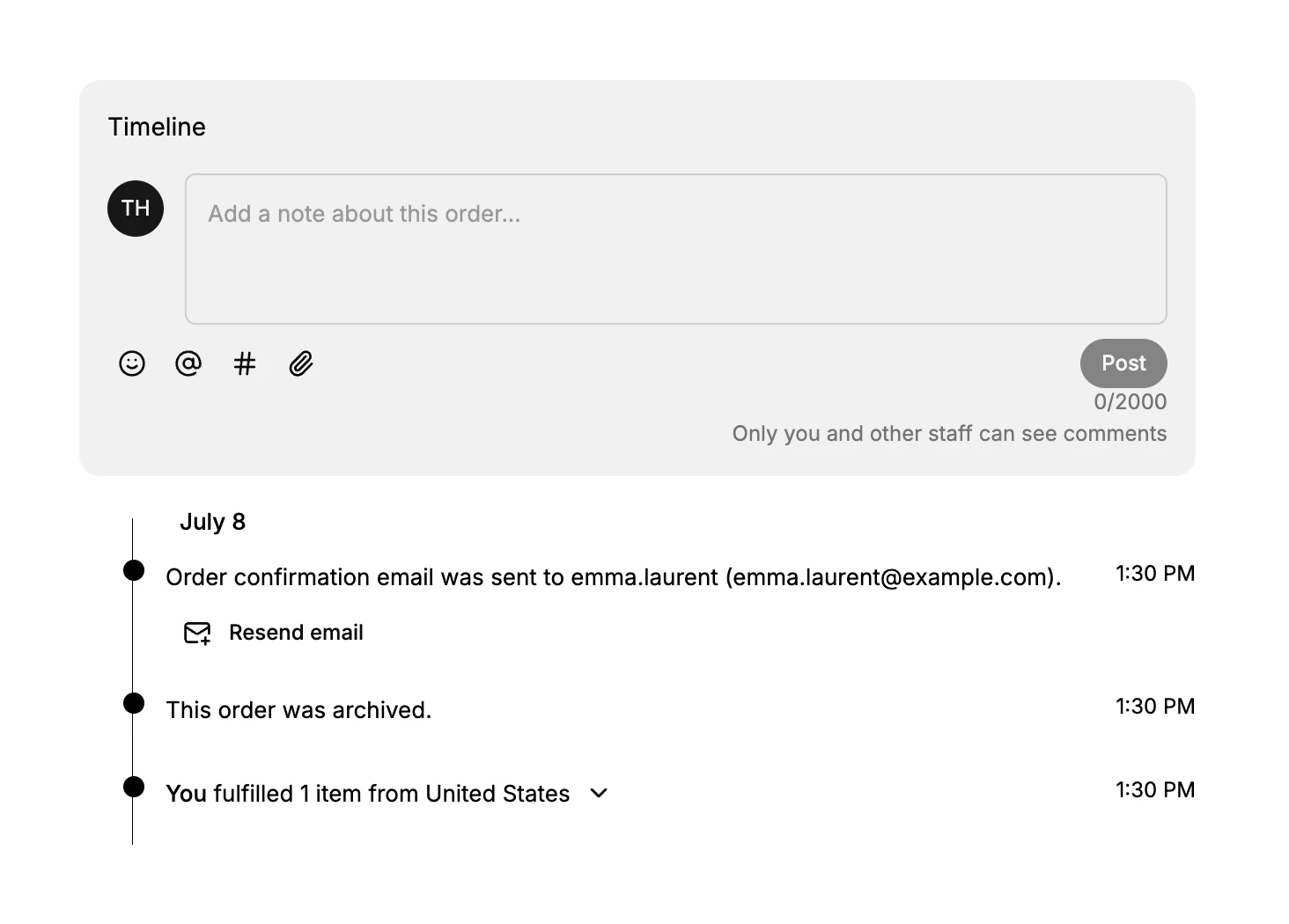
At the top of the Timeline is a box to post a note. Below it, the events are listed under the date they happened, newest first, each with a timestamp on the right. Some entries carry an action of their own, such as Resend email on a confirmation-email entry, and some can be expanded with the arrow to show more detail.
Posting a note
The Add a note about this order box lets you leave context for your team. You can add an emoji, mention a teammate with @, tag with #, or attach a file, and then Post. As the box says, only you and other staff can see comments, so a note is internal to your team and is never shown to the customer. Order Notes Section covers the single standing note that stays at the top of the order.
The event history
Below the note box, the events appear newest first, grouped under the date they happened, each with its own timestamp. The Timeline records the order's own actions as they occur. On this order they include the order being created from a draft, a confirmation being generated, the order being manually marked as paid, notes being added, the order being fulfilled, the order being archived, and a confirmation email being sent to the customer. An entry can carry an action of its own: the confirmation-email entry has a Resend email action, which sends the email again if the customer says they did not receive it.
Best practices
- Read the Timeline first when investigating an order, since it shows what happened and when, in one place.
- Post a note when you do something unusual, so the next person to open the order understands it.
- Use Resend email from the Timeline when a customer says they did not receive their confirmation.
Common mistakes
- Treating a Timeline note as customer-facing. Notes are internal to staff, so do not use one to try to tell the customer something.
- Asking a colleague what happened to an order instead of reading its Timeline, which already records it.
Next steps
Related articles
Still stuck?
- Ask Tanqory AIAsk in your own words. It answers from these articles and links the ones it used.
- Ask in your adminThe assistant in your Tanqory admin answers and makes the change for you once you confirm.
- Contact TanqoryWrite to our privacy, security or legal teams, or talk to sales about a plan or a move.