Create Draft Order
Create an order yourself for a phone, email, or in-person sale, then send an invoice, mark it paid, or save it as a draft.
On this page
A draft order is an order you create yourself in the admin, rather than one a customer places at checkout. Draft orders are useful for a sale you take over the phone, by email, or in person. You add the products, set the customer, and then decide how the order is paid. This article walks through the draft order form and how to finish the order.
You start this from Orders > Create order on the Orders overview, which opens the Create draft order form.
The draft order form
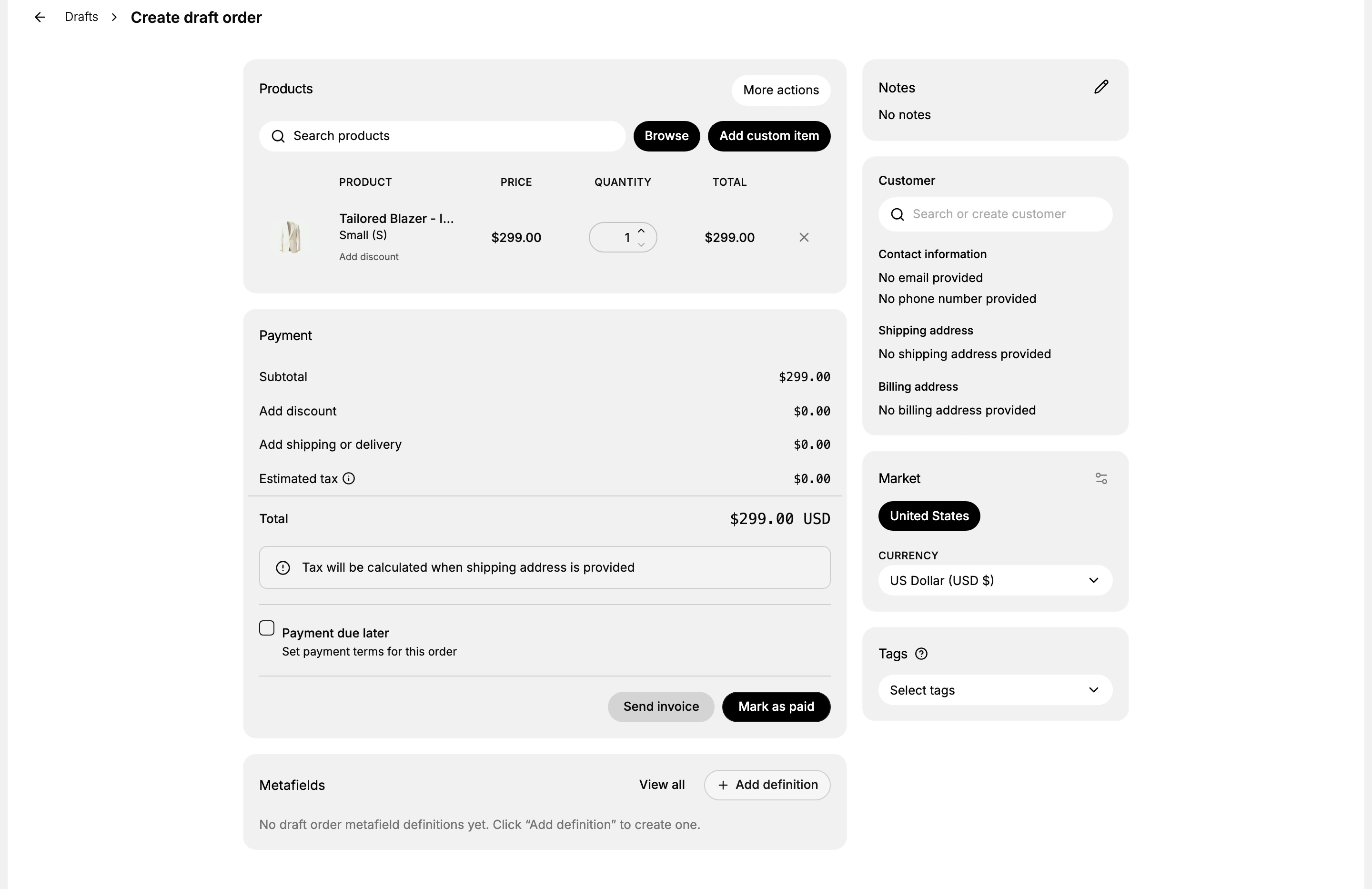
The form has a Products section and a Payment summary on the left, and a right column with Notes, Customer, Market and Currency, and Tags. The example above has one product added, so the Payment summary shows a total and the payment actions. The Currency shows US Dollar (USD).
Before you begin
- Your role includes Edit orders.
- Open Orders > Overview and select Create order to open the Create draft order form.
Steps
1. Add products
In the Products section, click Browse to open the Add products window, where you search your catalog and tick the products or variants you want, then click Add. You can also type in Search products to find a product quickly, or use Add custom item for a one-off line that is not in your catalog, such as a service. Each line added shows its price, a quantity you can change, and a line total, with an option to add a per-line discount.
2. Set the customer
In the Customer section, use Search or create customer to attach the buyer. Search by name, email, or phone to pick an existing customer, or create a new one. Once a customer is set, their contact information and shipping and billing addresses fill in below, which is also what lets tax be calculated.
3. Add discounts, shipping, tax, notes, and tags
In the Payment summary you can Add discount and Add shipping or delivery, and Estimated tax is worked out once a shipping address is set, as the note on the form states. In the right column, use Notes for an internal note about the order and Tags to label it, for example to mark how the sale was taken.
4. Choose how to finish the order
When the order is ready, choose one of three ways to finish it, based on what has actually happened with payment.
- Send invoice emails the customer a link to pay for the order themselves. The order appears under Orders > Drafts with status Invoice sent.
- Mark as paid records that the customer has already paid, for example by a transfer you have received. Only use this once payment has genuinely arrived. The draft is then marked Completed on the Drafts page.
- Save keeps the order as a draft to come back to later. Save is in the bar at the top of the page when you have unsaved changes.
Best practices
- Attach a customer. Setting the customer lets tax calculate from their address and keeps the order tied to that customer's history.
- Add a note for context. A short internal note explaining how the sale was taken helps whoever handles the order next.
- Only mark as paid once payment has arrived. If you are waiting on a transfer, send an invoice or save the draft until the money is in.
- Tag manual orders. A tag makes it easy to find and report on the orders you created yourself.
Common mistakes
- Marking an order paid before the money has arrived, which leaves your records out of step with reality.
- Skipping the customer, so the order is not tied to a customer and tax cannot be calculated.
- Leaving no note, so later no one knows why the order was created by hand.
Next steps
Related articles
Still stuck?
- Ask Tanqory AIAsk in your own words. It answers from these articles and links the ones it used.
- Ask in your adminThe assistant in your Tanqory admin answers and makes the change for you once you confirm.
- Contact TanqoryWrite to our privacy, security or legal teams, or talk to sales about a plan or a move.