Order Fulfillment Section
The fulfillment card at the top of an order shows what needs to ship, where it is going, and how far along it is, with the actions to mark it fulfilled, put it in progress or on hold, and buy a shipping label.
On this page
The fulfillment card is the first card at the top of an order, and it is where you prepare and ship the items. It gathers the things that go out together, shows how far the order is through shipping, and holds the actions that move it from unshipped to shipped. This article explains each part of the card and what its actions do, so you know what happens when you use them.
You find this card at the top of the left column when you open an order under Orders.
Before you begin
- Your role includes View orders.
- Open Orders in the admin sidebar and open the order you want to work on.
The fulfillment card
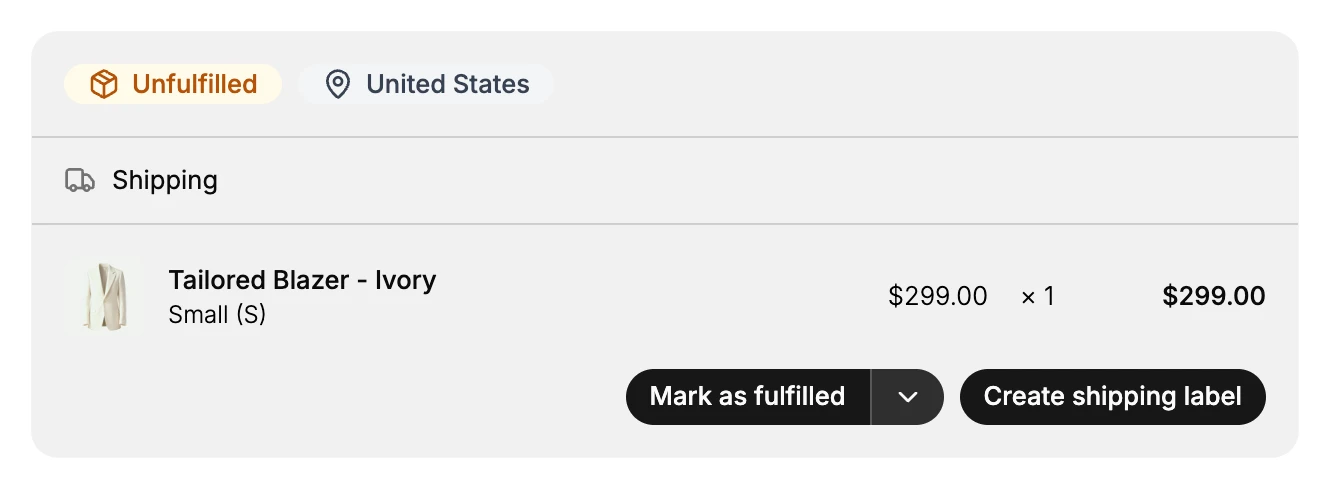
The header of the card shows two things: the fulfillment status, such as Unfulfilled, and the destination the order is shipping to, shown here as United States. Below the header, the delivery method for this group is shown, such as Shipping. Each line then lists a product with its image, its variant, such as Small (S), and its price, quantity, and total. At the bottom of the card are the actions that move the order forward: Mark as fulfilled with a dropdown next to it, and Create shipping label.
The fulfillment status
The status badge tells you how far the order has got through fulfillment.
| Status | What it means |
|---|---|
| Unfulfilled | Nothing has shipped yet. This is where an order starts. |
| In progress | You are actively preparing the order, such as picking and packing the items. |
| On hold | Fulfillment is paused. You can hold the items for the order, but you cannot complete it until you release the hold. |
| Fulfilled | Every item has shipped, so the order is complete. |
The actions on the card
The buttons at the bottom of the card change the status and start the work of shipping.
- Mark as fulfilled records that the items have shipped. When you fulfill every item, the order moves to Fulfilled. If an order has several items, you can ship them in more than one go, and the items you have not fulfilled yet stay unfulfilled until you do. The full procedure is in Fulfill Orders.
- The dropdown next to Mark as fulfilled opens the other status actions. Mark as in progress sets the order to In progress while you pick and pack it, and Mark as on hold pauses fulfillment until you are ready.
- Create shipping label buys a shipping label for the items, which you can then print and attach to the package. This action appears because the order has a shipping address to send to, and it is covered in Buy Shipping Labels.
Best practices
- Set an order to In progress while you pack it, so your team can see it is being worked on rather than sitting untouched.
- Put an order On hold when you cannot ship it yet, for example while you wait on stock, so the reason it is stuck is visible instead of it looking merely Unfulfilled.
- Mark as fulfilled only once the package has actually gone out, since fulfilling an order is what tells the customer it has shipped.
Common mistakes
- Marking an order fulfilled before it ships, which tells the customer it is on the way when it is not.
- Leaving an order you cannot ship as Unfulfilled instead of On hold, so no one knows why it has not moved.
- Confusing Create shipping label with Mark as fulfilled. Creating a label buys the postage, while marking as fulfilled records that the order has shipped.
Next steps
Related articles
Still stuck?
- Ask Tanqory AIAsk in your own words. It answers from these articles and links the ones it used.
- Ask in your adminThe assistant in your Tanqory admin answers and makes the change for you once you confirm.
- Contact TanqoryWrite to our privacy, security or legal teams, or talk to sales about a plan or a move.