Fulfill an Order
Fulfilling an order marks its items as shipped once they have gone out. On the fulfillment card you select Mark as fulfilled, tick the items you are shipping, optionally print the packing slip for the parcel, and confirm. The order then moves to Fulfilled. This article walks through marking an order fulfilled from its fulfillment card.
On this page
Fulfilling an order is how you record that its items have shipped. You do it from the order's fulfillment card: you select Mark as fulfilled, tick the items you are shipping, and confirm, and the order moves to Fulfilled. It is a small action that carries a lot, because the fulfillment status is what your team reads to know whether a parcel has gone, and what the rest of the order's handling is measured against. This article walks through that flow, what changes once you confirm, and which neighboring jobs it leaves for you to do separately.
You do this on the fulfillment card at the top of the order, reached from Orders.
The fulfillment card when you fulfill
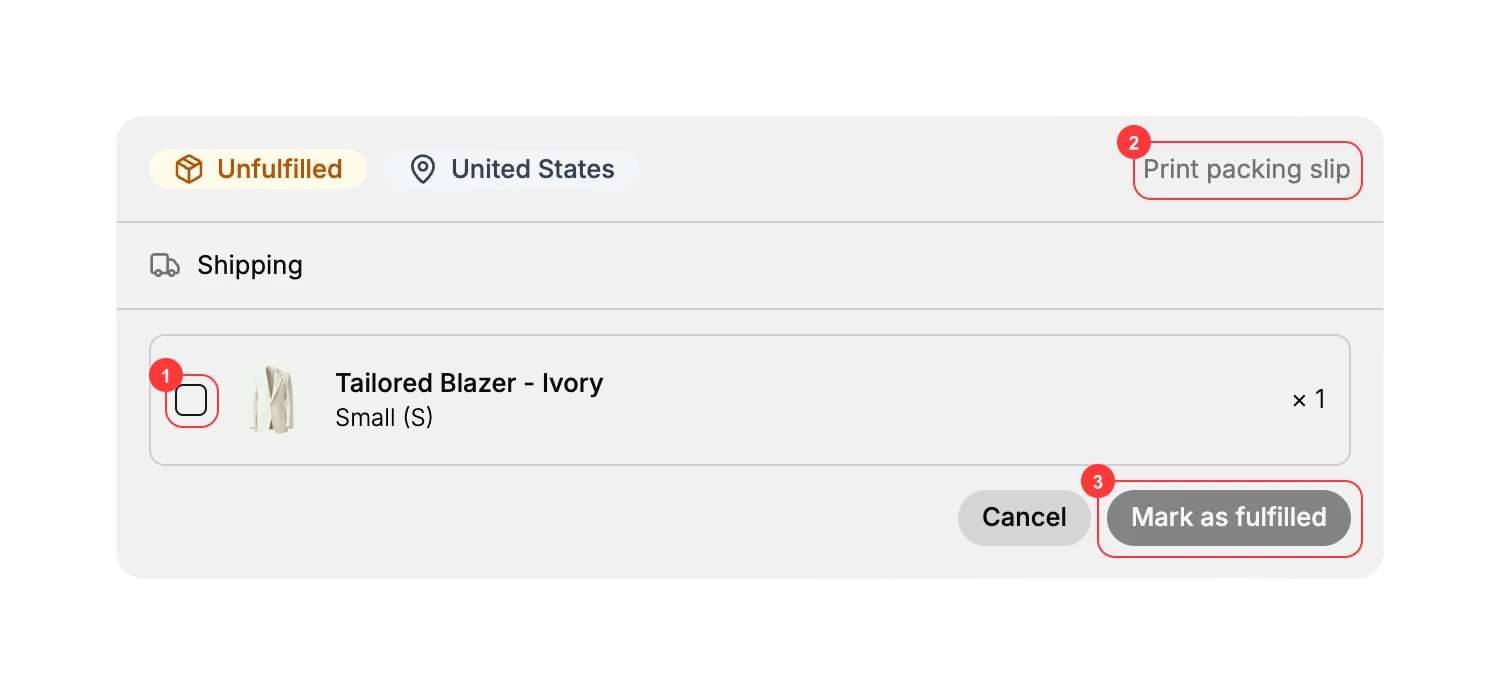
When you start fulfilling, the fulfillment card shows each item with a checkbox to tick, a Print packing slip option, and Cancel and Mark as fulfilled buttons. The Mark as fulfilled button stays inactive until you tick at least one item.
Before you begin
- Your role includes Edit orders.
- The order has unfulfilled items that are ready to ship.
- Open Orders and open the order you want to fulfill, then use its fulfillment card.
Steps
1. Start fulfilling
On the order's fulfillment card, select Mark as fulfilled. The card switches to its fulfill state, with a checkbox next to each item.
2. Tick the items you are shipping
Tick the checkbox next to each item that is going out (1). You can fulfill all of the items or only some of them, which leaves the rest to fulfill later.
3. Print the packing slip if you need it
If you want the slip that goes inside the parcel, select Print packing slip (2). This step is optional. Customize Packing Slips covers what the slip shows and how to change it.
4. Confirm the fulfillment
Select Mark as fulfilled (3) to confirm. The order moves to Fulfilled for the items you ticked. To back out without fulfilling anything, select Cancel instead.
Verify the result
- The items you ticked show as fulfilled on the order.
- If you fulfilled only some of the items, the rest are still listed as unfulfilled and can be fulfilled later.
What fulfilling changes on the order
Fulfilling records what has physically left your hands. The items you ticked move to Fulfilled, and that state is what you and your team read later when you need to know whether an order has gone out.
One setting elsewhere in the admin reacts to this. Automatically archive orders, under Settings, then General, in the Order processing section, files an order away on its own once it is fulfilled. If that option is on, an order you fulfill leaves your active list at the same moment, which is worth knowing before you go looking for it. See Order Processing Settings.
Ticking only some of the items is a normal way to work rather than a special case. The order then holds two groups at once: the items you have sent, which are fulfilled, and the items still to go, which stay unfulfilled. You come back to the card and repeat this flow when the rest goes out, which is how an order that ships in two parcels on two different days ends up recorded accurately instead of looking as though it all left at once.
Because the status is a claim about the real world, the moment you fulfill matters. Fulfilling while you are still packing tells everyone reading the order that the parcel has gone when it has not, and that gap is what turns into a customer asking where their order is.
What fulfilling does not do
Two jobs sit next to fulfillment and are often assumed to be part of it. They are separate actions, and this flow does not do either of them for you.
- Buying a shipping label is its own step on the order. See Buy a Shipping Label.
- Adding a tracking number is also separate, and it is the part that gives the customer something to follow. See Add a Tracking Number.
Fulfilling without doing either is still valid. The status says the parcel has gone, which is all it claims; the label and the tracking are about how it travels and how the customer watches it.
Best practices
- Fulfill only once the parcel has actually gone out, since fulfilling tells the order it has shipped.
- Tick only the items that are really in the parcel, so a partly shipped order shows the rest as still to fulfill.
- Add the tracking number after you fulfill, so the customer can follow the parcel. See Add a Tracking Number.
Common mistakes
- Marking an order fulfilled before it ships, which tells the customer it is on the way when it is not.
- Fulfilling every item when only some shipped, which hides that the rest still need to go out.
- Forgetting to add tracking, so the customer has no way to follow the parcel.
Next steps
Related articles
Still stuck?
- Ask Tanqory AIAsk in your own words. It answers from these articles and links the ones it used.
- Ask in your adminThe assistant in your Tanqory admin answers and makes the change for you once you confirm.
- Contact TanqoryWrite to our privacy, security or legal teams, or talk to sales about a plan or a move.