Order Processing Settings
Order processing decides what Tanqory does with an order on its own: whether line items fulfill automatically, and whether fulfilled orders are archived. You set both in Settings, General.
On this page
Order processing sets what Tanqory does with an order automatically. You choose an order fulfillment rule that decides whether line items are fulfilled on their own, and a separate option that archives orders once they are fulfilled. Choosing the right rules here saves manual steps on every order and keeps your active orders list tidy. You find them in Settings, then General, in the Order processing section.
Before you begin
- Your role includes General settings.
- Open Settings and open General, then scroll to Order processing.
What you can set
| Control | What it does |
|---|---|
| Order fulfillment | Chooses whether orders fulfill automatically: all line items, only gift cards, or none |
| Automatically archive orders | Archives an order on its own once it is fulfilled |
The fulfillment options
| Option | What it means |
|---|---|
| Automatically fulfill line items in orders | Every line item is fulfilled automatically when the order is placed |
| Automatically fulfill only gift cards | Only gift card items fulfill automatically; other items wait for manual fulfillment |
| Don't automatically fulfill line items in orders | Nothing fulfills automatically, so you fulfill each order yourself |
Set up order processing
From the admin, open Settings, then General, and scroll to Order processing. It holds the Order fulfillment options and the Automatically archive orders checkbox.
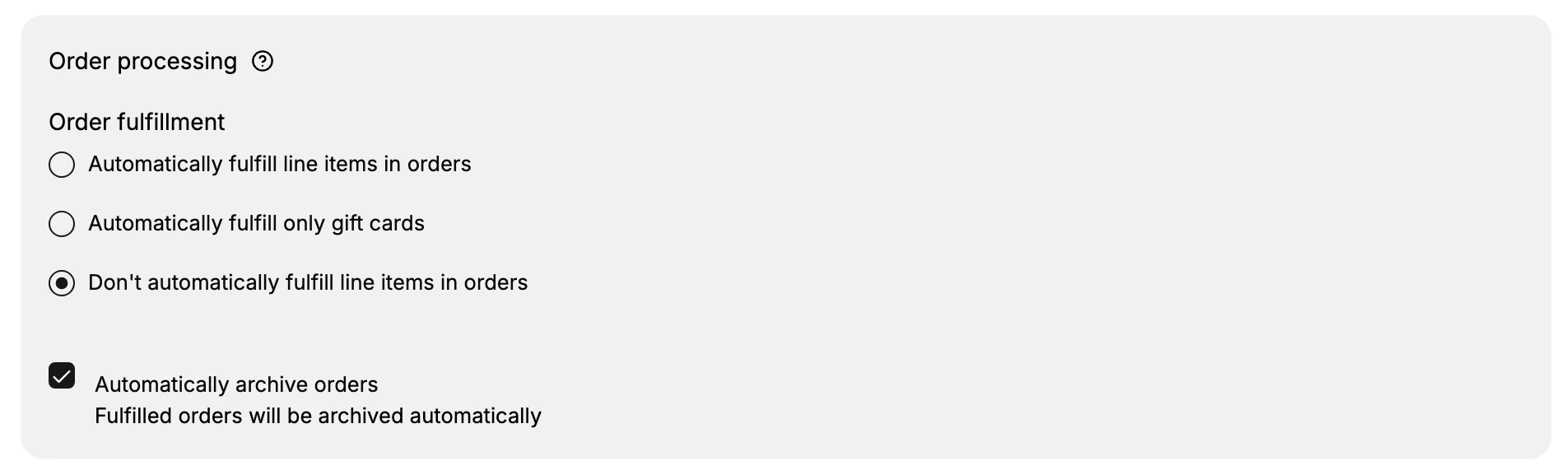
- Choose an order fulfillment rule. The Order fulfillment options are three choices, and only one applies at a time. Automatically fulfill line items in orders marks every item fulfilled as soon as the order is placed. Automatically fulfill only gift cards fulfills gift card items on their own while other items wait for you. Don't automatically fulfill line items in orders, selected on this store, leaves fulfillment to you. Pick the one that matches how you ship, because it decides whether an order is marked fulfilled before it actually leaves your hands.
- Set automatic archiving. The Automatically archive orders checkbox archives an order once it is fulfilled, as the note "Fulfilled orders will be archived automatically" explains. It is on for this store. Leaving it on keeps completed orders out of your active list, so the orders you still need to act on are easier to see.
- Save your changes. When you change a fulfillment rule or the archive option, an unsaved-changes bar appears at the top of the General page with Save and Discard, the same bar used for the other defaults. Select Save to apply the rules to orders going forward.
Best practices
- Leave physical goods on manual fulfillment. Choose Don't automatically fulfill unless something else fulfills orders for you, so an order is never marked fulfilled before it ships.
- Use gift-card-only fulfillment when it fits. If you sell gift cards alongside physical goods, Automatically fulfill only gift cards clears the digital items without touching the rest.
- Keep automatic archiving on. It keeps your active orders list focused on the orders that still need work.
- Change these deliberately. The rules apply to every new order, so confirm the choice before you save.
If something goes wrong
- Orders are marked fulfilled before they ship. Switch the fulfillment rule away from automatic to Don't automatically fulfill.
- Fulfilled orders clutter the active list. Turn on Automatically archive orders.
- A change did not take effect. Make sure you selected Save in the unsaved-changes bar rather than leaving the page.
- You cannot edit the options. Your role may not allow managing settings. Ask an owner or admin.
Next steps
Related articles
Still stuck?
- Ask Tanqory AIAsk in your own words. It answers from these articles and links the ones it used.
- Ask in your adminThe assistant in your Tanqory admin answers and makes the change for you once you confirm.
- Contact TanqoryWrite to our privacy, security or legal teams, or talk to sales about a plan or a move.