General Settings
The General settings page is the hub for your store configuration: store details, defaults like currency and timezone, order numbering and processing, branding, resources, and ownership, all on one page.
On this page
The General settings page is the hub for your store's core configuration. It gathers your store details, defaults like currency and timezone, how order numbers are formed and processed, custom data and branding, useful resources, and organization and ownership controls, all on a single page. You open it under Settings, on the General page. This article maps the seven sections so you know where each setting lives and which detailed guide to follow next.
What's on the page
| Section | What it covers |
|---|---|
| Store details | Your store name, contact email and phone, and billing address |
| Store defaults | Default currency, backup region, unit system, weight unit, and store timezone |
| Order ID format | The prefix and suffix that shape your order numbers |
| Order processing | How orders are fulfilled, and whether fulfilled orders are archived |
| Custom data and branding | Custom store data and your brand identity (logo, colors, and assets) |
| Resources | Links to What's new, the help center, developer resources, keyboard shortcuts, and the store activity log |
| Organizations and Store Transfers | Organization membership, transferring ownership, and migrating the store into an organization |
Before you begin
- Your role includes General settings. Some actions, such as transferring ownership, are limited to the owner.
- Open Settings > General to open general settings.
The sections in detail
From the admin, open Settings, then General. The page is one long list of sections you can scroll through: Store details (1), Store defaults (2), Order ID format (3), Order processing (4), Custom data and branding (5), Resources (6), and Organizations and Store Transfers (7).
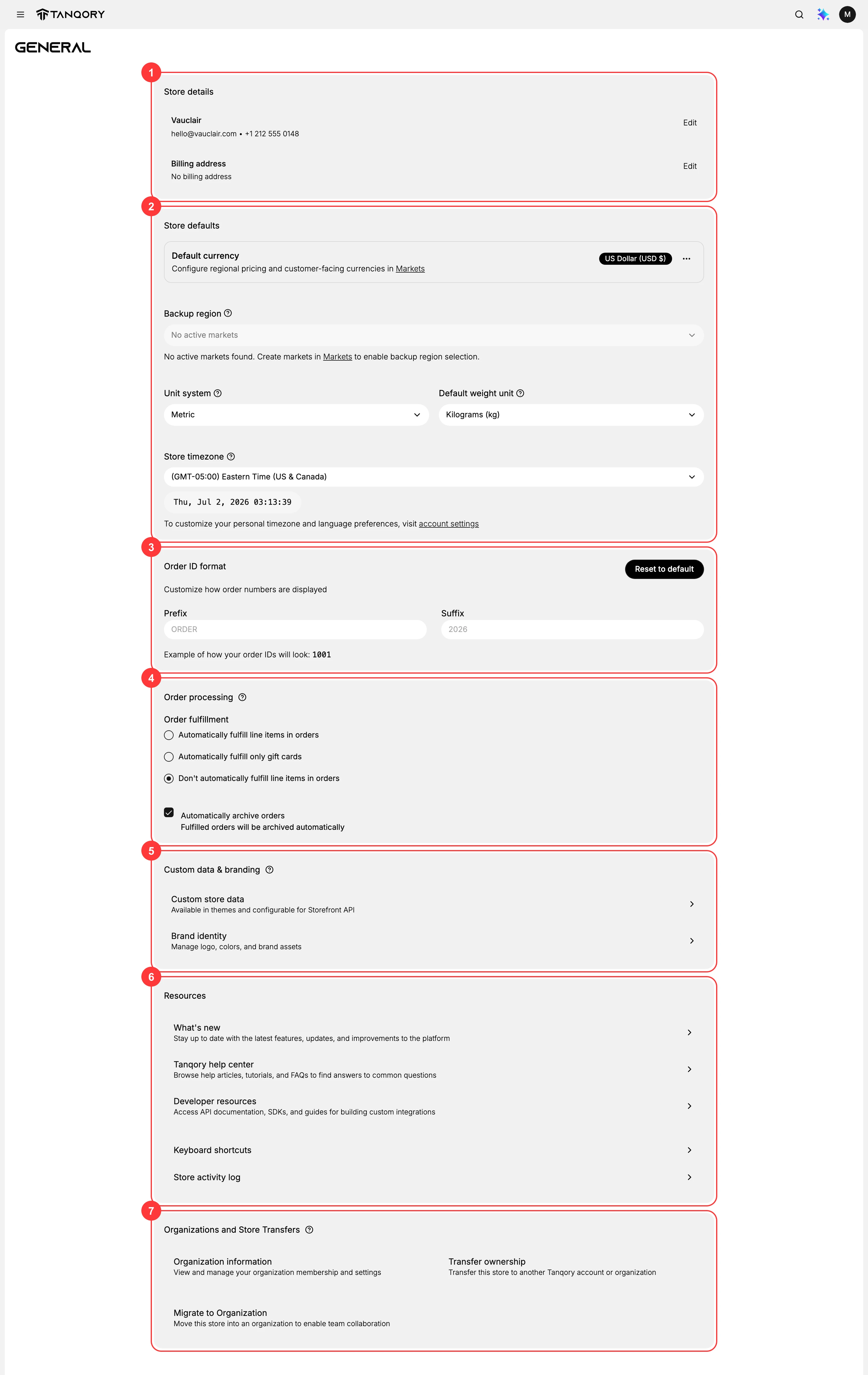
- The Store details section (1) shows your store name, its contact email and phone, and the billing address, each with an Edit link. Keep these current, because the contact details are how Tanqory and your customers reach the store, and the billing address appears on your invoices. See Store Details.
- The Store defaults section (2) sets the store-wide defaults: the Default currency, a Backup region, the Unit system, the Default weight unit, and the Store timezone. These shape how prices, weights, and times appear across the admin, so setting them correctly at launch avoids reworking products and orders later. Regional pricing and customer-facing currencies are configured in Markets, and your personal timezone and language are set in account settings. See Store Defaults.
- The Order ID format section (3) controls how order numbers read, with a Prefix and a Suffix around the number and a live example of the result. Set these to match how your team refers to orders, and use Reset to default to return to the standard format. See Order ID Format.
- The Order processing section (4) decides what happens to an order automatically. Under Order fulfillment you choose whether to automatically fulfill line items, fulfill only gift cards, or not fulfill automatically, and a separate option archives fulfilled orders on its own. Choosing the right rules here saves manual work on every order. See Order Processing Settings.
- The Custom data and branding section (5) holds two entries. Custom store data is data available in themes and to the Storefront API, and Brand identity is where you manage your logo, colors, and brand assets. Use these to carry your brand and any custom fields through the storefront.
- The Resources section (6) links out to help you run the store: What's new for recent updates, the Tanqory help center for articles, Developer resources for API documentation, Keyboard shortcuts, and the Store activity log. These are references rather than settings you change. See Keyboard Shortcuts.
- The Organizations and Store Transfers section (7) is where ownership and organization membership live. Organization information shows your membership and settings, Transfer ownership moves the store to another Tanqory account or organization, and Migrate to Organization moves the store into an organization for team collaboration. Because these change who controls the store, they are owner-level actions to use with care.
Best practices
- Set the store defaults at launch. Currency, unit system, and timezone affect products, orders, and reports, so getting them right first avoids rework later.
- Keep store details current. Update the contact email, phone, and billing address whenever your company details change.
- Choose order processing to match your flow. Pick the fulfillment and archive rules that fit how your team works so routine steps happen on their own.
- Treat ownership actions with care. Transfer and migrate change who controls the store, so confirm the destination before you use them.
Next steps
Related articles
Still stuck?
- Ask Tanqory AIAsk in your own words. It answers from these articles and links the ones it used.
- Ask in your adminThe assistant in your Tanqory admin answers and makes the change for you once you confirm.
- Contact TanqoryWrite to our privacy, security or legal teams, or talk to sales about a plan or a move.