Store Defaults
Store defaults sets the store-wide values new products, orders, and reports inherit: the default currency, a backup region, the unit system, the default weight unit, and the store timezone.
On this page
Store defaults sets the store-wide values that new products, orders, and reports inherit: the default currency, a backup region, the unit system, the default weight unit, and the store timezone. Setting them correctly at launch matters, because they shape how prices, weights, and times appear across the admin, and changing some of them later affects data you already have. You find them in Settings, then General, in the Store defaults section.
What you can set
| Setting | What it controls |
|---|---|
| Default currency | The currency your store bills and reports in |
| Backup region | A fallback region, available once you create markets in Markets |
| Unit system | Metric or imperial, which sets the measurement defaults |
| Default weight unit | The weight unit new products use, such as kilograms |
| Store timezone | The timezone that timestamps and reports are based on |
Before you begin
- Your role includes General settings.
- Open Settings > General in the admin sidebar. The Store defaults section is on that page.
Set the store defaults
From the admin, open Settings, then General, and scroll to Store defaults. It holds the Default currency (1), the Backup region (2), the Unit system (3), the Default weight unit (4), and the Store timezone (5).
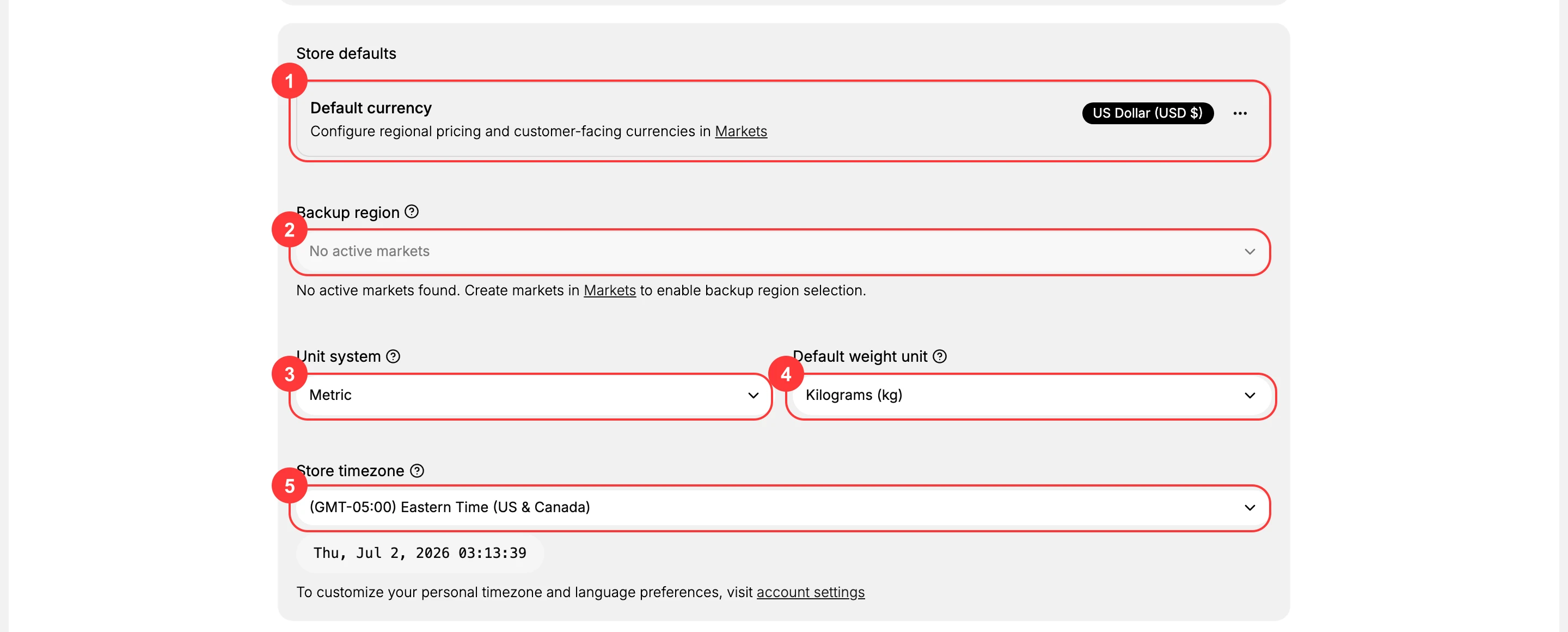
- Default currency. The Default currency (1) is the currency your store bills and reports in, here US Dollar (USD $). This is your base currency; regional pricing and the currencies customers see are configured separately in Markets, as the note on the card explains. Because reporting is based on this currency, choose it deliberately at the start.
- Backup region. The Backup region (2) is a fallback region used when one is needed. On this store it reads No active markets, and the note explains that you create markets in Markets first to enable a backup region selection. Until you have an active market, this field stays empty by design.
- Unit system. The Unit system (3) sets whether measurements default to metric or imperial, here Metric. Pick the system your primary market expects, because it sets the measurement defaults new products start from and keeps weights and dimensions consistent.
- Default weight unit. The Default weight unit (4) is the weight unit new products use, here Kilograms (kg). It follows naturally from the unit system, so set it to the unit you weigh and ship in to avoid converting figures on every product.
- Store timezone. The Store timezone (5) is the timezone your store's timestamps and reports are based on, here set to Eastern Time (GMT-05:00), shown with the current store time. Set it to the timezone your operations run on, because report day boundaries follow it. Your own personal timezone and language are set separately in account settings, as the note explains.
- Save your changes. When you change any default, an unsaved-changes bar appears at the top of the page with Save and Discard. Select Save to apply the change, or Discard to drop it. The new default then takes effect for products, orders, and reports going forward.
Best practices
- Set the defaults before you add products or take orders. New products and orders inherit them, so getting them right first avoids reworking data later.
- Match the store timezone to your operations. Report day boundaries follow this timezone, so align it with the team that reads the reports.
- Use Markets for regional currencies. The default currency is your base; the currencies customers see are configured in Markets.
- Pick the unit system for your primary market. The default weight unit follows from it, keeping shipping figures consistent.
If something goes wrong
- Backup region is empty or disabled. You have no active markets. Create a market in Markets to enable a backup region.
- Reports use the wrong day boundaries. Check the store timezone, since reporting groups by it.
- A change did not take effect. Make sure you selected Save in the unsaved-changes bar rather than leaving the page.
- You cannot edit the defaults. Your role may not allow managing settings. Ask an owner or admin.
Next steps
Related articles
Still stuck?
- Ask Tanqory AIAsk in your own words. It answers from these articles and links the ones it used.
- Ask in your adminThe assistant in your Tanqory admin answers and makes the change for you once you confirm.
- Contact TanqoryWrite to our privacy, security or legal teams, or talk to sales about a plan or a move.