Change Store Currency
The Store currency dialog sets the primary currency your store uses for default pricing and financial operations. You open it from the Default currency row in Store defaults and pick the currency from a dropdown.
On this page
The Store currency dialog is where you set the primary currency your store uses. As the dialog explains, this is the currency for your store's default pricing and financial operations, so it is the base your prices and totals are kept in. You open it from Settings, then General, in the Store defaults section, by opening the menu on the Default currency row and choosing Change store currency. This sets the store's own base currency; the currencies customers see by region are configured separately in Markets.
What's in the dialog
| Control | What it does |
|---|---|
| Store currency | A dropdown to choose the primary currency for your store |
| Cancel | Closes the dialog without changing the currency |
| Save | Applies the selected currency |
Before you begin
- Your role includes General settings.
- Open Settings > General in the admin sidebar. In Store defaults, select the store currency to open the dialog.
Change your store currency
From the admin, open Settings, then General. In the Store defaults section, find the Default currency row, open its menu, and select Change store currency. The Store currency dialog opens with a note that you are choosing the primary currency for your store's default pricing and financial operations.
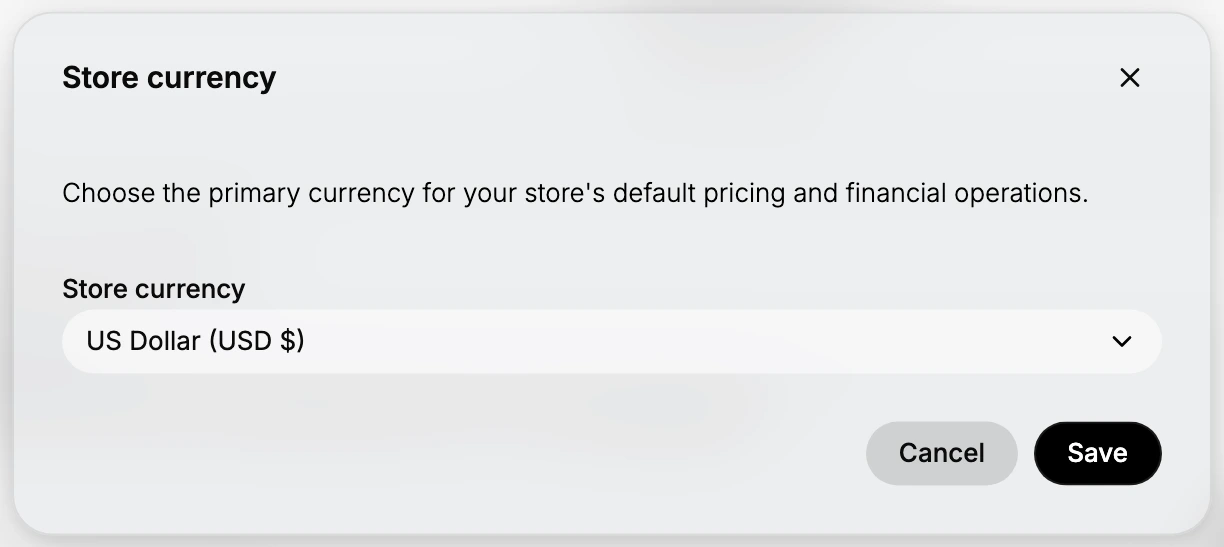
- Choose the store currency. Open the Store currency dropdown and select the currency you want as your store's primary currency. On this store it is set to US Dollar (USD $). Choose the currency your store keeps its books and default prices in, since this is the base every price is stored against.
- Save the change. Select Save to apply the currency, or Cancel to close the dialog without changing it. Because this is your store's base currency, set it deliberately and confirm the choice is right before you save.
Best practices
- Set the base currency once, early. This is the currency your store's pricing and financials are kept in, so choose it at setup and leave it stable.
- Use Markets for customer-facing currencies. The currencies customers pay in by region are set in Markets, not here, so this dialog is only for your store's base currency.
- Confirm before saving. The dropdown changes the primary currency for your whole store, so check the selection before you save.
If something goes wrong
- You do not see your currency. Open the dropdown and scroll or type to find it; the list holds the available currencies.
- You want different currencies per region. That is set in Markets, not in this dialog, which only sets the store's base currency.
- You cannot change the currency. Your role may not allow managing settings. Ask an owner or admin.
Next steps
Related articles
Still stuck?
- Ask Tanqory AIAsk in your own words. It answers from these articles and links the ones it used.
- Ask in your adminThe assistant in your Tanqory admin answers and makes the change for you once you confirm.
- Contact TanqoryWrite to our privacy, security or legal teams, or talk to sales about a plan or a move.